Architectural Overview
This chapter provides an overview of the architecture of the QAD user interfaces. It describes the various components you will install and configure and discusses issues you should understand as you begin to plan your installation.
QAD .NET UI Architecture
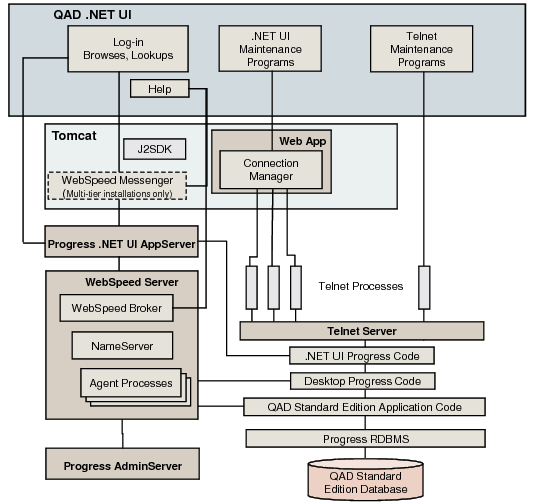
QAD .NET UI Architecture summarizes the QAD .NET UI architecture:
QAD .NET UI Architecture
Tomcat Web Application Server
The QAD .NET UI uses the Tomcat Servlet/JSP container to manage the communication between .NET UI client sessions and QAD Standard Edition. The QAD .NET UI media includes a customized version of Tomcat, which is the recommended version to use. It is installed as part of the installation script.
The QAD .NET UI is installed as a client application under Tomcat. After files are installed, you must configure the UI Connection Manager with installation-specific settings to control and manage the pool of telnet sessions on the telnet server.
Components of the Java Development Kit (JDK) are required by Tomcat.
In a multi-tier environment (see
Multi-Tier Installation Overview), when Tomcat is on a different host than the WebSpeed server, you must install the WebSpeed Remote Messenger under Tomcat to support communication with WebSpeed. If you use multiple Tomcat servers, each should have the same version of Tomcat and JDK installed.
QAD and Progress Components
The QAD .NET UI provides a user interface for updating and viewing data in a QAD Standard Edition database. QAD Standard Edition must exist in your environment before you begin implementing a UI. This guide assumes you have already installed and configured it.
In addition to the Progress software required for QAD Standard Edition, the QAD .NET UI uses the Progress AppServer.
Telnet Server
The QAD .NET UI uses a telnet server for two purposes:
• On the database server, it is used to run a pool of telnet sessions that support maintenance programs, reports, and inquiries.
• It enables the client terminal interface for a limited subset of QAD Standard Edition programs and any custom programs that do not conform to QAD programming standards.
If you plan to use a UNIX machine for the telnet server, you can use the default telnet service provided with the operating system. If you plan to use a Windows machine for the telnet server, you must use the Georgia SoftWorks telnet server software. This software is included on the QAD UI installation media.
Planning a QAD .NET UI Installation
Before you begin, plan where each distributed component will be installed. Make sure that:
• The user account you plan to use on each server has administrator access.
• The shared staging directory for the configuration .ini file is accessible from all host machines and you have read/write access to it from all servers, or that the file transfer mechanism you plan to use is working properly for all servers.
• If a full WebSpeed installation is not possible on the application server, the free WebSpeed Messenger has been installed. See
Install WebSpeed Messenger.
Installations are typically performed for multiple environments — pilot, production, training, development, and so on. Each QAD UI system has a unique name, which is reflected in the QAD Standard Edition and Tomcat directory structures:
• QADInstallDir\qaduiConfig
• TomcatInstallDir\webapps\qaduiConfig
A list of top-level directories created beneath these directories and a description of their content are found in
Installed Components.
Note: As a general rule, do not install the QAD .NET UI in a production environment until you have installed it in a test environment.
Single-Tier Installation Overview
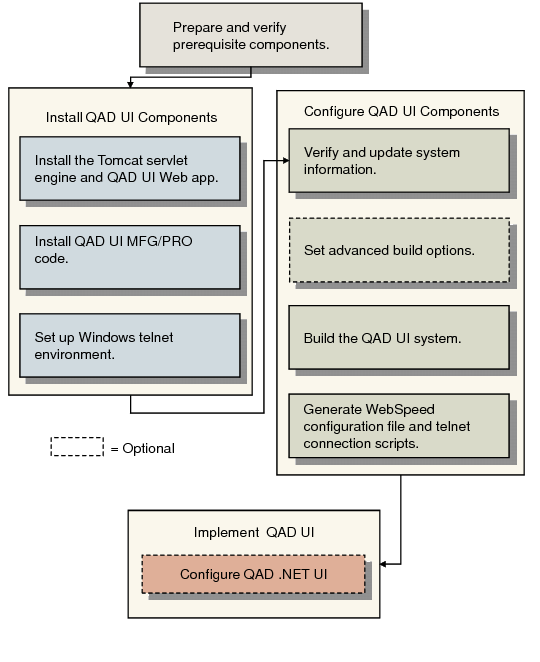
Single-Tier Configuration Work Flow summarizes the installation and configuration activities for a single-tier QAD UI environment.
Single-Tier Configuration Work Flow
Multi-Tier Installation Overview
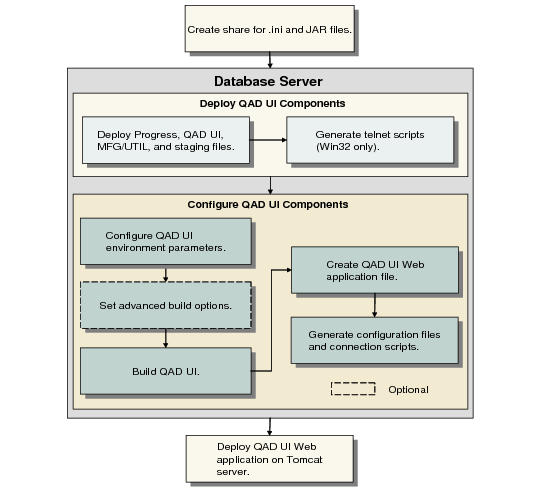
Multi-Tier Configuration Work Flow summarizes the installation and configuration activities for a multi-tier QAD UI environment.
Multi-Tier Configuration Work Flow
Several deployment options are possible. Two common scenarios are the standard two-tier installation and the isolated database installation.
Standard Two-Tier Installation
In a standard two-tier installation, the QAD Standard Edition database server hosts most—if not all—of the system and Progress components. A second server hosts Tomcat and the UI Web application. WebSpeed Messenger must be installed on the Tomcat server.
Isolated Database Installation
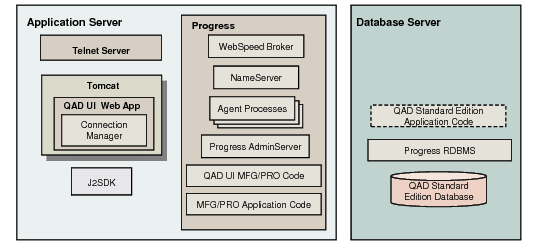
Another type of two-tier deployment supports a dedicated database server. The installation, compile, and configuration occur on the Tomcat server. This two-tier deployment works well in regulated environments where any change to the database server configuration requires validation.
All user interface and related components are installed and configured on the Tomcat server. Communication between the servers occurs using client networking. A full Progress installation, including WebSpeed, is required on the Tomcat server.
Isolated Database Server Deployment
In this arrangement, having the QAD Standard Edition code on the database server is not required, but increases performance for disk-intensive tasks such as MRP and batch processing.