Verify and Update System Information
Complete this section to set QAD UI build parameters.
1 Start the database servers:
./start.Production
2 In MFG/UTIL, choose UI|Configure UI Environment Parameters.
3 If MFG/UTIL detects a new UI configuration, you are asked whether this is a Progress database configuration. Choose No if the new configuration is for an Oracle database; otherwise, choose Yes.
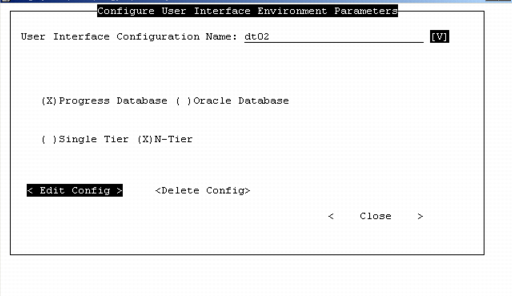
4 The Configure User Interface Environment Parameters screen displays. Select the name of the system you are configuring and choose Edit Config.
Configure UI Environment Parameters
5 The system gathers configuration information and the configuration screen displays.
The screen differs slightly depending on the server operating system and database type. Some fields display only for Oracle database environments; the use of these fields is detailed in the field descriptions.
First Multi-Tier Configuration Screen
QAD UI System Information
The first set of fields prompts for information related to your QAD UI configuration.
Database Set Name
The database set this UI connects to.
QAD ERP Language Code
Select the language you want to use for screen displays.
User Interface Install Directory
Verify the location of the Desktop configuration installation directory.
Java Home for JAR build
This field displays only for a multi-tier installation. It displays the database server JAVA_HOME, which is used by MFG/UTIL to build archive files and run the QAD UI build. The Tomcat server and database server JAVA_HOME values will likely be different.
QAD ERP Version
Verify the version.
Absolute Path to Oracle Install
(Not shown) This is the path to the Oracle installation directory, also known as ORACLE_HOME.
Java Home for JAR Build
This field displays only for a multi-tier installation. It displays the database server JAVA_HOME, which is used by MFG/UTIL to build archive files and run the QAD UI build. The Tomcat server and database server JAVA_HOME values will likely be different.
Oracle System Identifier Name.
(Not shown) Enter the Oracle System Identifier (ORACLE_SID). This is the environment variable for the Oracle database and is typically the same as the Oracle database name.
ORASOPATHNAME
(UNIX only, not shown) Enter the path to ORACLE_HOME/lib/libclntsh.xx client library, where xx refers to the Oracle version. Your specific Oracle version and system configuration define whether this parameter must be set and the specific setting. Refer to your Oracle documentation for details.
Service Pack Directory
If your install includes a separate service pack installation, enter the service pack directory here. The appropriate service pack directories—BaseServicePackDir and the BaseServicePackDir/xrc—are automatically added to the QAD UI compile PROPATH.
PROPATH
Use this field to enter any additional values for the PROPATH. The PROPATH for the build process requires the following directories, in this order:
• QAD UI install directory
• Current directory (.)
• QADInstallDir
• QADInstallDir/us/xrc
All directories specified in the PROPATH must exist.
Important: Add custom and patched code directories to the end of the value in PROPATH.
Second Multi-Tier Configuration Screen
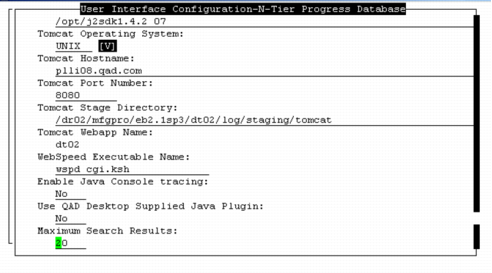
Tomcat and WebSpeed Configuration Fields
This set of fields contains Tomcat information.
JAVA HOME
Verify the location of your Java installation.
Tomcat Operating System
Verify the operating system for the server where Tomcat resides.
Tomcat Hostname
Enter the fully qualified host name of the Tomcat server.
Tomcat Port Number
This value is automatically populated with 8080. Change this value as needed.
Note: If you do not accept 8080, you must manually update the Tomcat server configuration file with the new port.
Tomcat Stage Directory
For multi-tier deployments, the staging directory where the Tomcat files were placed during the installation. MFG/UTIL customizes these files for your Tomcat server.
Tomcat Webapp Name
The name of your QAD UI configuration.
WebSpeed Executable Name
Enter cgiip.exe for Windows, wspd_cgi.ksh for UNIX.
Note: The WebSpeed Messenger executable must be located in the Tomcat cgi directory:
TomcatInstallDir/webapps/qaduiConfig/WEB-INF/cgi/
Java and Search Default
This set of fields contains Java Virtual Machine (JVM) and QAD UI search information.
Enable Java Console Tracing
Enter Yes to send trace messages to the Java JVM Console. To view the messages, you must also enable the console. Enabling trace may adversely affect performance. If you enable trace for debugging purposes, you must rebuild QAD UI to disable this option later.
Use QAD Desktop Supplied Java Plugin
The plug-in is now called the Java Virtual Machine (JVM). Indicate how you want to manage the JVM version for client sessions.
• Set to No to have UI clients use a JVM already installed on the client machine. If no JVM exists, or the minimum version is not found, the QAD-supplied version is downloaded.
• Set to Yes to have all clients use the JVM supplied on the QAD UI installation media. If other versions of Java exist on the client, they are not replaced and can continue to be used by applications other than the .NET UI.
To change this value at a later time, you must rebuild your QAD UI system.
Maximum Search Results
By default, the search function in the .NET UI returns 20 records at a time. You can change this value by specifying a different number here.
6 Choose OK to save the configuration.
7 Choose Close to exit to the main menu.