Building Languages with Compatible Code Pages
Because English is a subset of all other code pages, English can be combined in a single database with any other language. In this scenario, you should build the Desktop UI for the languages that share the database code page first; then build the Desktop UI for English. Follow these steps:
1 Launch MFG/UTIL and choose UI|Configure UI Environment Parameters. Build the languages with the same code page as the database first.
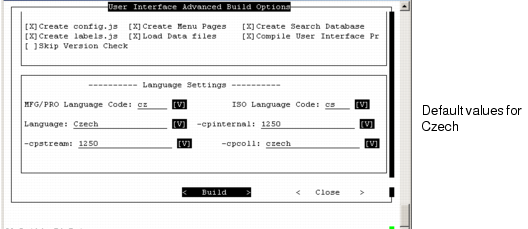
2 After specifying parameters, choose UI|Build UI Configuration. Review the settings and complete the build for the first language. Default language settings should not need to be changed. In
Advanced Build Options for Czech, the language being built is Czech.
Advanced Build Options for Czech
3 Now choose UI|Build QAD UI for the English language. Choose the same QAD UI configuration to build.
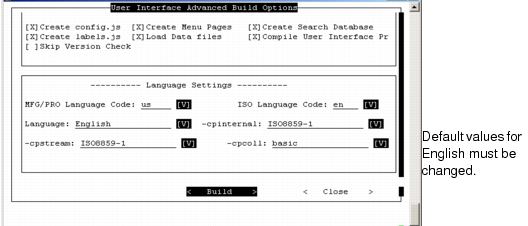
4 Choose Advanced in the Verify and Build screen. In the Advanced Build Options screen, choose US as the QAD ERP (MFG/PRO) language code from the drop-down list. English values default to the other language-related fields and must be changed.
Default Values for English
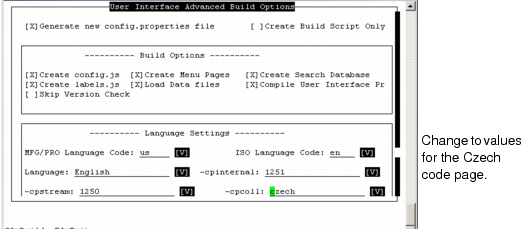
5 Change the value of the marked fields to match values of the database code page. In this example, these were default values for Czech.
Building English with a Czech Database
6 Choose Build to complete the process.