Implementing GTM
An automated setup program can create most of the codes you need to implement GTM, based on how your VAT taxes are defined. Before executing this program, you should understand the options it provides and the default logic it uses.
Country Codes and Tax Environments
The first step in implementing VAT taxes in GTM is to ensure that all countries are defined in Country Code Maintenance (2.14.1). Countries that are part of the European Community must have the EC field set to Yes. This is important because two options are available during the automated setup:
1 You can create tax zones and tax environments with countries summing into one of two predefined tax zones: union and non-union. To do this, you must specify a code representing the union. By default, this is EU. The system then creates two tax zones—EU and NON-EU. These zones correspond to special country code values of ~1 (EU) and ~0 (NON-EU).
This approach results in a minimum number of tax environments:
• One environment for each country defined in the country master.
• IN-EU for transactions within the union but outside the borders of one country.
• FROM-EU for transactions between a member of the union and a nonmember.
• TO-EU for transactions from a nonmember to a member of the union.
• NON-EU for transactions between two countries that are both nonmembers of the union.
2 You can create tax zones and environments based on each defined country without summing into a union. This option results in the maximum number of tax environments—one for each combination of ship-from and ship-to countries. If, for example, you do business with 10 countries, 100 tax environments are created.
If you choose this option, you do not need to specify a union code, and the setup program does not create the EU and NON-EU zones or the ~1 and ~0 countries.
Defining Custom Tax Class and Usage Codes
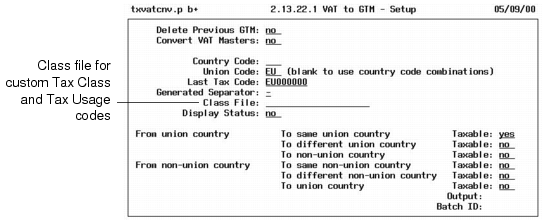
By default, the conversion setup generates tax classes that correspond to your VAT classes, without associated GTM tax usage codes. You can override this by creating your own map for the setup program and specifying it in the Class File field. The same class file is also referenced in the programs that convert master data and transaction records.
Class File in VAT to GTM–Setup (2.13.22.1)
You should create a class file if:
• Your company plans to change tax class codes during the conversion.
• Within a tax class, a company can be taxed based on its nature of operation or the way it intends to use an item. In GTM, these conditions are identified by tax usage codes.
The class file is an ASCII file with text strings in the following format:
“Current VAT Class” “GTM Tax Class” “GTM AP Tax Usage” “GTM AR Tax Usage”
GTM tax classes are a maximum of three characters, and tax usage codes are eight characters. An unused optional value is represented by a null string (“ ” or “”).
The class file can have any name or extension. However, code values in .csv files must be separated by commas instead of blank characters. The file must be located in the home directory for the Progress session.
Note: A .csv file is a Windows comma-separated value file format for saving values recorded in a spreadsheet.
The class file accommodates companies that use different tax class and/or tax usage codes for AP and AR processing. If you use one set of codes for both kinds of tax processing, simply specify the same usage code for both.
Example: Your current VAT classes are 1 and 2. You want to map VAT class 1 to GTM tax class A, tax usage code FOOD, and VAT class 2 to GTM tax class B, tax usage DRUG.
“1” “A” “FOOD” “FOOD”
“2” “B” “DRUG” “DRUG”
AP and AR usage codes are applied differently during the conversion to master records and transactions.
AP and AR Usage Codes
Usage Code | Applied to... |
AP Usage Codes | The master conversion applies AP usage codes to supplier records. The transaction conversion uses them to update purchasing and accounts payable records. |
AR Usage Codes | The master conversion applies AR usage codes to customers, warranty types, and contract types. The transaction conversion uses them to update sales, accounts receivable, and service/support management transactions. |
Processing Logic
VAT to GTM–Setup creates records as described in
New GTM Records.
New GTM Records
Type of Record | Explanation |
Tax zones | Based on the value of Union Code, setup builds the tax zone hierarchy for EU and non-EU countries in your current system or tax zones for all countries. |
Tax types | Setup creates a tax type of VAT and NON-TAX. |
Tax environments | Based on the value of Union Code, setup generates sums-into tax environments or environments for all ship-to/ship-from country combinations. |
Tax rates | Based on VAT rates, setup generates tax rates for the tax jurisdictions and percentages used in your current system, as well as a nontaxable tax rate. |
Tax classes | By default, setup generates tax classes based on your current VAT classes and a NOT-TAX class for nontaxable transactions. |
Tax usages | By default, setup does not generate tax usages. However, you can create these with a class file. |
Country code | The setup generates a record for the default country code you specify when you run the setup. If you enter a union code, setup creates ~1 and ~0 country codes. |
Company addresses and address list types | In GTM, company sites require a corresponding company address record because taxes are calculated by address, not site. The setup verifies that each company site has an address record and creates any missing ones, along with any needed address list type records. The setup also creates a ~taxes address record to provide a default tax address whenever a transaction is missing a company site code. |
GTM Control Settings
Setup defines Global Tax Management Control (2.13.24) as described in
Updates to GTM Control Settings.
Updates to GTM Control Settings
Field | Explanation |
Country Code | Value specified in VAT to GTM–Setup |
Tax Method | 01 |
Tax-By-Line | No |
Accrue Tax at Receipt | No |
Discount Tax at Invoice | Same setting as in VAT Control (2.15.2.24) |
Discount Tax at Payment | Same setting as in VAT Control (2.15.2.24) |
Last Tax Code | Value specified in VAT to GTM–Setup |
VAT to GTM–Setup
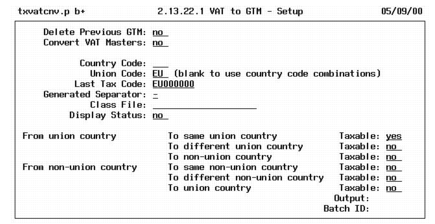
Based on your implementation decisions, use VAT to GTM–Setup (2.13.22.1) to set up GTM for VAT tax processing.
VAT to GTM–Setup (2.13.22.1)
Delete Previous GTM
This option determines whether the setup deletes previously created GTM records from the database. If you select this option, the setup deletes tax zones, tax types, tax environments, transaction tax details, and other GTM records.
• Enter No if you have not yet converted your database to GTM.
• Enter Yes to clean up the database if it contains GTM records from unsuccessful conversion or installation attempts.
Convert VAT Masters
This option determines whether setup generates GTM records based on country codes and VAT classes.
• Enter Yes to create GTM records corresponding to VAT classes.
• Enter No if you only want to delete previous GTM records and do not want the setup program to generate new GTM records.
Country Code
Enter the default country code for the GTM control program.
Union Code
Enter a three-character code (default is EU) representing the European Union if you want countries to sum into a union and non-union zone. Leave blank if you want tax environments to be created for each combination of ship-to and ship-from countries.
Last Tax Code
Enter a value to update the corresponding field in the Global Tax Management Control. In GTM, tax codes identify individual tax rates. Codes are generated sequentially based on the value of Last Tax Code in the GTM control program.
The default Last Tax Code is the union code followed by zeros. For example, for union code EU, the default Last Tax Code is EU000000. This value is recommended if you specified a value in Union Code.
If you are not summing into a union code, enter the default country code followed by zeros.
Generated Separator
Enter a character to use as a separator in system-generated tax zones and environments. Using a separator can improve the readability of the component elements of these codes.
Note: The system-generated nontaxable tax type is NON-TAX, regardless of the separator you specify.
The default separator is the dash (–), but you can enter any character. A sample GTM code that uses the dash separator is PAR–FR for Paris, France. If you do not want to use separators, enter blank. However, you cannot use blank as a separator character.
Class File
To provide custom mapping of VAT classes to GTM classes and usage codes, specify an ASCII file with conversion information. See
Defining Custom Tax Class and Usage Codes.
Display Status
This setting determines whether the system displays status messages online during the conversion. These messages list database tables and their indexes as they are converted. If you select this option, messages display on the screen and the printed report.
Taxable
Enter the appropriate values for the six possible combinations of transactions between EC countries and non-EC countries. Yes indicates the transaction is taxable.