Implementing GTM
An automated setup program creates the codes you need to implement GTM, based on how your US taxes are currently defined. Before executing this program, you should understand the options it provides and the default logic it uses.
Code Generation Rules
GTM codes for tax types, tax zones, and tax environments consist of text strings that uniquely identify the state, county, and city of a tax jurisdiction. Manual setup of these codes would be a tedious process, since there are thousands of them.
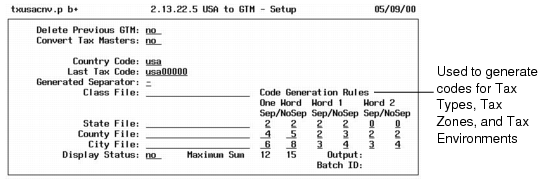
Code Generation Rules in USA to GTM–Setup (2.13.22.5)
Therefore, by default, USA to GTM–Setup creates codes based on a set of rules. These rules systematically select characters from the state code, county name, and city name in the tax master.
To determine if the generated codes are appropriate for your company, run the setup and review the audit trail. If you need a different coding scheme, read the rest of this section and settings for the code generation rules as necessary. Then, rerun the setup with Delete Previous GTM set to Yes and Convert Tax Masters set to Yes.
Default Generated Code Formats in USA to GTM– Setup (2.13.22.5)
Code | Format | Explanation |
Tax zones and tax environments | SS-CCCC-cccccc | SS is the 2-character state code, CCCC is the 4-character county name, and cccccc is the 6-character city name. Each text string is separated by a dash (–). |
Tax Types | SS-CCCC-cccccc-# | This format is the same as the previous one, except that tax types have an extra digit (#) to identify whether the tax type applies to the state (1), county (2), or city (3). |
The rules that determine the characters to select depend on two factors:
• Whether the US code or name used to generate the text string consists of one word or multiple words (text separated by blank spaces).
• Whether separator characters are used.
Code Generation Rules in USA to GTM–Setup (2.13.22.5) lists the default number of characters for each text string under the different conditions. However, you can change the number of characters and use a different separator or no separator, as long as the total number of generated characters—including the separator and any ending integers—is 16 or less.
Code Generation Rules in USA to GTM–Setup (2.13.22.5)
| One Word | Multiple Words |
| Word 1 | Word 2 |
Code | Sep | No Sep | Sep | No Sep | Sep | No Sep |
State | 2 | 2 | 2 | 2 | 0 | 0 |
County | 4 | 5 | 2 | 3 | 2 | 2 |
City | 6 | 8 | 3 | 4 | 3 | 4 |
Maximum Total Characters, With Separator | | 12 |
Maximum Total Characters, Without Separator | | 15 |
Example: If the original state code for Arkansas is ARKA, the generated text string is AR regardless of whether separators are used. For the county of Orange, the generated text string is Oran if separators are used and Orang if they are not. For the city of North Hollywood, the generated text string is NorHol if separators are used and NortHoll if they are not.
The setup retains the capitalization from the original US code or name. If the original code or name contains punctuation such as a period, the code generation rules treat it the same as any other non-blank character.
Defining Custom Tax Exemption Codes
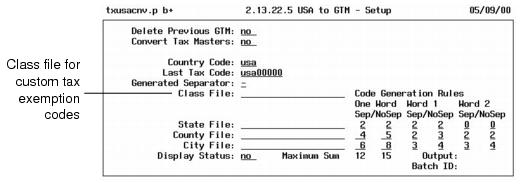
By default, the conversion generates corresponding GTM tax classes for your current tax exemption codes. For example, for tax exemption 1, the conversion generates GTM tax class 1. You can override this by creating your own map for the setup program and specifying it in the Class File field. The same class file is also referenced in the programs that convert master data and transaction records.
Class File in USA to GTM–Setup (2.13.22.5)
You should create a class file if:
• Your company plans to change its tax exemption codes during the GTM conversion.
• You want to convert exemption codes to tax usages instead of tax classes.
The class file is an ASCII file with text strings in the following format:
“Current Tax Exemption Code” “GTM Tax Class” “GTM Tax Usage”
GTM tax classes can have a maximum of three characters and tax usage codes eight characters. An unused optional value is represented by a null string (either “ ” or “”).
The file name can have any name or extension. However, code values in .csv files must be separated by commas instead of blank characters. The file must be located in the home directory for the Progress session.
Note: A .csv file is a Windows comma-delimited file format that saves values recorded in a spreadsheet.
Example: Your current exemption codes are 1 and 2. You want to map these to GTM tax classes 01 and 02.
“1” “01” “ “
“2” “02” “ “
Defining Custom Codes for States, Counties, and Cities
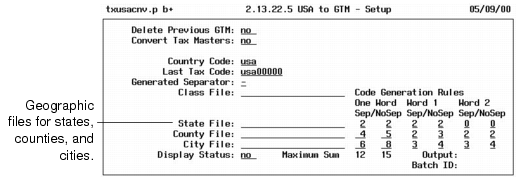
The generated codes for tax zones, tax environments, and tax types consist of text strings that identify the state, county, and city. By default, the code generation rules define the structure of these text strings. However, if you need a different naming convention, you can create geographic files for state codes, county names, and/or city names.
In addition to supporting alternate naming conventions, such files can resolve code generation conflicts. For example, for state codes ARIZ and ARKA, the generated GTM code is AR. A state file is necessary to provide unique values.
Note: You only need to define codes for conditions not supported by the code generation rules.
State, County, and City Files in USA to GTM–Setup (2.13.22.5)
Create a separate file for each kind of text string and reference the file in USA to GTM–Setup as shown in
State, County, and City Files in USA to GTM–Setup (2.13.22.5). A geographic file is the same as a class file, except that the file is formatted as follows:
“Current Code or Name” “GTM Text String”
Example: To create unique codes for Arizona and Arkansas, create a state file with these lines:
“ARIZ” “AZ”
“ARKA” “AR”
Processing Logic
USA to GTM–Setup creates records as described in
New GTM Records.
New GTM Records
Type of Record | Explanation |
Tax zones | Based on code generation rules or a class file, setup builds the tax zone hierarchy for the country and all state/county/city combinations in your current system. |
Tax types | Based on code generation rules or a class file, setup generates tax types for all state/county/city combinations in your current system. |
Tax environments | Based on code generation rules or a class file, setup generates tax environments for all ship-to tax zones. In the US, the tax environment’s ship-from tax zone is the default country code, and the customer or supplier tax class is blank. |
Tax rates | Based on code generation rules or a class file, setup generates tax rates for the tax jurisdictions and percentages in the tax master. |
Tax classes | By default, setup generates corresponding tax classes for existing US tax exemption codes. However, if you reference a class file, the mappings in the class file determine the actual exemption codes. |
Tax usages | By default, the setup does not generate tax usages. However, you have the option to do so in the class file. |
Rounding method | The setup enters the rounding method specified in System/Account Control (36.1) as the GTM rounding method in Global Tax Management Control (2.13.24). |
Country code | The setup generates a record for the default country code you specify when you run the setup. This country code is the top-level zone in the tax zone hierarchy. |
Company addresses and address list types | In GTM, company sites require a corresponding company address record because taxes are calculated by address, not site. The setup verifies that each company site has an address record and creates any missing ones, along with any needed address list type records. The setup also creates a ~taxes address record to provide a default tax address whenever a transaction is missing a company site code. |
GTM Control Settings
The setup resets Global Tax Management Control (2.13.24) as described in
Updates to GTM Control Settings.
Updates to GTM Control Settings
Field | Explanation |
Country Code | As specified during the setup |
Tax Method | 01 |
Tax-By-Line | No |
Accrue Tax at Receipt | Yes |
Discount Tax at Invoice | No |
Discount Tax at Payment | No |
Last Tax Code | As specified during the setup |
Rounding Method | Value specified in System/Account Control (36.1) |
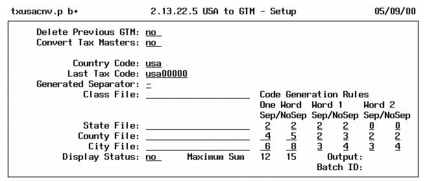
USA to GTM–Setup
Based on your implementation decisions, use USA to GTM–Setup (2.13.22.5) to set up GTM for US tax processing.
USA to GTM–
Setup (2.13.22.5)
Warning As noted previously, the purpose of the conversion is to replicate your existing tax processing setup in GTM. Do not attempt to implement new GTM functionality until after the entire conversion is complete. Do not change settings in the new GTM records or in Global Tax Management Control (2.13.24). If you do, conversions may fail.
Delete Previous GTM
This option determines whether the setup deletes previously created GTM records from the database. If you select this option, the setup deletes tax zones, tax types, tax environments, transaction tax details, and other GTM records from the database.
• Enter No if you have not yet converted your database to GTM.
• Enter Yes to clean up the database if it contains GTM records from unsuccessful conversion or installation attempts.
Convert Tax Masters
This option determines whether the setup generates the GTM master records from USA tax master records.
• Enter Yes to create corresponding GTM records for the USA tax master: tax classes, tax types, tax zones, tax environments, tax rates, and so on. The audit trail shows the USA tax master records and the new tax zone codes.
• Enter No if you only want to delete previous GTM records and do not want the setup program to generate new GTM records.
Country Code
This country code is the top-level tax zone in the tax zone hierarchy. All other tax zones sum into this one.
If Global Tax Management Control (2.13.24) already has a country code, it displays here. Otherwise, the setup sets the default country code to USA. If you override the value here, the setup assigns it to the control program.
Last Tax Code
Enter a value to update the corresponding field in Global Tax Management Control. In GTM, tax codes identify individual tax rates. Codes are generated sequentially based on the value of Last Tax Code in the GTM control program.
The default Last Tax Code is an 8-character value that consists of the GTM country code and a right-justified integer with placeholder zeros. For example, for country code USA, the default Last Tax Code is USA00000. The system assigns the number USA00001 to the first tax rate record created in GTM and increments this number for subsequent rates.
If you want tax codes to have a different format, enter a different prefix. Codes display alphanumerically in screens and reports. Tax codes that are totally numeric are left-justified and have no placeholder zeros. For example, codes 1 through 30 display in a report column as follows:
1
...
19
2
20
...
30
Generated Separator
Enter a character to use as a separator in system-generated tax zone, type, and environment codes. Using a separator improves readability of the elements of these codes.
The default separator is the dash (–), but you can enter any character. A sample GTM code that uses the dash separator is CA–SBa–SBa for Santa Barbara, California. If you do not want to use separators, enter blank. However, you cannot use blank as a separator character.
Class File
To provide custom mapping of US tax exemption codes to GTM classes and usage codes, specify an ASCII file with conversion information. See
here.
State, County, City File
To override default code generation rules, specify specific values for geographic locations in an ASCII file. See
here.
Code Generation Rules
Enter appropriate values for your organization. See
here.
Display Status
This setting determines whether the system displays status messages online during the conversion. These messages list database tables and their indexes as they are converted. If you select this option, messages display on the screen and the printed report.
Updates to Company Addresses
In GTM, company sites require a corresponding company address record because taxes are calculated by address, not site. The setup creates any missing company address records for company sites. However, the setup does not populate these new address records with the city, county, state, and country. You must supply this information manually in Company Address Maintenance (2.12).
Also set up tax zone codes to support these new addresses if the setup did not already generate codes for these tax jurisdictions. Do this in Tax Zone Maintenance (2.13.3.13). Then, assign the tax zone to the address.
Setup Audit Trail
USA to GTM–Setup prints an audit trail of updated tax master records. For each record, the report shows the state/county/city combination, tax effective date, the tax rates for the effective date, and the taxable status of trailer charges. It also shows the corresponding generated tax zone and its sums-into tax zone.
Setup Audit Trail shows the audit trail format.
Setup Audit Trail
Troubleshooting GTM Setup
After you run USA to GTM–Setup, verify that the GTM setup is correct before you continue with the conversion. The problems listed in
Troubleshooting the GTM Setup can cause errors or unexpected values. Before you proceed to the master conversion, review the audit trail, the GTM reports for the new records, and Global Tax Management Control settings. Correct any problems before continuing.
Subsequent setups do not automatically overwrite records created by previous ones. To set up new records, you must first delete the old ones. If you rerun the setup, you must remove the records created by the earlier setup attempt by setting Delete Previous GTM to Yes and Convert Tax Masters to Yes.
Note: If you must rerun the setup after you have run any of the other conversion programs, restore the database first. Then, rerun the setup and any other conversion programs you ran previously. This is necessary to perpetuate changes to master data, transactions, and tax details.
Troubleshooting the GTM Setup
Error | Explanation |
Tax system must be USA. | The USA to GTM setup can be run only on a US tax system. |
Must delete previous GTM when converting. | When you set Convert Tax Masters to Yes, you must also set Delete Previous GTM to Yes. |
Tax-trailers has changed, cannot convert prior to this date. | The setup can convert only the current tax environment, not previous variations. If the taxable status of trailer charge codes was changed in the span of time included in the conversion, the setup creates tax environments only for current conditions. |
Warning Do not correct records programmatically. This approach often causes additional problems.
How the Setup Changes GTM Records
The following information is provided to assist developers and others who require technical information on how the setup updates the database.
The menu-level program for USA to GTM–Setup is
txusacnv.p. This program calls subprograms (primarily
txusatax.p) that set the GTM tax values in the individual database records.
Changes to GTM Records lists the affected database tables and summarizes the changes.
Changes to GTM Records
Tables | Summary of Changes |
ad_mstr | txusatax.p creates one ~taxes record for the database. It also scans si_mstr and creates an address record for any company site that does not already have one. |
code_mstr | For the nine US exemption codes in tax_mstr, txusatax.p creates corresponding tax classes. If a class file is referenced, it creates the specified tax classes. For each of the three rates that tax_mstr stores for US tax jurisdictions, txusatax.p creates a tax type. For non-taxable transactions, it also creates a default NON-TAX tax type. Finally, for each ship-to tax zone, txusatax.p creates a tax environment and assigns it the tax types associated with the tax zone. |
ctry_mstr | txusatax.p creates a record for the default country code specified in the selection data. |
ls_mstr | txusatax.p creates ls_mstr record for each new ad_mstr record, if any. |
tx2_mstr | For each of the three rates that tax_mstr stores for US tax jurisdictions, txusatax.p creates a tax rate. It also runs txtx2_nt.i to create a non-taxable tax rate and txtxmeth.i to create tax method 01. |
txc_ctrl | txusatax.p sets txc_ctry_code and txc_tax_code from the selection data. It sets txc_method to 01, txc_by_line, txc_inv_disc, and txc_pmt_disc to No, and txc_rcpt_tax_point to Yes. |
txe_mstr | txusatax.p creates tax environment zone detail records for every tax environment code it generates for the code_mstr. |
txed_det | txusatax.p creates tax environment tax type detail records for every tax environment code it generates for the code_mstr. |
txz_mstr | txusatax.p creates a top-level sums-into tax zone for the new ctry_mstr record. For each state/county/city combination in tax_mstr, it creates a ship-to tax zone. |