Mapping Legacy Data
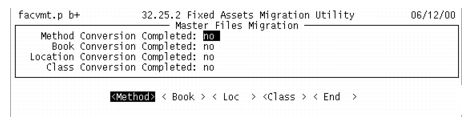
To migrate legacy data to the enhanced module, the existing data models must be mapped to the new data models. Use the Master Files Migration screen to monitor the conversion of the legacy data models. Master Files Migration also provides access to the maintenance programs for each data model. These programs let you map legacy models to enhanced models.
For information on the new fixed‑assets data models, see User Guide: Fixed Assets.
Master Files Migration
Access the maintenance program for each data model using the buttons at the bottom of Master Files Migration.
Buttons
Method
Use this button to access Method Migration.
Book
Use this button to access Book Migration.
Loc
Use this button to access Location Migration.
Class
Use this button to access Class Migration.
End
Use this button to end a Master Files Migration session and return to Fixed Asset Migration Utility.
Converting Methods
Use Method Migration to convert legacy depreciation methods to the depreciation methods supplied with the enhanced Fixed Assets module.
For details, see User Guide: Fixed Assets.
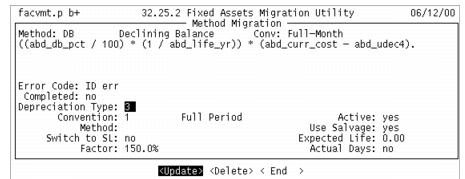
To convert legacy methods, use the following figure and instructions.
Method Migration
1 Use the arrow keys to scroll through the legacy methods. The legacy method, description, convention, and equation display.
2 If this method is not used by an asset, choose the Delete button to delete it. The system checks that the method is not used, then prompts for confirmation to delete the method.
3 To convert the legacy method, choose the Update button.
4 In the Depreciation Type field, select the enhanced depreciation method that most closely resembles the legacy method. The following depreciation methods are supplied with the enhanced module:
• 1: Straight Line
• 2: Units of Production
• 3: Declining Balance
• 4: Sum of the Years’ Digits
• 5: Flat Rate
• 6: Custom Table
5 To modify the standard depreciation methods supplied with the enhanced Fixed Assets module, complete the following fields:
• Convention | • Active |
• Method ID | • Use Salvage |
• Switch to SL | • Expected Life |
• Factor | • Actual Days |
Note: If you are using the custom-table depreciation method, you must define a custom table in Method Maintenance (32.1.1) before mapping it to a legacy method. Use the same method ID from Method Maintenance for the method in Method Migration. For details, see User Guide: Fixed Assets.
6 If an error exists with the new method, the Error Code field displays one of the following tables:
• ID err: An error exists with the new method ID. For example, the method ID is missing or there is a duplicate method ID.
• type err: An error exists with the new method description. For example, the method is not supported by the enhanced module.
• conv err: An error exists with the new convention. For example, the convention is missing or the convention is not compatible with the method.
• table err: An error exist with the new table method. The following are examples of possible errors:
The corresponding method defined in Method Maintenance is not a custom-table method.
There is a discrepancy with the estimated life.
Table detail is not defined in Method Maintenance.
• life err: An error exists with the new life. For example, the method is a custom table and the new life is zero.
7 After you correct any errors, the Completed field is updated to Yes for the converted method.
8 Repeat steps
1 through
7 for each of the legacy methods.
Converting Books
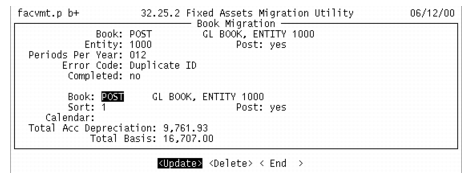
Use Book Migration to convert legacy books to books used in the enhanced Fixed Assets module. To convert legacy books, use the following figure and instructions. In the legacy system, asset cost is associated with depreciation books; therefore, if an asset contains multiple books, the asset cost comes from the posting book.
Book Migration
1 Use the arrow keys to scroll through the legacy books. The legacy book ID, description, entity, and post field display.
2 If this book is not used by an asset, choose the Delete button to delete it. The system checks that the book is not used, then prompts for confirmation to delete the book.
Note: Any legacy asset books that use a depreciation type of none are not created in the new fixed asset system.
3 To convert the legacy book, choose the Update button.
4 Complete the following fields:
• Book | • Post |
• Description | • Calendar |
• Sort Code | |
Note: You can have only one posting book in the system. If the book was not a posting book in the legacy system, you cannot change it to a posting book for the new system.
5 Total Accumulated Depreciation and Total Basis are automatically calculated. Total Accumulated Depreciation displays the total accumulated depreciation for the legacy book. Total Basis displays the total basis for all of the fixed assets use the legacy book.
6 If there are duplicate book IDs, the Error Code field displays Duplicate ID.
7 After you correct any errors, the Completed field is updated to Yes for the converted book.
8 Repeat steps
1 through
7 for each legacy book.
Converting Locations
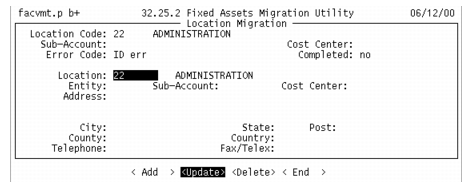
Use Location Migration to convert legacy locations to locations used in the enhanced Fixed Assets module. To convert legacy locations, use the following figure and instructions.
Location Migration
1 Use the arrow keys to scroll through the legacy locations. The legacy location code, description, sub-account, and cost center display. For each legacy location, the location ID is automatically filled in with the legacy location ID.
2 If this location is not used by an asset, choose the Delete button to delete it. The system checks that the location is not used, then prompts for confirmation to delete the location.
3 To convert the legacy location, choose the Update button.
4 Complete the following fields:
• Location ID | • Sub-Account |
• Description | • Cost Center |
• Entity | • Address and Telephone information |
5 If an error exists with the new location, the Error Code field displays one of the following codes:
• ID err: An error exists with the new ID. For example, the location ID is used by another module and you must set up a new ID.
• en err: An error exists with the new entity. For example, the entity code is not defined in Entity Code Maintenance (25.3.1).
• sub err: An error exists with the new sub-account. For example, the sub-account is not defined in Sub-Account Code Maintenance (25.3.17).
• cc err: An error exists with the new cost center. For example, the cost center is not defined in Cost Center Code Maintenance (25.3.20).
6 After you correct any errors, the Completed field is updated to Yes for the converted location.
7 Repeat steps
1 through
6 for each of the legacy locations.
Converting Classes
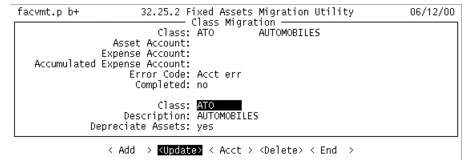
Use Class Migration to convert legacy classes to classes used in the enhanced Fixed Assets module and set up default GL accounts. To convert legacy classes, use the following figure and instructions.
Class Migration
1 Use the arrow keys to scroll through the legacy classes. The legacy class ID, description, asset account, accumulated depreciation account, and depreciation expense account display. For each legacy class, the class ID and description are automatically filled in with the legacy data.
2 If this class is not used by an asset, choose the Delete button to delete it. The system checks that the class is not used, then prompts for confirmation to delete the class.
3 To convert the legacy class, choose Update and enter whether this fixed-asset class is depreciated.
4 Choose the Acct button to modify the default GL accounts for the fixed-asset class.
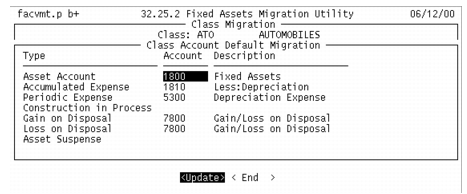
Class Account Default Migration
5 For each class, you must specify a GL account for the following accounts:
• Asset Account | • Gain on Disposal |
• Accumulated Expense | • Loss on Disposal |
• Periodic Expense | • Asset Suspense |
• Construction In Process | |
6 If any fixed-asset accounts are not defined, the Error Code field displays acct err.
7 After you correct any errors, the Completed field is updated to Yes for the converted class.
8 Repeat steps
1 through
7 for each legacy class.