Creating a User Group
After adding options to the function group, you must create a user group to tie users with the same role together. Ensure you give the user group a name that clearly links it to the function group.
Note: A user can have more than one role, and can therefore be a member of multiple user groups.
To create a user group, perform the following steps.
1 In the QuickPath field, type GU and press Enter. Alternatively, on the left menu choose System Settings|Base|Application Configuration|Security|Groups.
2 To create a new group, click the Create button on the toolbar.
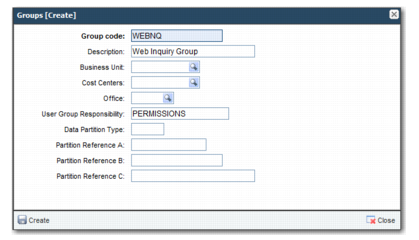
3 In the pop-up, enter a Group Code, ideally one that matches the name of the function group, and complete the other fields as necessary. Because groups are also used for data segregation, it is good practice to set the User Group Responsibility field to PERMISSIONS. In
Create User Group Example, a user group is created for Shipment Inquiry.
Create User Group Example
Note: You may see some user groups that are not relevant for permissions purposes. User groups are also used in workflow to determine the set of records you can view, and in PEM for data segregation.