Adding Documents to a Rule
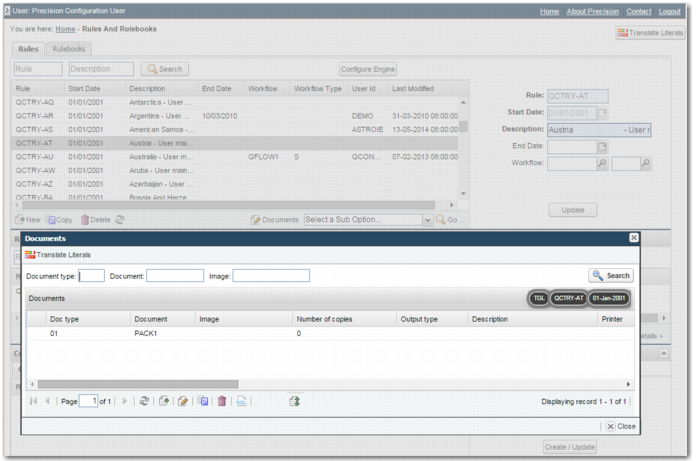
To view the documents associated with a rule, select the rule in the grid, and click the Documents button below the grid.
Rules Grid, Viewing Documents
To add a document to a rule, in the Documents pop-up window, click the Create a New Record icon

or choose F9.
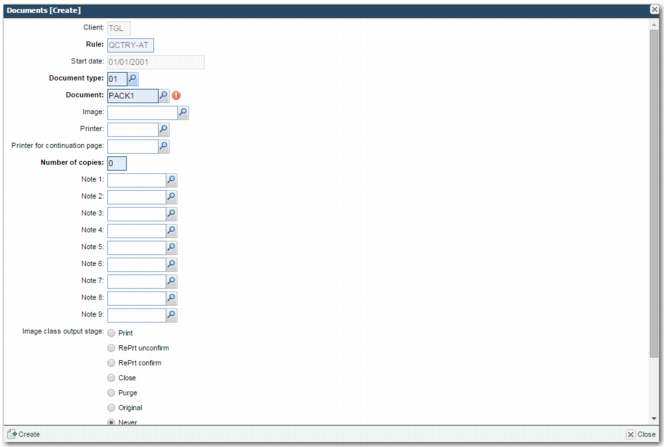
Documents [Create]
Client, Rule, Start date
These values are read only, and depend on the rule.
Document type
Use the lookup to choose the document type. Document types, based on format and function, are maintained in the DT option. For more information on Documents, see Topic 25, Documents in PRECISION.
Document
Use the lookup to choose the document. A list of documents is maintained in the DO option. For more information on documents, see Topic 25, Documents in PRECISION.
Image
Use the lookup to attach an image file to the document, where applicable. For more information on images, see Topic 32, Document Imaging and Multimedia.
Printer
Choose the printer to which the document is sent from within the shipment. PRECISION currently supports four types of printing:
• Print to a single printer.
• Print to a group of printers within a printer group.
• Send as a fax; a fax server must be available.
• Send as an e-mail; an e-mail server must be available.
Printers are maintained in option DP.
Printer for continuation page
Specify the printer to which PRECISION output continuation sheets are sent.
Number of copies
Specify the number of copies of the document required.
Note 1–9
Attach up to nine notes to the document. Note 1 appears before the shipment lines. Notes 2–5 appear after the shipment lines. Notes 6–9 appear in the footer.
Image class output stage
Select one of the available options to indicate when the document is imaged:
• Print. The document is imaged when the document is first printed.
• RePrt unconfirm. Each time the document is printed, a new image is created. A history of images for the document is maintained on the system within the image registry.
• RePrt confirm. Each time the document is printed, a new image is created. Before the image is created, you will be requested to confirm this action.
• Close. The document image is created at the transaction close stage.
• Purge. The document image is created when the transaction is purged from the system.
• Original. Use this option to specify that this image is an original image imported into PRECISION, and not produced by the PRECISION print engine.
• Never.
For more information on images, see Topic 32, Document Imaging and Multimedia.
Output type
Specify the output type.
Original
If an original document is required, select this field.
Certification Required
If the document requires certification, select this field.
Legislation Required
If the document requires legislation, select this field.
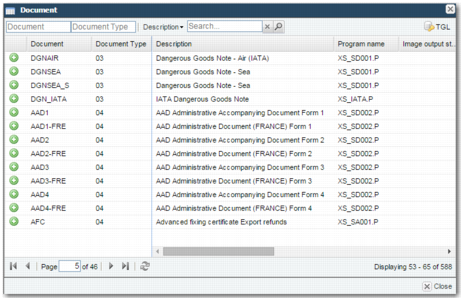
Adding Multiple Documents to a Rule
To add more than one document to the rule at a time, in the Documents pop-up window, click the Add multiple rule documents icon

.
Adding Multiple Documents