Uploading a File
1 On the XML Upload page, to find the file or files you want to upload, click Browse.
2 Select the file you want to upload and click Open.
Note: You can also select files by dragging and dropping them into the list. The drag-and-drop functionality is currently available only for browsers Firefox 3.6+ and Chrome.
3 The files you select are displayed in the XML Upload list. To delete files from the list, click Remove or Remove All.
4 To upload the files, click Start Upload.
5 To abort an upload, click Abort or Abort All.
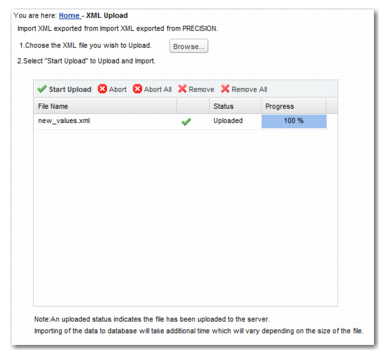
If the upload is successful, the status is changed to Uploaded, as displayed in
XML Upload Page Successful Upload. However, depending on the size of the file, it may still take some time for the uploaded file content to be imported into the database.
XML Upload Page Successful Upload