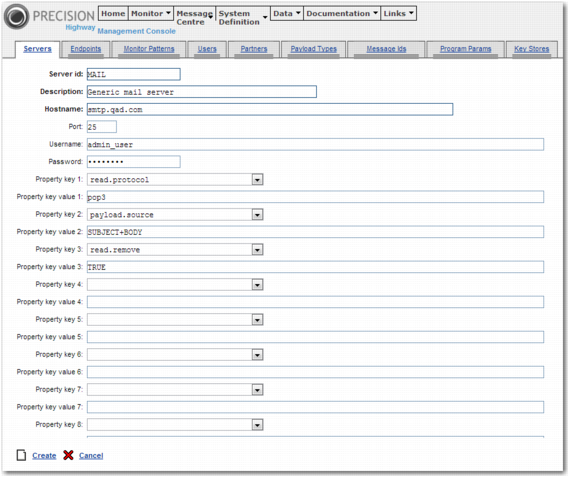
Create a Mail Server Record
To access the Highway menu, select Highway Console from the System Settings menu option in the left menu.
To view the list of existing servers, click Servers in the System Definition menu at the top of the screen. To create a server record, click New.
Create Server Record Page
The first six fields on this screen are mandatory.
Server id
Enter a unique server record ID.
Description
Add a description for the server record.
Hostname
Enter the hostname for the SMTP server that you are using to send e-mail.
Port
Enter the SMTP port number, which is usually 25.
Username, Password
Enter the user name and password related to your SMTP server.
The remaining fields on this screen allow you to specify the value of system properties related to mail. Use the drop-down menu to select the property that you want to set. If you do not set these properties on this screen, the default values for the properties remain in place. The default values for read.protocol, payload.source, and read.remove are pop3, BODY, and TRUE respectively.
To create the server record, click Create.