Tasks Area
Each transaction has a workflow associated with it. When you select a transaction in the Transaction panel, the tasks that can be performed against it are displayed in the Tasks area.
Tasks Area
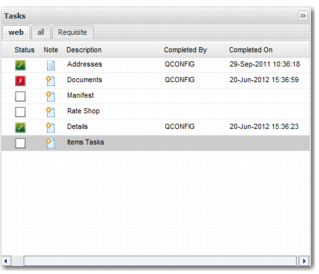
The tasks displayed depend on the workflow associated with the transaction you selected. By default, there are three tabs on the Tasks panel.
• The web tab displays the tasks that can be completed in the Web UI.
• The all tab displays all tasks related to this transaction.
• The Requisite tab displays all tasks that must be completed for this workflow.
However, your display may be different, depending on how the administrator has configured your system. The tabs might be renamed according to other categories and tasks associated with these categories. Tabs are especially useful in cases where there are a lot of tasks in a workflow.
When you double-click a task, a pop-up window is displayed. The window enables you to enter details to update or complete the task. After a task is completed, the Completed By and Completed On columns are updated with the user information and a time and date stamp.
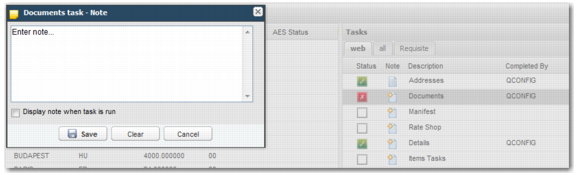
If you click the Note icon, a Note pop-up window is displayed. This allows you to create a note against a task. The window also contains a field that enables you to display the note when the task is run. If a note exists for a task then it can be viewed by clicking the Note icon or by running the mouse over it.
Task Note
Each task has three possible statuses.
Task Statuses
Icon | Meaning |
| Indicates a task completed successfully, with a status of Complete. |
| Indicates an unsuccessful task. This status does not prevent the task from being successfully completed at a later time. |
| Indicates a task not yet completed. |
Some tasks have been configured by your administrator to take place in a certain sequence. You may not be allowed to complete a certain task if you try to complete it before a prerequisite task has been completed. Other tasks are post-requisite. This means that the task must be completed directly after another particular task.
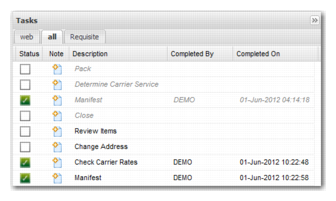
If a task appears in gray, this means that you cannot open and complete it in the Web UI. If you double-click the task, it does not open.
Task Not Web-Enabled
When you run a task, the system locks the shipment so that nobody else can access the shipment and modify it at the same time. Information is provided on who is currently working with the shipment and for how long.
When a workflow task is completed, if it is configured to change the status or user group ownership, the changes are reflected in the information displayed on the screen.
There are a number of shortcut keys that you can use in workflow task pop-up windows:
• Esc - Close the workflow tak pop-up window.
• Ctrl + F2 - Set the status of the workflow task to Complete.
• F2 - Perform the primary action available in the workflow task pop-up window, when the task has a primary action. The primary action appears in bold text.