Items Tab
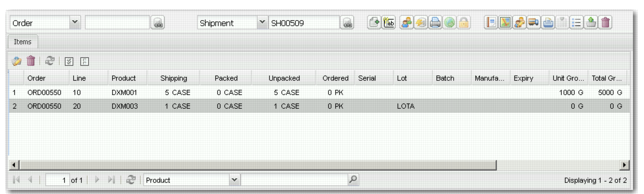
The Items tab displays the list of the items in the current open shipment. You can add new order items to a shipment by picking them from the order in the Items to be Picked panel. See
Items To Be Picked Panel.
Items Panel
Items Toolbar Buttons displays the toolbar buttons on the Items panel and describes the function of each one.
Items Toolbar Buttons
Button | Function |
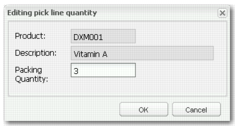
| Edit item shipping quantity. Edit the quantity of a selected item. When you click this button, you are prompted to enter the new quantity. This must be greater than the number of items packed, and it cannot exceed the total number of items available on the order line. This is displayed in Edit Item Shipping Quantity. |
| Delete selected item lines. |
| Refresh shipment. |
| Select all items. |
| Deselect items. |
Edit Item Shipping Quantity
Note: As part of the Items tab, the Shipment Details panel is displayed. This panel is discussed in the Scan, Pack and Ship chapters.
Items Navigation Toolbar
The navigation toolbar at the bottom of the items list allows you to navigate the list. If a list runs over multiple pages, the navigation arrows enable you to navigate from page to page.
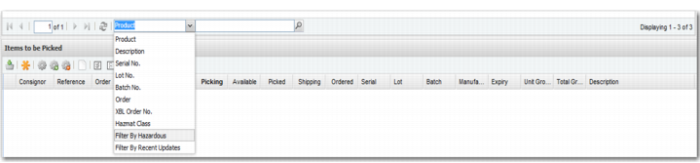
The Refresh button enables you to display any new order lines added to the system. You can also filter the list to display list items based on certain criteria, as displayed in
Items Navigation Toolbar Filter. When you apply a filter, a filter button is displayed instead of the Search field. For example, you can filter by hazardous goods or by product, which are common filter actions when performing consolidations. You can also enter specific information in the Search field and click the lookup button.
Items Navigation Toolbar Filter