Field | Explanation |
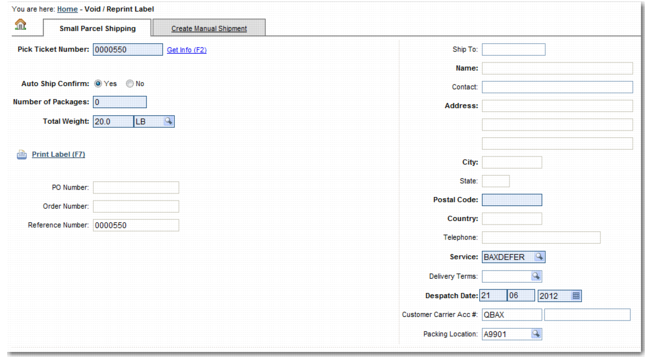
Pick Ticket Number | Choose a ticket number to associate with the label. This is simply the shipment reference number. |
Auto Ship Confirm | Select Yes if auto ship applies to the label, otherwise select No. |
Number of Packages | The number of packages in the shipment. |
Total Weight | The total weight of the shipment. Use the lookup field next to the Total Weight field to specify the UOM. |
PO Number | The PO number associated with the shipment. |
Order Number | The order number associated with the shipment. |
Reference Number | The reference number associated with the shipment. |
Ship To | The customer to whom the shipment is being sent. |
Name | The name of the customer. |
Contact | A contact name within the customer company. |
Address | The address of the customer. |
City | The city in which the customer is based. |
State | The state in which the customer is based. |
Postal Code | The customer postal code. |
Country | The country in which the customer is based. |
Telephone | The customer’s telephone number. |
Service | The service being used to transport the shipment. |
Delivery Terms | Terms attached to the shipment’s delivery; for example, Delivery Duty Paid. |
Despatch Date | The date when the shipment is to be despatched. |
Customer Carrier Acc # | The account number of the customer carrier. |
Packing Location | The place where the shipment is packed. |