Questionnaires
A questionnaire is a set of questions. For example, has the appropriate paperwork been completed? Is the carrier C-TPAT certified? Each question must be answered correctly before the questionnaire check can pass.
The option QE opens the questionnaire screen.
Questionnaire
Questions Area
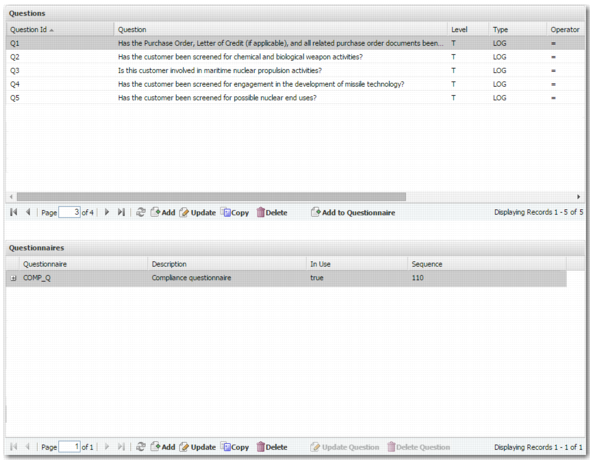
In the Questions area, you can set up questions that can be added to questionnaires.
For example, you might add a question such as Have the Purchase Order, Letter of Credit and all related purchase order documents been reviewed for boycott requests? The user could choose to answer Yes or No.
To add a question, click Add.
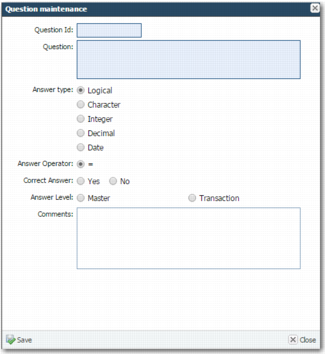
Question Maintenance Screen for Adding a Question
Complete the following fields:
Question ID
Enter an ID to identify the question. This field is mandatory.
Question
This field contains the text presented to the user when completing a questionnaire; for example, Is the carrier ISO certified?
Answer Type
Choose an answer type from the list.
• Logical: The user can only answer yes or no to the question.
• Character: The user answers the question by typing free-text or by selecting an entry from a list.
• Integer: The user answers the question by typing an integer.
• Decimal: The user answers the question by typing a decimal.
• Date: The user answers the question by typing a valid date.
Answer operator
Answer Operators contains the answer operators and their meanings. The operators vary depending on the answer type.
Answer Operators
Answer Operator | Answer Type | Explanation |
= | Logical, character, integer, decimal, date | The answer must be equal to the answer in the Correct Answer field. |
Listed | Character | The answer must be equal to one of the values in a comma-separated list in the Correct Answer field. The questionnaire displays a free-text field. |
Not Listed | Character | The answer must not be equal to any of the values in a comma-separated list in the Correct Answer field. The questionnaire displays a free-text field. |
Selection | Character | The answer must be equal to one of the values in a comma-separated list in the Correct Answer field. The questionnaire displays a list for the user to choose from. |
> | Integer, decimal, date | The answer must be greater than the answer in the Correct Answer field. |
< | Integer, decimal, date | The answer must be less than the answer in the Correct Answer field. |
>= | Integer, decimal, date | The answer must be greater than or equal to the answer in the Correct Answer field. |
<= | Integer, decimal, date | The answer must be less than or equal to the answer in the Correct Answer field. |
<> | Character, integer, decimal, date | The answer must not be equal to the answer in the Correct Answer field. |
Correct Answer
This field contains the answer to the question or a list of possible answers to the question.
Answer Level
Select Transaction. Master-level questions are for future development.
Comments
Currently, comments you enter are not displayed in questionnaires.
When you have completed the fields, save the record. You can also update, copy, or delete a question. However, you cannot delete or update a question when it is associated with a questionnaire.
Questionnaires Area
The Questionnaires area is where you create questionnaires. The system value QUESTIONS CHECKS identifies compliance checks (from CK) that are questionnaires. When you create a questionnaire in QE, the system automatically adds the questionnaire to this system value, as described in
Questionnaire Setup System Values.
Questionnaire Setup System Values
Category | Key | Possible Values |
COMPLIANCE | QUESTION CHECKS | A comma-separated list of questionnaire checks. |
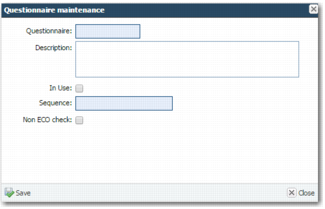
Question Maintenance Screen for Adding a Questionnaire
To create a questionnaire, click Add, and complete the Questionnaire maintenance fields.
Questionnaire
Enter an ID to identify the questionnaire. This field is mandatory.
Description
Enter a description for this questionnaire. The user sees this description on the Compliance Results screen.
In Use
This field is selected by default. Only clear this field when you do not want to use the questionnaire at this time.
Sequence
The sequence field is mandatory. However, it is for future use.
Non ECO check
This field is for future use.
When you have completed the fields, save your record.
Adding Questions to Questionnaires
To add a question to a questionnaire:
1 In the Questionnaire area, select the relevant questionnaire to highlight it.
2 In the Questions area, select a question and click the Add to Questionnaire button.
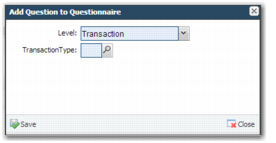
3 The Add Question to Questionnaire window is displayed. In the Level list, select All transactions or Transaction.
a To add the question only for specific transaction types, select Transaction from the Level drop-down list. The Transaction Type field is displayed and you can choose the transaction type that this question applies to.
b To add the question for all transactions types, select All transactions.
Add Question to Questionnaire
Note: This configuration option enables you to reduce setup by creating one questionnaire with common questions and adding individual questions for different transaction types.
When you have completed the fields, click Save. The question is then added to the questionnaire.