Compliance History Search
The Compliance History Search allows you to view the results of past compliance checks run through Desktop Shipping, Workflow, the DPL & Embargoed Country Checking, or from an external system. You can use the Compliance History Search for managing compliance results and for audit purposes.
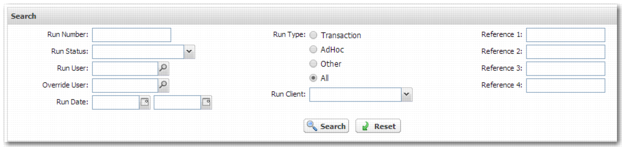
Compliance History Check Search Panel
The search fields are all AND fields. Therefore, each field that you complete further filters the results.
Run Number
A unique number assigned to the check when it was run, and displayed in the Run Details page.
Note: For a batch DPL Data Scrub check, each row in the CSV file has a corresponding run number.
Run Status
To restrict your search to checks with a particular result, specify the result in the drop-down menu. All results are returned when the field is blank. The options are:
• Failed
• Failed Manually
• Passed
• Passed Manually
• Passed with Warnings
Run User
To search for compliance checks run by a specific user, enter the user name in this field.
Override User
To search for compliance checks with results that were manually overridden by a specific person, enter the appropriate user name in this field.
Run Date
Enter the run date or a run date range in these fields.
Run Type
Select the type of compliance check to search for. The options are:
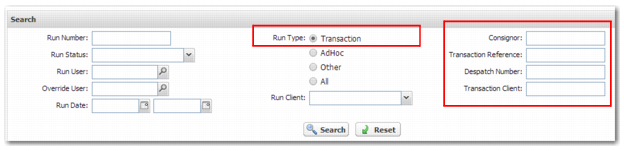
• Transaction - A shipment that exists in a workflow. When you select this option, the four reference fields change to specific search fields that you can use as criteria.
• AdHoc - Stand-alone compliance checks run using the DPL & Embargoed Country Checking screen.
• Other - Compliance checks submitted from an external system; for example, processing an order in an ERP system or from a data scrub.
• All - All compliance checks.
Compliance History Check Search Panel with Transaction Selected
Run Client
To check compliance history for transactions on a particular client, select it from the list.
Reference1/Consignor
Enter an appropriate reference or enter the name of the consignor when the required check is of type Transaction. You can configure these reference fields to request an order number or a purchase order number associated with a compliance run.
For a shipment transaction, the reference fields map to the PRECISION client, TMS shipment number, TMS consignor, TMS despatch number, transaction client.
Reference2/Transaction Reference
Enter an appropriate reference or enter the transaction reference when the required check is of type transaction.
Reference3/Despatch Number
Enter an appropriate reference or enter the despatch number when the required check is of type transaction.
Reference4/Transaction Client
Enter an appropriate reference or enter the transaction client when the required check is of type transaction.
Complete the relevant fields and click Search. The results of your search are displayed in the Results panel.
Note: If you want to clear the search fields, click Reset. This action does not remove the contents of the Results panel when you have already run a search.
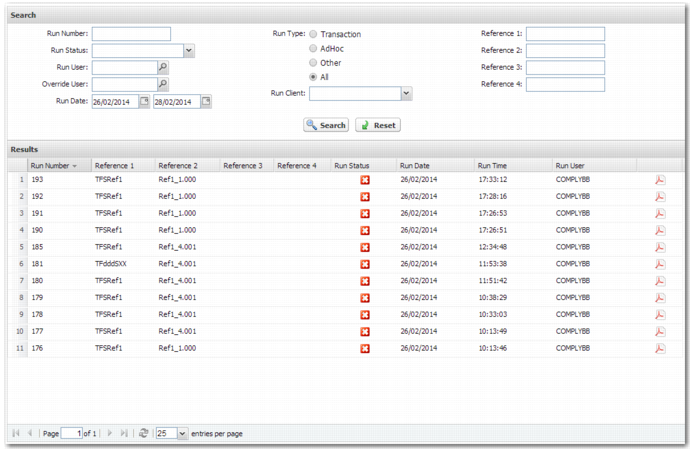
Compliance History Search and Results Panels
The Results panel displays the transactions that match the search criteria. When you double-click the transaction in the Results panel, the Compliance Results screen opens. You can view the results in this screen. For transaction type compliance checks, when you have permissions, you can run rechecks on compliance. However, for non-transaction type compliance checks, the recheck functionality is not available. For more details on the results screen, see
Compliance Results.
Alternatively, you can view the results in PDF format by clicking the PDF icon for the transaction in the Results panel.
Note: The Results panel displays every compliance check run that matches the search criteria. Therefore, the same transaction can appear several times, once for each time compliance was run against it. However, you can only perform operations on the latest version of the transaction. Any previous version is a read-only history record.
The number of results pages returned in a search is displayed in the bottom right corner of the Results panel. Use the arrow keys to scroll to a particular results page or to the first or last page. Alternatively, insert the page number you want and press Enter. Updates to transaction information occur frequently. To update the Transaction panel with new information, use the Refresh button. The entries per page field enables you to specify the number of entries that appear on each page. You can select a value from the list or enter any numeric value in this field.
Accessing the Compliance History from an E-mail
When you receive an e-mail notification from the system that a check has failed, the e-mail contains a link to the compliance check results. When you click this link, the Compliance History page opens, displaying only the check you received in the e-mail in the Results panel. To open the Compliance Results screen, double-click the compliance check in the Results panel. If you are not already signed onto the application, the login page is displayed.