Adding a Dual Use License
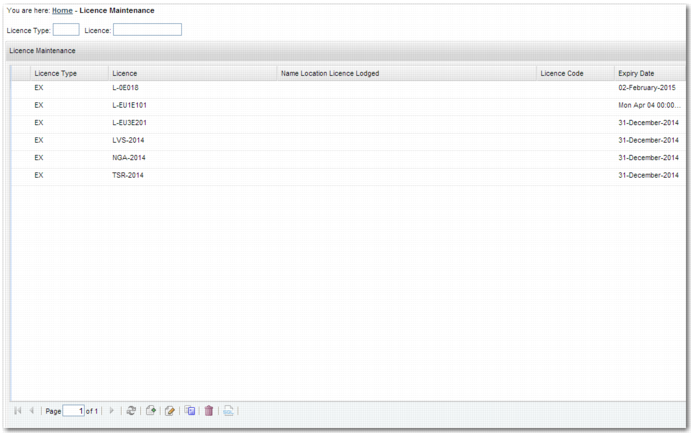
Using the QuickPath option XL, you can set up licenses for use with the Dual Use license check. The screen is displayed in
License Maintenance Panel.
License Maintenance Panel
To create a new license, click the New button on the toolbar. The more fields you complete on the License Maintenance Create form, the narrower the application for this particular license.
License
Enter the license code supplied by licensing agency. This field is mandatory.
License Type
Select Export or Import.
License Code
Enter the license code.
Issuing Country
Enter the country that issued the license. This field is mandatory.
Applicant Office
Enter the name of the office that you applied to for this license.
Applicant Ref. No
Enter the application reference number.
Purchaser
If the license is issued against a particular purchaser, enter their details in this field.
Intermediate consignee
If the license is issued against a particular intermediate consignee, enter the details in this field.
Ultimate consignee
If the license is issued against a particular consignee, enter the details in this field.
Export Classification Group
This value defaults from the export classification group assigned to the Issuing Country. This field is read-only.
ECCN Number
If the license is issued for a specific ECCN number, enter the ECCN code in this field.
Effective Date
This is the effective date of the license. This field is mandatory.
Expiry Date
This is the expiry date of the license. This field is mandatory.
Other fields on the form enable you to enter further reference information for the license for documentation purposes.