Uploading Tier-Based Excel Files
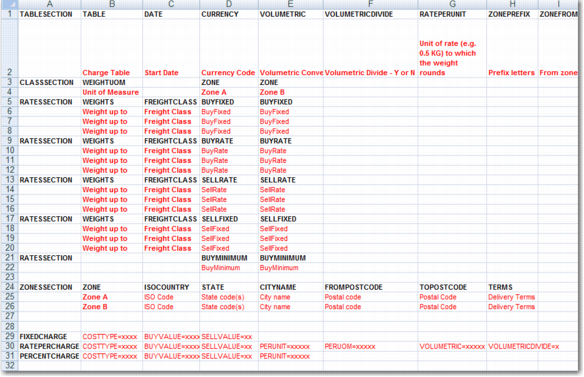
The tier-based file format is displayed in
Tier Based Excel File. See
Topic 039 - Tier Based - Upload Format.xls on the QAD Document Library in QAD Transportation Management|PRECISION Reference Guides|Appendices for a copy of this file.
Tier Based Excel File
In the spreadsheet template, fields containing text in black font represent predefined data that must be present for the data in red font to be interpreted correctly. Data in red font may be replaced with actual content/rates/codes.
The spreadsheet is divided into discrete sections, each of which has a prescribed purpose for reading the information into the database. The first column is reserved for the section names.
TABLESECTION
The TABLESECTION contains the Charge Table header information to be uploaded into PRECISION. This has the following components:
TABLE
The Charge Table code to be used in PRECISION. The code must not be longer than 10 characters.
DESCRIPTION
The name/description of the Charge Table. If this field is blank, you receive a warning message during the upload and the table description defaults to New Charge Table.
DATE
The date from which the rates in the spreadsheet apply.
CURRENCY
The currency of the rates in the spreadsheet.
BUYSELLDEFAULT
If there is a buy rate but no sell rate anywhere in the spreadsheet, the sell rate defaults from the buy rate. The same applies if there is a sell rate and no buy rate, and applies to Fixed Amounts also. This field can have a value of YES or NO.
COSTTYPE
The cost type for the axis rates in the spreadsheet. If this column heading does not exist, a default cost code of QFRT is assigned during upload. The cost type code in this field must exist in CH or the upload fails.
SUMMARISE
This YES or NO value field indicates whether the cost types of the same cost type code are summarized into one freight line after the calculation. For example, there is a calculation for a cost type FRT for one calculation method and a calculation for cost type FRT for another calculation method. If both calculations occur on the same Charge Table, they are summarized on a single Shipment cost line when this field is set to YES.
USENEXTTIER
This YES or NO value field indicates whether the next tier of the axis is to be checked for a cheaper rate. If this field is set to YES, the rate of the next tier is multiplied by the maximum weight of the previous tier, because that is the minimum point for the next tier up.
USEHEADERQTY
This YES or NO value field determines whether the header quantity is used to determine the rate break on the axis. Sometimes, the overall quantity of the shipment must be taken to determine the rate break. Then you multiply the quantity of the rate-criteria by this rate break rate. For example, when the rating is per weight, use the total shipment weight to determine the weight break. Then multiply the rate by the weight of the individual packages.
VOLUMETRIC
If volumetric weight must be checked against actual weight, this field contains the conversion rate; for example, Volume Ratio 1m3 = 200 kg. The volumetric weight is compared with the actual gross weight and the higher of the two is used to determine the rate break.
VOLUMETRICDIVIDE
This Y or N value field determines whether the volumetric weight specified is switched on by selecting the Weight Volume Divide field in Charge Table details. The default action is to multiply but when the value of this field is Y, the Divide flag is set.
LOADSPACECONVERSION
If loadspace weight must be checked against actual weight, this field contains the conversion rate; for example, Loadspace Ratio 1 Load Meter = 200 kg. Loadspace weight is compared with actual gross weight and the higher of the two is used to determine the rate break. If both VOLUMETRIC and LOADSPACECONVERSION are completed, then volumetric weight is compared with loadspace weight and actual gross weight and the highest of the three is used to determine the rate break.
LOADSPACEDIVIDE
This Y or N value field determines whether the loadspace weight specified is switched on by selecting the Weight Loadspace Divide field in Charge Table details. The default action is to multiply but when the value of this field is Y, the Divide flag is set.
PACKMINTYPES
This allows for the specification of a comma-separated list of packing types that exist in option PY. A minimum weight can be set against these types. The pack types then apply the minimum weight at the time of rating. The minimum weight of a package type is compared against the weight of the package. If the minimum weight is higher than the actual package weight, the minimum weight value is used as the rating weight for the package.
PACKMINWEIGHT
This field contains the minimum rating weight associated with a package for the pack types specified in PACKMINTYPES.
RATEPERUNIT
This field contains the rounded-up-to value for weights when they are being checked for freight costs. For example, if this field contains 0.5, all weights are rounded to the nearest 0.5 value before multiplying them by the rate for that weight break. Therefore, 22.2 lb is rounded to 22.5 lb before being applied to the relevant rate for the weight break.
ROUNDWGTTO
This is another name for RATEPERUNIT.
ZONETYPE
If City is used to determine the zone, this field specifies the city field to use in the rating per zone. There are four possible values:
• DOOR-TO-DOOR: The origin and destination zone cities are taken from the From/To partners. If no ZONETYPE is specified, DOOR-TO-DOOR is used by default.
• DOOR-TO-PORT: The origin zone city is taken from the From Partner and the destination zone city is taken from the Port of destination (XMSHDR0.SHPDES).
• PORT-TO-DOOR: The origin zone city is taken from the Port of Loading (XMSHDR0.SHPLOD) and the destination zone city is taken from the To Partner.
• PORT-TO-PORT: The origin zone city is taken from the Port of Loading (XMSHDR0.SHPLOD) and the destination zone city is taken from the Port of destination (XMSHDR0.SHPDES).
ZONEPREFIX
This prefix precedes all Region zones and Zone classifications created for this Charge Table. An upload creates new Region Zones (RG records) automatically when postal codes are used in the upload. However, country, place, and state zones do not result in new Region Zones being created as these would be common in their meaning in PRECISION.
A ZONEPREFIX hint system value is automatically created as a result of the Excel upload. To speed up the search for the region records during the rating process, you can also manually add another hint to the database for the Origin zone. These system values are displayed in
ZONEPREFIX Hint System Value. The zone prefix must be unique for each Charge Table Excel file. Otherwise, you may receive an error message in the rating process due to a zone classification conflict.
ZONEFROM
This field specifies the origin zone used to determine the zone classifications for this Charge Table. This field is important for working out the From/To combination that gives the zone classification used during rating. The From zone must already exist in PRECISION. Use the following naming formats:
• CTRY-[ISO country code]
• CTRY-[ISO country code]-[City name]
If the ZONEFROM includes a place name:
• The place name is to be no longer than 10 characters.
• Ensure the full name—for example, CTRY-BE-ANTWERP—fits in column H of the spreadsheet. If not, increase the width of the column. PRECISION does not accept wrapped values.
Zones Example
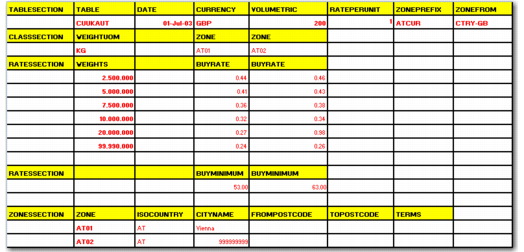
The Excel file in
Austria Zone Rates contains rates for two zones in Austria. The ISO country code for Austria is AT.
• Zone AT01 for Vienna
• Zone AT02 for the rest of Austria
Austria Zone Rates
Austria Zone Classifications
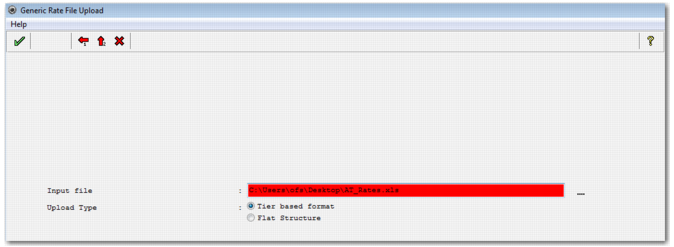
To upload this file, open option TH and click the Upload File button. Upload the file as displayed in
Austria Zone Classifications. When the file uploads, ZONE CLASSIFICATIONS are automatically created in option ZC, based on the information coming from the spreadsheet. No zone records (RG) are created because there were no Postal/Zip codes in the ZONESECTION. But the zone class records in option ZC reference these zones—these are like default zones in the system.
Austria Zone Classifications
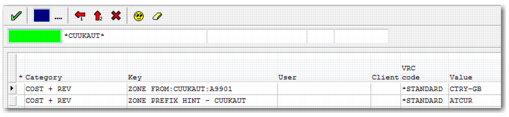
When you upload the Excel file, the system value ZONE PREFIX HINT is also automatically created. However, you must create the system value ZONEFROM:[Charge Table]:[consignor partner] manually, including the correct Charge Table and the consignor partner code.
Austria Zone System Values displays the two system values needed for the Austrian uploaded rates.
Austria Zone System Values
ZONEPREFIX Hint System Value displays the automatically created ZONE PREFIX HINT system value and the ZONE FROM system value, which you create manually.
ZONEPREFIX Hint System Value
Category | Key | Value | Explanation |
COST + REV | ZONE PREFIX HINT – [Charge Table] for example: ZONE PREFIX HINT – CTABLE1 | [the value of the ZONEPREFIX] for example: PRFX | This system value hints the prefix of the region name and speeds up the rating process. This value is automatically created as a result of the upload program. In the example, the rating engine is to find destination zones that begin PRFX when processing the Charge Table CTABLE1. The engine does not have to check the defaults for CTRY or other postal code range regions with the same postal code names. |
COST + REV | ZONEFROM:[Charge Table]:[consignor] for example: ZONEFROM:
CTABLE1:CONO1 | [the origin region] for example: CTRY-GB | This system value enables the engine to bypass identifying the origin region, and begin determining the destination region. It is qualified by the consignor, as the same Charge Table can be used for more than one consignor, with similar zone class setup for multiple origins. If the consignor is not specified, the same Charge Table hint can apply over all consignors without a specific hint for the specified Charge Table. In the example, the system value indicates to the rating engine that when processing the Charge Table CTABLE1 for consignor CONO1, the origin region is always CTRY-GB. |
CLASSSECTION
This section defines the zone classes to use in the Charge Table. The rates for the Charge Table are then grouped under these zone classes. The definition has the following components:
WEIGHTUOM
Specifies the unit of measure to use in the weight breaks that follow.
VOLUMEUOM
Specifies the unit of measure to use in the volume breaks that follow. You can specify that an axis is based on weight or volume. The axis names are generated by the system and are limited to two characters. The upload program can handle a number of axes. Weight UOM or Volume UOM is used in the same spreadsheet cell. If rating for pack type breaks, leave the heading WEIGHTUOM in the Excel cell and leave the value field blank.
LOADSPACEUOM
Specifies the unit of measure to use in the loadspace breaks that follow.
ZONE
Specifies the zone classification according to the carrier definition for the rates breakdown. There can be one zone specification for each zone classification.
RATESSECTION
This section defines the rates to use for this Charge Table, where the rates are associated with particular zone classes.
You can have several rates sections, depending on how you format rates for upload. For example, your buy rates to customers might be different that your sell rates from carriers. It is sometimes easier to format rates downward in the spreadsheet, which makes them easy to connect to the zone classes. The RATESSECTION is directly related to the CLASSSECTION above it, in terms of determining to which zone class the rates apply. RATESSECTION has the following components:
WEIGHTS, VOLUMES, LOADSPACE, PACKS
This column cell title can have one of these values, and this column holds the up-to break limits for the rates section.
PACKTYPE
This column holds the pack types for the breaks for the rates section. It is used in conjunction with the PACKS column.
FREIGHTCLASS
If it applies, this column holds the associated freight class for the rates section. The freight class is taken from the item lines. It is assumed that mixed classes should not be in packages.
BUYFIXED
This column holds fixed fees that the shipper can charge to the customer.
BUYRATE
This column holds a rate per weight/volume/loadspace/packtype that the shipper can charge to the customer.
SELLFIXED
This column holds fixed fees that the carrier charges the shipper.
SELLRATE
This column holds a rate per weight/volume/loadspace/packtype that the carrier charges the shipper.
BUYMINIMUM
This column stores the minimum rate applicable for this zone class that can be charged to the customer.
SELLMINIMUM
This column is not available.
ZONESSECTION
This section defines the zones as specified in the CLASSSECTION. The PRECISION rating engine uses this information to find the relevant zone class for this Charge Table when the user is rating a shipment.
ZONE
The zone class in PRECISION. The same zone can occur multiple times because it can cover more than one origin/destination combination.
Example: UK to Paris and UK to Roissy are zone class 1. UK to Nice and UK to Marseilles are zone class 2.
ISOCOUNTRY
The ISOCOUNTRY column is mandatory. If you only use the country to identify the destination region, you can enter a comma-separated list of countries. The same zone class applies to all these countries.
STATE
The state code of the destination region is optional. If you include the State column, you can only enter one country in the ISOCOUNTRY column.
CITYNAME
If you are specifying a city as the zone, enter the city name here.
FROMPOSTCODE
The From Post Code contains the starting postal code of a range postal codes. If you have several ranges of postal codes for the same zone class, you can enter a comma-separated list of postal code starting characters. If you use a comma-separated list, you cannot use the TOPOSTCODE for the same zone class definition line.
TOPOSTCODE
Specifies the end postal code for the postal code range definition.
TERMS
Specifies the delivery terms for this zone.
Postal Code Scenarios
Postal Code Range Scenarios
Scenario | Zone Classification Conflict |
• Two postal code ranges • Same zone prefix • Same zone • Each in its own Excel Charge Table | No |
• Two postal code ranges • Same zone prefix • Different zones • Each in its own Excel Charge Table | Yes |
• Two postal code ranges • Different zone prefix • Different zones • Each in its own Excel Charge Table | No |
• Two postal code ranges • Different zone prefix • Same zone • Each in its own Excel Charge Table | No |
Example: If there is a 90210 postal code in US and a 90210 postal code in Germany, the Postal Code Master Table contains only one postal code record.
However, do not integrate a country prefix into the postal codes such as US90210 and DE90210 to make the codes unique, because:
• The prefix is also printed on any customs documents.
• TMS processing requires postal codes to be in their actual format.
No action is required because PRECISION can determine the applicable zones using the RXTYPE field in Region/Postal code association. Only zones in the relevant country are considered and the duplicate code is ignored.
Reserved Region/Zone Names For Charge Calculations
Zone Naming Conventions lists the naming conventions of Region zones that use the charge calculations but do not require the creation of an RG record.
Zone Naming Conventions
Zone Naming Conventions | Example | Explanation |
CTRY-[ISO Country Code] | CTRY-IE | The example represents a region of Ireland. The country region is always be the same, irrespective of the Charge Table used. Ireland region always represents the whole of Ireland. |
CTRY-[ISO country code]-STATE:[state code] | CTRY-US-STATE:KS | The example represents the two-character code for the state of Kansas in the US |
CTRY-[ISO country code]-[place name] | CTRY-AU-KINGSTON is Kingston in Australia CTRY-JM-KINGSTON is Kingston in Jamaica | In this example, [place name] is Kingston. The place name can contain up to 10 characters and must be in the PRECISION city list. Used with the country code, [placename] uniquely identifies a place. |
CTRY-[ISO country code]-999999999 | CTRY-FR-999999999 | The 999999999 represents the remainder of a country, in this case France. This convention is used when a carrier sends rates for different destinations in a country and includes a rest of the country rate for all unspecified destinations. The 999999999 is an exception zone to catch the unspecified destinations. An attempt is made to find a zone classification using this region when no zone class is found using a more qualified region. For example, a carrier specifies one zone class for destination of Paris, and the rest of France uses a different zone class, resulting in two destination regions: • CTRY-FR-PARIS • CTRY-FR-999999999 |
CTRY-[ISO country code]-STATE:999999999 | CTRY-US-STATE:999999999 | The 999999999 represents the remaining states of a country, in this case the US. This convention is used when a carrier sends rates for different states in a country and includes a rest of states rate for all unspecified states. The 999999999 is an exception zone to catch the unspecified destinations. An attempt is made to find a zone classification using this region when no zone class is found using a more qualified region. For example, the destination state is KS and the following zone classes are set up: • CTRY-US-STATE:MD • CTRY-US-STATE:IL • CTRY-US-STATE:999999999 KS is in the 99999999 zone for all remaining states. |
RESTOFTHEWORLD | | This zone classification works on a similar basis to CTRY-[ISO country code]-999999999. If a carrier specifies destination countries for determining zones, these are used first. RESTOFTHEWORLD represents any countries not listed, and their zone classification is determined by this default region. |
Additional Sections for Accessorials
Use additional sections to configure accessorials or charges.
FIXEDCHARGE
This section can appear multiple times within a spreadsheet. Use it to load a detail line for fixed cost charges. This action creates a charge detail line of calculation type 01.
COSTTYPE=xxxx
The option CH cost type to associate with the cost line.
BUYVALUE=xxxx
The fixed value to charge to the customer.
SELLVALUE=xxxx
The fixed value the carrier charges the shipper.
RATEPERCHARGE
This section can appear multiple times within the spreadsheet. Use it to load a detail line for a rate-per charge such as the rate per weight or number of packs. This action creates a charge detail line of calculation type 02.
COSTTYPE=xxxx
The CH cost type to associate with the cost line.
COSTDESC=xxxx
The description associated with the cost line.
BUYVALUE=xxxx
The rate to charge the customer. The rate is applied on a chosen basis.
SELLVALUE=xxxx
The rate the carrier charges the shipper. The rate is applied on a chosen basis.
PERUNIT=xxxx
The basis for the rate on this charge detail line.
Possible Unit Values lists the possible values.
Possible Unit Values
Unit Code | Unit |
GWT | Gross weight |
NWT | Net weight |
NNWT | Net net weight |
CHGWT | Chargeable weight |
VOL | Volume |
LOADSP | Loadspace |
SHQTY | Ship Quantity |
INNER | Inners |
OUTER | Outers |
PACK | Pack |
CONT | Container |
DELS | Deliveries |
COLLS | Collections |
STOP | Stops |
CROW | Crowfly |
RTOUR | Round tour |
PCKFCT | Pack-factor/Colli-factor |
PCKCUT | Pack cut-off factor |
PERUOM=xxxx
The basis UOM for the rate on this charge detail line. Values are qualified based on the PERUNIT field. For example, a mass unit of measure such as Kg or lb is allowed for GWT, NWT, NNWT, CHGWT.
VOLUMETRIC=xxxx
The volumetric conversion rate; for example, 1m3 = 200 KgS.
VOLUMETRICDIVIDE=x
Set this field to Y to switch on the volumetric divide flag. The default is to multiply.
SCALE=xxxx
Set the scale factor to be held for the rate when the rate applicable is for X units rather than for a single unit. For example, the rate may be per 100 Kgs.
PERCENTCHARGE
This section can appear multiple times within the spreadsheet. Use it to load a detail line for a percentage charge such as the percentage of the shipment cost. This action creates a charge detail line of calculation type 03.
COSTTYPE=xxxx
The CH cost type to associate with the cost line.
BUYVALUE=xxxx
The percentage to charge the customer. The percentage is applied on a chosen basis.
SELLVALUE=xxxx
The percentage the carrier charges the shipper. The percentage is applied on a chosen basis.
PERUNIT=xxxx
The basis for the rate on this charge detail line.
Possible Unit Values lists the possible values.
Possible Unit Values
Unit Code | Unit |
SHIP | Shipment value |
STAT | Statistical value |
COST | Shipment cost |
LIST | Shipment list price |
INSUR | Shipment insured value |
CHARGE | Percentage of another cost type |
PERCOSTTYPE=xxxx
If PERUNIT=CHARGE, this field contains the cost type to which this percentage applies. For example, use this field where insurance is charged as a percentage of freight.
MINIMUMCHARGE
This section can appear multiple times within the spreadsheet. Use it to load a detail line for minimum cost charge. This action creates a charge detail line of calculation type 00. The fields are the same as those used for
FIXEDCHARGE. A minimum charge is applied against a charge of the same cost type within the same Charge Table.
MAXIMUMCHARGE
Use this section to load a detail line for maximum cost charge. This action creates a charge detail line of calculation type 99. The fields are the same as those used for
FIXEDCHARGE. A maximum charge is applied against a charge of the same cost type within the same Charge Table.