Uploading
Do not have more than 10 blank lines between the different sections in the spreadsheet. Blank lines are used to determine whether there are any further lines to read from the spreadsheet.
If you have a dedicated PRECISION server with no Microsoft Office applications, install Excel on the server running the PRECISION application.
Uploading a Tiered Format File
In this example, you upload a Charge Table named FM3. The rates are for domestic shipping to different zones in Germany. The rate charged is based on the shipment weight and the zone. In the file each zone represents a city.
Note: This file is available for download as part of the Appendices folder on the QAD Document Library under Transportation Management|PRECISION Reference Guides|Appendices. Other sample files are also available in the Appendices.
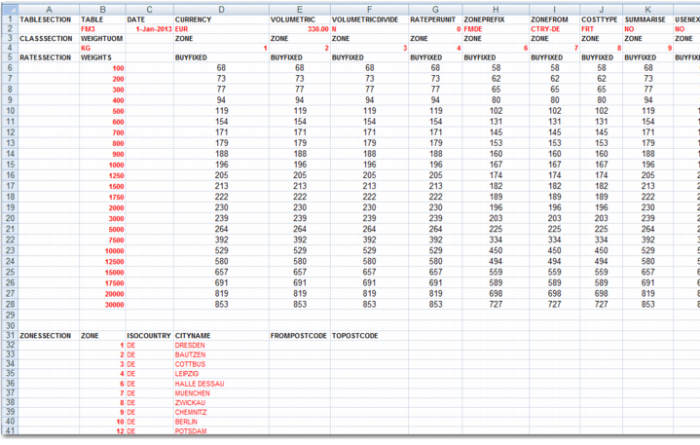
1 Format the information so it is accepted by the PRECISION Charge Table upload utility, as displayed in
Formatted Excel File. In the example, the file is already formatted correctly.
Formatted Excel File
2 Save the file to a directory and open PRECISION Windows UI.
3 To open the Charge Table screen, type TH in the fast-path and press Enter.
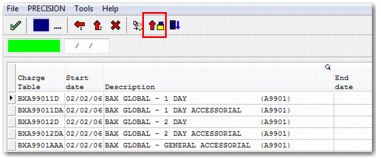
Charge Table Upload Button
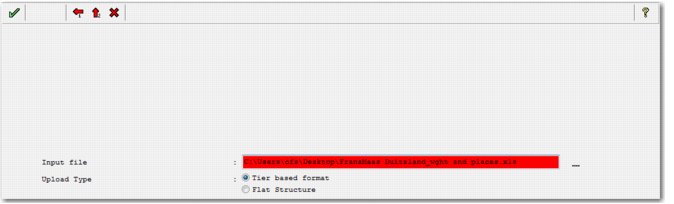
Charge Table Upload Screen
5 Select the Tier based format option and choose the Excel file you saved for upload.
6 To begin the upload, click the green check mark (F2). When the upload has finished, a message is displayed that Charge Table FM3 has been successfully loaded. Return to the TH Charge Table list.
Note: The cost codes in the Excel spreadsheet must already exist in the database. For example, if you use the code FRT for freight, code FRT must already exist in the CH table.
Verify and Review Data After Upload
1 Select the newly uploaded Charge Table and click the Update Entry button (F7).
2 To open the Charge Table details, click the Sub options button (F11).
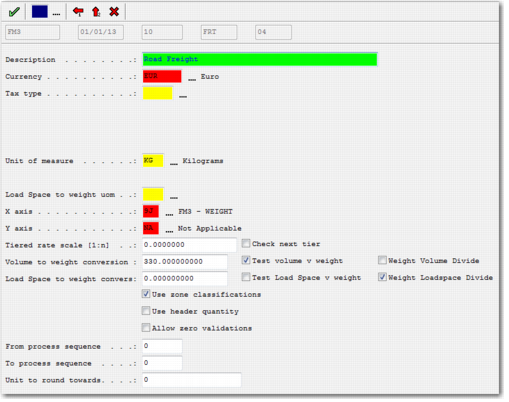
3 Select the charge line and click the Update Entry button (F7). THTD02 contains the charge details, as displayed in
Charge Details.
Charge Details
Note: X and Y axis definitions are attached automatically in the Axis definitions table. The X axis has a new record created each time a new or existing Charge Table is loaded. The X axis created is two characters in length and alphanumeric. The first table loaded is assigned the identifier 9Z. The next table loaded is 9Y and so on until it reaches 9A. The next table loaded is then 8Z. The Y axis defaults to NA.
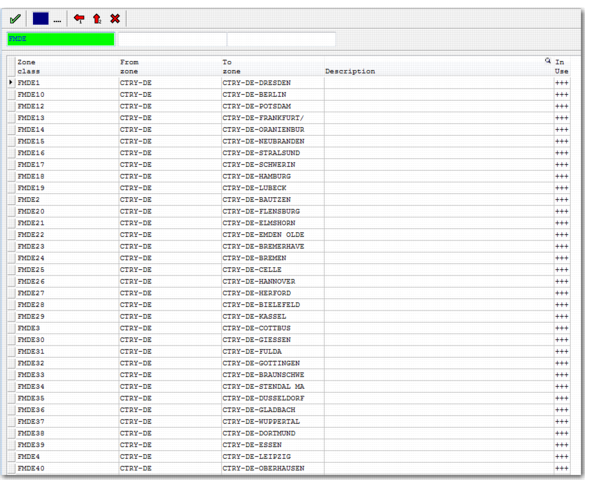
4 Next, view the zone classifications records created automatically by your Excel upload. In the fast-path, type ZC and press Enter. Find the records beginning relating to FMDE.
Zone Classification Records
5 To view any postal code information created automatically by your Excel upload, in the fast-path type RG and press Enter. To view the postal code range behind a zone, select a record and double-click it.
Note: In this example, the file contains only City code for Zones. Therefore, no RG records are created.
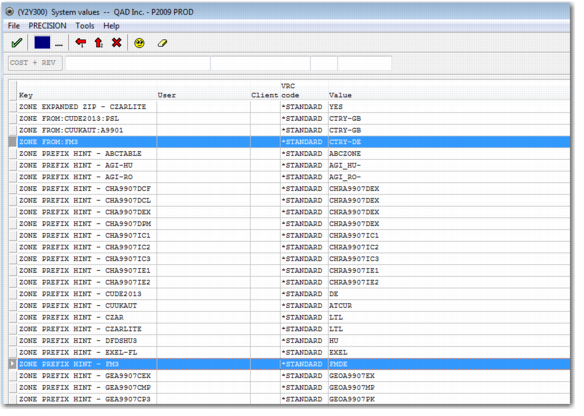
6 Next, create a system value that you need. Open option Y2 and specify the COST + REV category. The upload has already created the ZONE PREFIX HINT value. Create the corresponding ZONE FROM system value with a value that matches the ZONE FROM in the Excel table, as displayed in
System Value.
System Value
7 Return to the TH option and open your Charge Table by double-clicking it. Double-click the FRT charge.
Charge Table Sub Options
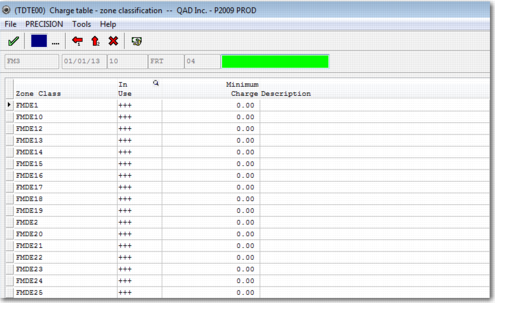
8 Double-click Charge Table - zone classification.
Minimum Charge Values displays the minimum values for each zone classification, uploaded from the Excel file. In this case, there are no minimum charges so the value is zero. If values are supplied, each value is used as a shipment charge in its zone when the calculated charge is less than the minimum.
Minimum Charge Values
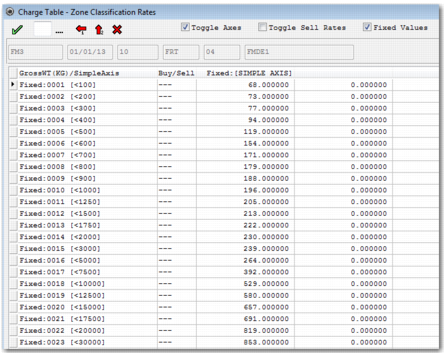
9 To view the values for the different weight breaks loaded from Excel, click the Zone Rates button. Select Toggle Axes and Fixed Values to get a full view.
Zone Classification Rates