Loading Rates Files
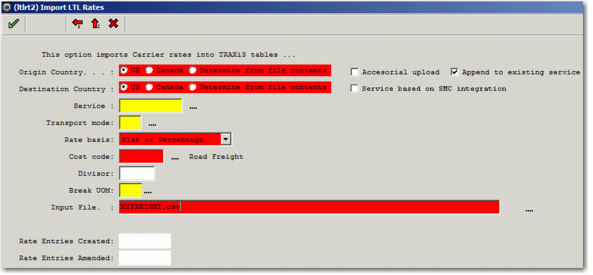
To load the formatted TL/LTL text file into the database, use the Windows UI option LTLRT2, as displayed in
LTLRT2.
LTLRT2
Origin Country
Specify the Ship From country. Select US, Canada, or Determine from file contents. If you select Determine from file contents, the Shipper Country should have been identified in the file formatting LTLFM2 option.
Destination Country
Specify the Ship To country. Select US, Canada, or Determine from file contents. If you select Determine from file contents, the Ship To Country should have been identified in the file formatting LTLFM2 option.
Accessorial upload
If selected, this field indicates that you are uploading accessorial charges rather than base freight rates.
Append to existing service
If selected, this field indicates that the charges relate to an existing service and are to be added to it.
Service based on SMC Integration
If selected, this field indicates that the service being uploaded is used with SMC integration to create a service which is a discount off a baseline rate structure held in SMC.
Service
Enter the service name that the rates apply to. The service name must already exist in the database. If this field is blank, the service is named with the carrier Standard Carrier Alpha Code (SCAC) or Carrier ID as identified in the LTLFM2 formatting.
Transport mode
If the transport mode is not contained in the file resulting from LTLFM2 formatting, enter a transport mode.
Rate basis
If the Rate Basis is not contained in the file resulting from LTLFM2 formatting, select the rate basis to apply from the drop down list. For example, Mileage, Gross Weight, Flat or Percentage, or Packs.
Cost code
Select the cost code for the charges, such as FRT for freight.
Divisor
If no rate divisor is provided in the rates file, this field determines by how much each of the rates in the file is to be divided.
Break UOM
If the UOM for the breaks are not contained in the file resulting from LTLFM2 formatting, enter the UOM in this field.
Input File
Specify the formatted LTL/TL rates file to load.
Rate Entries Created
When you upload the file, this field displays the number of rate entries created.
Rate Entries Amended
When you upload the file, this field displays information on the rate entries amended.
Records Created on Upload
When you upload a carrier rating file to PRECISION, new records are automatically created.
• In the new rating engine (RN), a rating ID is automatically created when you upload a formatted file. The record contains all rating ID information, including calculations, axes, regions, and zones.
• In SE, a service record is automatically created when you upload a formatted file for a service that did not already exist in the database. The record contains all the rating IDs associated with a particular service, including rating IDs used for charge calculation or transit times purposes.
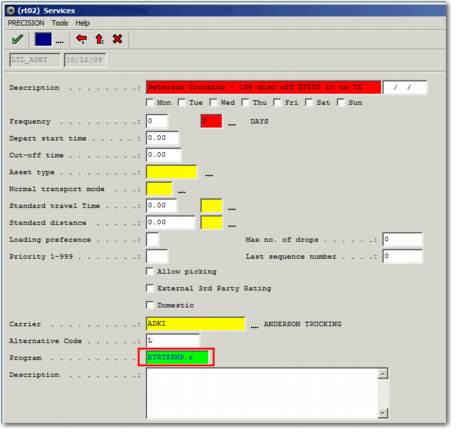
• In RT, a route record is automatically created when you upload a formatted file. It is available to assign to a shipment or in Routing Guide rules service assignment. The route record contains the name of the new rating engine program, XTRTESHP.r. For the new rating engine program, the extended route description field RTDES2 is not required and is blank.
RT Record