Shipment Wizard Template
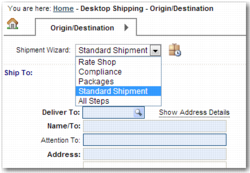
You can configure the appearance of Desktop Shipping by creating templates for the Shipment Wizard. The user selects a template from the drop-down menu on step one of the desktop shipping wizard, as shown in
Shipment Wizard Menu.
Shipment Wizard Menu
Shipment Wizard templates consist of a number of steps with fields that the user completes to create a shipment. The steps in the template reflect the procedure that your organization follows to create a shipment. You can create multiple templates. For example, an international shipment for a particular customer requires different fields and steps to a domestic shipment. You can create global templates, or templates for specific clients, users, or client/user combinations. Each user sees a list of templates appropriate to their role.
You can define a template with up to ten steps.
Desktop Shipping Steps displays these steps in the order that they appear in a template. The Origin/Destination step is mandatory; all other steps are optional, but typically the Confirmation step is included.
Desktop Shipping Steps
Wizard Steps | Step Name | Contents |
ORIG | Origin/Destination | Ship from and ship to addresses, and package and payment details. |
COMP | Compliance | Compliance checks on the shipment including checks to prevent shipments being sent to denied parties or embargoed countries. You can display the compliance check results in a pop-up window or in a separate step. |
PACK | Package Details | Details of multiple packages within a shipment. |
PROD | Products | Details of multiple products within a shipment. |
METH | Method/References | References related to the shipment; for example, customs and invoice references. This step also allows you to specify search criteria to use when shopping for rates. |
SERV | Services (Rates) | A list of rates available for the shipment, including details of the charges. |
ACCL | Accessorials | A list of add-on services offered with a particular service. |
DOCS | Documents | Facility to upload documents to the shipment; for example, customs documents. |
SUMM | Summary | A summary of the details entered in previous steps. |
CONF | Confirmation | This page appears when a shipment is created. It lists any errors related to the shipment. If the shipment has been rated, then the page contains a link to the shipment label. |
Configuring each wizard template requires changes to system values. For a full list of Desktop Shipping system values, see the Desktop Shipping tab of Appendix A on the QAD Document Library in QAD Transportation Management|v2012 R00|Admin Guides|Appendices.
Setting Up Wizard Steps
There are ten available templates, each with its own system value. The system values are DS-TEMPLATES 01 to DS-TEMPLATES 10. These system values have the category ITRAX and key DS-TEMPLATES <NN>, where <NN> is a number from 01 to 10. To specify the steps to include on a wizard template:
1 In the Web UI, open the System Value Setup page. On the Tag Search tab, use the drop-down menu to search for the tag Desktop Shipping Wizards and click Search.
2 Locate the system value that you want to configure. Ensure that the In Use attribute is selected and displaying as true. Ensure that the Environment attribute is set to *STANDARD.
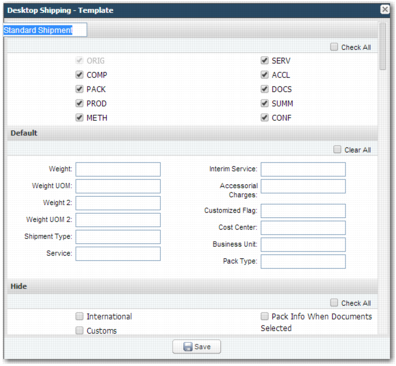
3 Click the Template

icon for the template that you want to edit. A pop-up window containing the template opens.
Desktop Shipping Template
4 Double-click the text at the top of the pop-up window to edit the title of the template. The user sees this text in the Shipment Wizard drop-down menu on the Origin/Destination step of Desktop Shipping.
5 Select the steps that you want to include in the template. These steps are listed in
Desktop Shipping Steps.