Compliance Step
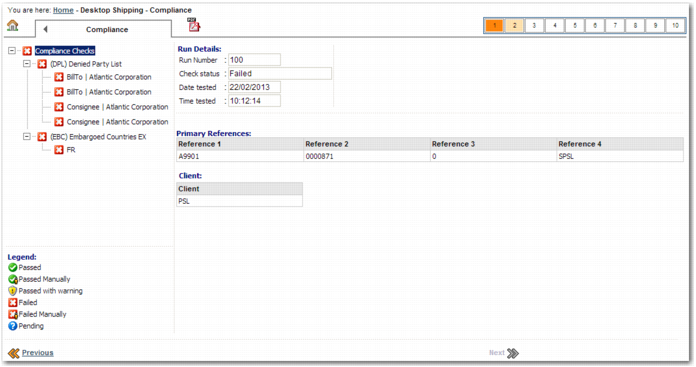
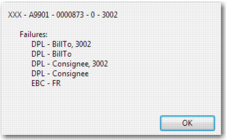
The Compliance step allows you to run a denied party list check and an embargoed country check on shipments that the user creates in desktop shipping. You can configure this step so that failure of a check prevents the user from moving on to the next step. Alternatively, you can choose to display a warning and let the user continue to the next step. This warning can appear as a step in the desktop shipping wizard or as a pop-up window. For an explanation of the Compliance step from a user point of view, see the Desktop Shipping step of Transportation Management System User Guide.
Compliance Step
Compliance Pop-up Window
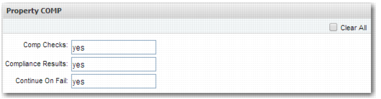
Use the fields in the Property COMP section of the DS-TEMPLATES <NN> system value to configure compliance checks.
Property COMP Fields
Field | Value |
Comp Checks | A comma-separated list of compliance check codes indicating the checks that you want to run on the shipment. Possible values: EBC- Embargoed countries list DPL - Denied parties list |
Compliance Results | Possible values: default - The compliance check results display as a desktop shipping step. popup - The compliance check results display in a pop-up window. none - The results of the compliance check are not shown to the user. |
Continue On Fail | Possible values: yes - If a compliance check fails, the user can continue to the next step in the desktop shipping wizard. no - If a compliance check fails, the user cannot continue to the next step in the desktop shipping wizard. |
Note: If you set Compliance Results to none and Continue On Fail to no, then failure of a compliance check prevents the user from moving on to the next step. When the fields have these settings, the user does not see any message explaining the compliance failure. This configuration is not recommended.
Property COMP Fields in the DS-TEMPLATES <NN> System Value