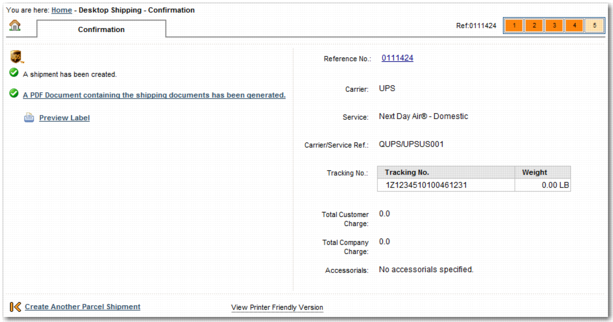
Confirmation Step
This page confirms creation of the shipment or notifies the user when there is an error creating the shipment. If a carrier label is available, the user can access the label from this page.
Confirmation Step
Your company can use the Desktop Shipping wizard to rate a shipment and print a carrier label. Alternatively, your company can use the wizard to record information about the shipment without rating it. Another staff member completes the rating at a later stage. The Rate Shipment field in the Property CONF section of DS-TEMPLATES <NN> controls this capability. Set this field to yes or no depending on your company process. The default value is yes.
The Allowed Documents field in the Property CONF section of DS-TEMPLATES <NN> is used with the Rate Shipment field. When Rate Shipment is set to no, a carrier label is not created, and an internal traveler document is created instead. Use Allowed Documents to identify the traveler document to use.
When Rate Shipment is set to no, use Allowed Document to specify a comma-separated list of documents to create in addition to the carrier label. This scenario is common when making international shipments, which typically require additional customs information.
The format of Allowed Documents is <DOCUMENT_TYPE1]+[DOCUMENT_REFERENCE1],...., [DOCUMENT_TYPEN]+[DOCUMENT_REFERENCEN]. An example value is 01+INVCANADA,02+INV2E. To be available for printing, the document has to be associated with the shipment. This association of documents with the shipment depends on the rules that apply to the shipment. Through the rules, documents get attached to a shipment. Allowed Documents enables you to list a subset of the documents associated with the shipment that you want to print. The complete list of document types available in PRECISION are accessible using the DO QuickPath option.