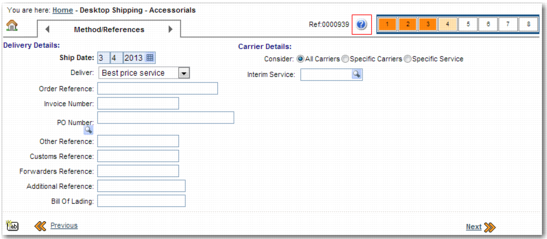
Step | Setting |
Origin/Destination | DTS HELP URL: ORIG STEP |
Package Details | DTS HELP URL: PACK STEP |
Products | DTS HELP URL: PROD STEP |
Method/References | DTS HELP URL: METH STEP |
Services | DTS HELP URL: SERV STEP |
Accessorials | DTS HELP URL: ACCL STEP |
Documents | DTS HELP URL: DOCS STEP |
Summary | DTS HELP URL: SUMM STEP |
Step | Setting |
Origin/Destination | Help URL field in Property ORIG section of DS-TEMPLATES <NN>. |
Package Details | Help URL field in Property PACK section of DS-TEMPLATES <NN>. |
Products | Help URL field in Property PROD section of DS-TEMPLATES <NN>. |
Method/References | Help URL field in Property METH section of DS-TEMPLATES <NN>. |
Services | Help URL field in Property SERV section of DS-TEMPLATES <NN>. |
Accessorials | Help URL field in Property ACCL section of DS-TEMPLATES <NN>. |
Documents | Help URL field in Property DOCS section of DS-TEMPLATES <NN>. |
Summary | Help URL field in Property SUMM section of DS-TEMPLATES <NN>. |
Confirmation | Help URL field in Property CONF section of DS-TEMPLATES <NN>. |