Rates Tab
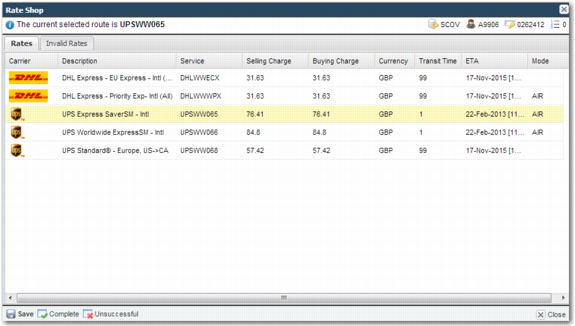
The Rates tab displays the services that comply with the routing rules for the shipment. Use this screen to compare the available rates for the shipment.
Rate Shop Task: Rates Tab displays the Rates tab of the Rate Shop task.
Rate Shop Task: Rates Tab
There are a number of columns in the Rates tab.
Rates Tab Columns
Column | Explanation |
Carrier | The carrier providing the service. |
Description | A description of the carrier service. |
Service | The carrier service code. |
Selling Charge | What the shipper charges the buyer for shipping the items. This amount differs from the buying charge if the buying charge includes markup in costs. |
Buying Charge | What the shipper pays the carrier for shipping. |
Currency | The currency in which the rates are shown. |
Transit Time | The number of days that it takes to transport the shipment. |
ETA | Estimated date and time of arrival of the shipment at the destination. |
Mode | The mode of transport; for example air or rail. |
To sort the table by a particular column, click a column title. An arrow appears next to the column title, indicating that the table is sorted in either ascending or descending order. To reverse the sorting order, click the column title again.
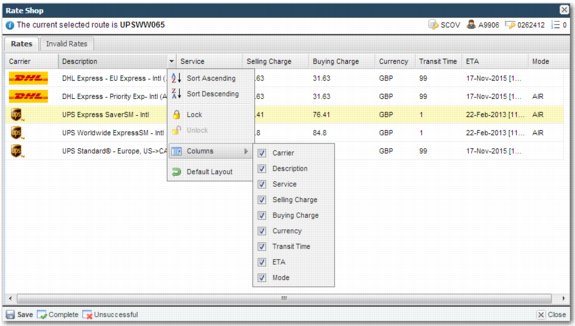
To access the column menu, click the arrow that appears when you roll over any column header in the table, as displayed in
Rate Shop Task: Rates Tab with Column Menu.
Rate Shop Task: Rates Tab with Column Menu
• To sort the table, use the Sort Ascending and Sort Descending options.
• To lock a column, click the column menu header and choose Lock. To unlock the column, choose Unlock.
• The Columns option allows you to select the columns to be included in the display.
• Default Layout displays the default columns in their default positions, hiding all optional columns.
To change the service applied to a shipment, select a service and click Ok or Save. If the shipment is rated, the option to save the newly selected service is not available.