Documents Task
Use the Documents task to add new documents to the shipment; for example, customs or insurance documents. Although you can access the Documents task at any time, it is typically used to add and print documents after the shipment has been manifested.
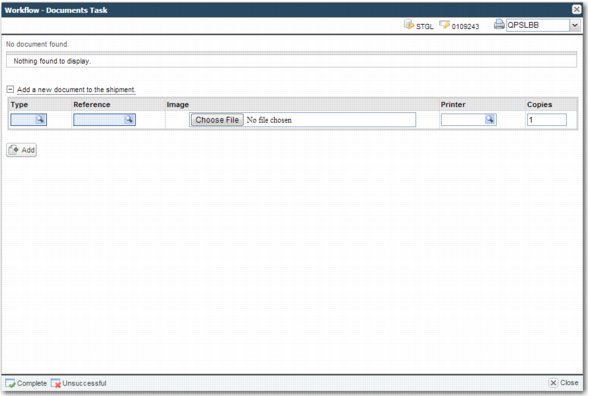
Documents Task shows the default appearance of the Documents Task screen when there are no documents associated with the shipment.
Documents Task
The fields on the Documents Task screen are:
Type
The document type enables you to identify document types. To view a list of document types such as customs or hazardous material documents, click the lookup icon. Usually, you can leave this field blank because it automatically populates when you specify a value in the Reference field.
Reference
A code that identifies the document. The combination of the document type and reference uniquely identify the document.
Image
Use this field to associate a document from an external system with the shipment. These documents are stored in Precision as scanned images. To upload scanned images of documents, click Choose File. If the file type you upload is not supported, an appropriate message is displayed at the top of the screen. Your administrator controls which file types are supported.
Printer
Leave this field blank unless you want to override the current locale printer.
Copies
Specify the number of copies that you want to print.
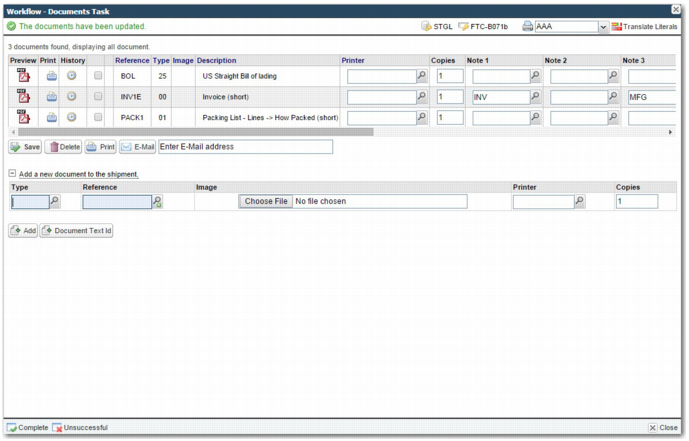
To add an uploaded document to the shipment, click Add. Any documents that you add appear in a table at the top of the screen, as in
Documents Task with Added Documents.
Documents Task with Added Documents
Preview a PDF version of the document, print one or more copies of the document, or view the history of the document by clicking the relevant icon in the document row.
Use the Save, Delete, Print, and E-Mail buttons below the table of documents to perform actions on multiple documents in the table. Select one or more documents and click the relevant button.
Note: Your administrator can remove the E-mail button.
Document Text ID Task
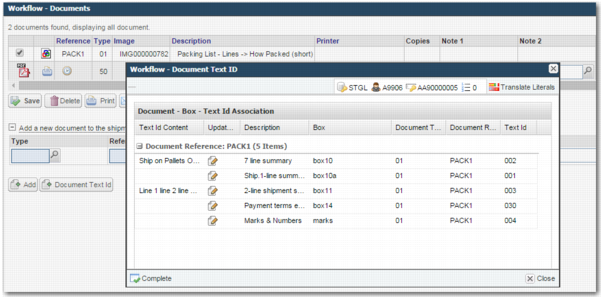
If a task with option WFTDTI is included in a workflow, you can open the Document Text ID task from the Documents task using the Document Text Id button.
Documents Task with Document Text Id Button
If the workflow does not include the Document Text ID task, the Document Text Id button either does not appear in the Documents task, or is inactive.
If no document is selected in the Documents task, or you open the Document Text ID task directly from the workflow Tasks area, the text IDs for all documents are listed.