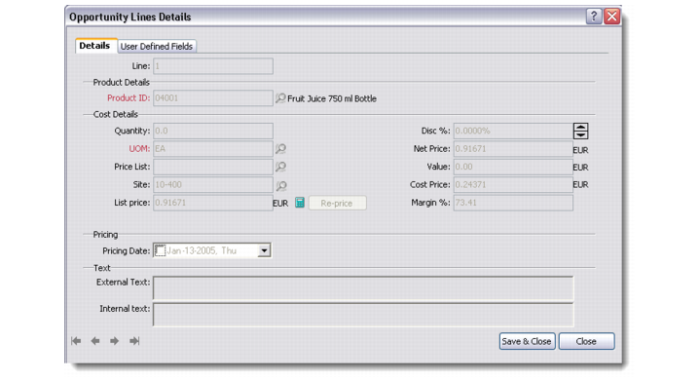
Maintaining Opportunity Lines
Opportunity lines consist of a list of products and their pricing details. They are associated with opportunity stages and not directly with the opportunity record.
Example: A profile is interested in two products. They have ordered one product and asked for a quote for the other. In this case, a single opportunity record for the profile has one product in the order stage and the other in the quote stage.
You can also maintain opportunity line details from the Enquiry, Quote, Order, and Other Stages tabs of the Opportunities module. The opportunity lines feature supports user-defined frames.
Use the Opportunity Lines Details window whenever you want to record details for a new product.
Best Pricing
Opportunity lines in CRM can make use of Pricing tables and rules. These are not maintained within CRM but are available through the standard Sales Order Price list functions in Enterprise Applications. To set up pricing within Enterprise Applications, see QAD Master Data User Guide.
QAD Remote Sales Considerations for Pricing in CRM
As all price list information continues to be maintained in Enterprise Applications, the Best Pricing capabilities described below will only function correctly in a remote sales session when a connection to the host system is available through a VPN connection. If a VPN connection is not available at the time of opportunity entry, the operator has the choice of either entering the price directly into the opportunity or utilizing the opportunity Re-price function when a connection is available.
Opportunity Lines Details
Details
Use the Details tab to record basic information about a new opportunity line.
Line
Refers to a system-generated number that is given to the new line you are adding.
Product ID
Use the lookup to choose the unique product ID for the opportunity line you are adding. Products available to select from should correspond to items available in Item Maintenance but can also include products that have been locally defined in QAD CRM. This is a mandatory field and cannot be updated once a newly created record has been saved.
Quantity
Enter the quantity of items for which a request has been received from the customer.
UOM
This identifies the selling unit of measure for the product entered. This is a mandatory field and is populated automatically when a product ID is chosen.
Price List
This refers to a manual price list that can be entered to determine pricing. Refer to Enterprise Applications help for the Price list capabilities for more information.
List Price
Enter the listed price of the product or item you are adding. If the item is available in Enterprise Applications and has been synchronized from Item Master Maintenance into QAD CRM, then this defaults from the item price in Item Cost Maintenance.
Site
Enter the code for the expected shipping site code for this opportunity line. The site value is also relevant to the determination of pricing where pricing rules have been defined as “cost plus.”
This value defaults from the opportunity header if the site is valid for this product or the default site for the product as identified in Item Inventory Data Maintenance. It is possible to override this value. However, an invalid entry will result in the site value reverting to a valid site based on the above rules.
Disc %
Use the arrow keys to enter a discount percentage if you want to offer some special discount on the product or item you are adding. If the Net Price has been derived by the application of Best Pricing rules then this value is calculated from the difference between the List Price and the Net Price.
Net Price
Enter the net price of the product after the discount has been calculated. If price lists have been configured in QAD Enterprise Applications that are applicable to this customer and/or product, then these will be utilized to determine the Net Price.
Value
This field reflects the net price of the opportunity line extended by the quantity entered.
Cost Price
Enter the cost price of the product or item you are adding. If the item has been synchronized from Item Master Maintenance in QAD Enterprise Applications, then this defaults from the item cost in Item Cost Maintenance.
Margin %
This value reflects the % markup of Cost to arrive at Net Price.
Pricing Date
Select the check box and choose a pricing date for the product or item you are adding. This date also reflects the exchange rate effective date so both pricing date and exchange effective date are always held to be equivalent in QAD CRM.
External Text
Enter descriptive text about the product that can be used in quotes or proposals.
Internal Text
Enter comments that you want to share internally within the team or business unit.
Note for Users of CRM Prior to 6.4
The obsolete fields Transfer Price 1 and Transfer Price 2 have been removed from the user interface in CRM 6.4. If the capture of additional decimal values is required for the Opportunity Line, you can use the user-defined field capability described below.
CRM no longer supports the previous stand-alone VAT facility, and these fields have also been removed from the user interface.
When to Use the Re-price Button
Once an opportunity line has been created and saved, subsequent updates to the opportunity line do not automatically compute a new price. This is to account for the situation where the operator has intentionally overridden the Net Price with a one-off price.
For this reason and some other specific circumstances, the user interface includes the Re-price button. Use this button in the following circumstances:
• When the Quantity UOM Price List or Site code values are updated on an existing Opportunity Line.
• When running remote sales and the VPN connection was unavailable when the opportunity line was first created.
• When price lists have been updated in Enterprise Applications and these updates should be reflected in the pricing for current opportunities.
User Defined Fields
The User Defined Fields tab displays all the user-defined frames and fields set up in the system for opportunity lines. You can ask your system administrator to create user-defined frames and fields through Settings|System|User-Defined Fields. For more details, see the QAD Customer Relationship Management Administration Guide.