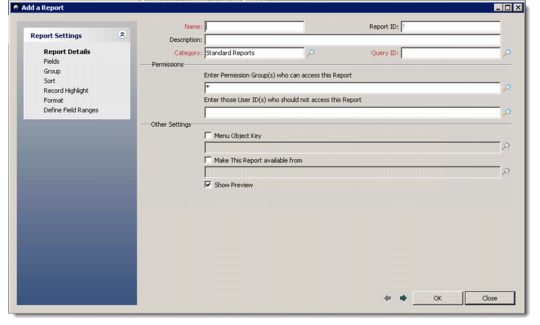
Settings | Action |
Report Details | Lets you choose user access rights for the report, and make the report available to selected modules and users. It is similar to the External Report Details window (see Adding External Reports). The only difference is the Query ID field here instead of the Procedure to Run field in the External Report Details window. |
Fields | Lets you select the fields you want displayed in the report. The list of fields appearing here depends on the Query ID you selected in Report Details. Some fields are generic, and appear in all lists. These fields relate to header and footer information like page number, date and time, and so on. You can also select the font, color, alignment, and appearance for each field of the report. Click the Calculated Field button to apply preset formulae to the available fields. These calculated fields then appear with a red asterisk (*) in the fields listing. Click the Summary Fields button to select fields that appear with a summary in the report. |
Group | Lets you select particular groups according to which the report displays. It is basically a design element to arrange data display. Groups take precedence over sort options. |
Record Highlight | Lets you choose a particular field and define conditions under which it appears highlighted in the report display. You can also select a unique format for the highlight. |
Sort | Lets you select particular sort orders according to which the report displays. |
Format | Lets you choose a theme from predesigned formats or create one yourself. |
Define Field Ranges | Lets you define a range for fields that span a particular variable. For example, you can choose to display only those records in the report where the Customer Number is greater than 250000. |