Defining a CSR
Use the CSR Maintenance screen to maintain CSR-related information, such as personal details and contact information, vacations, preferences, and assigned queues.
1 Choose Customer Service|CSR Maintenance. The CSR Maintenance browser displays the CSRs currently defined in the system.
2 Right-click the CSR Maintenance browser and choose Add from the menu.
Note: This menu also contains options for deleting and editing existing CSRs.
Details
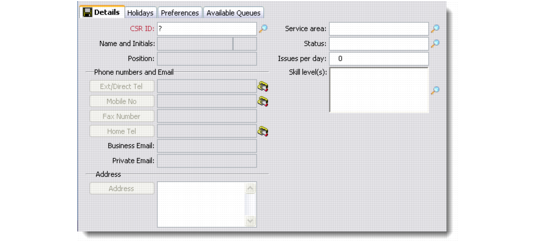
Use the Details tab to record identifying information for a CSR, such as their CSR ID, name, position, and so on.
CSR Maintenance Details
CSR ID
Enter a unique code for the CSR.
Name and Initials
Enter the name and initials for the CSR.
Position
Enter the position held in the organization by the CSR; for example, Support Analyst.
Service Area
Enter the service area in which the CSR operates.
Status
Enter a status for the CSR. For example, enter Active to indicate that the CSR is currently performing this function.
Issues per Day
Enter the number of issues that the CSR can be expected to handle during a normal business day. This value may be affected by the skill level rating.
Skill Level(s)
Enter a skill level for the CSR. For example, this might be a rating of their technical ability.
Specify contact information for the CSR as required.
Holidays
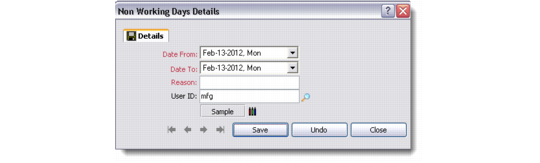
Use the Holidays tab to record vacation information. Click the Holidays tab and then right-click the Holidays browser. Choose Add from the right-click menu to display the Non-Working Days Details dialog box. Enter and save the holiday information as required.
Non-Working Days Details
Preferences
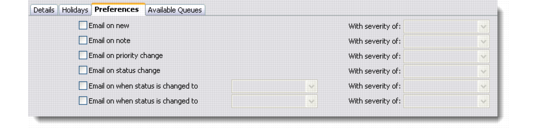
Use the Preferences tab to define the conditions and associated severities that cause e-mail to be sent to the CSR.
E-mail templates can be defined according to your organization’s requirements. For details, refer to QAD Customer Relationship Management Administration Guide.
Preferences
Select any Preferences options as required and specify a severity.
Email on New
Send e-mail to the selected CSR whenever a new issue is entered into the system.
Email on Note
Send an e-mail to the selected CSR whenever a note is entered into the system for this issue.
Email on Priority Change
Send an e-mail to the selected CSR whenever the priority of an issue in the system is modified.
Email on Status Change
Send an e-mail to the selected CSR whenever the status of an issue in the system is modified. If the status specified has a subsequent status, you can specify that an e-mail should be sent when the issue is given this status in order to track the progress of an issue through customer service.
For details on maintaining the status of customer service issues see
Maintaining Service Issue Status.
Available Queues
Use the Available Queues tab to view the service queues associated with a CSR. For details on maintaining service queues, see
Managing Service Queues.