Defining Issue Settings
Use the Issue Settings screen to define how the system handles customer service issues. For example, you can define if and how an issue should be audited, the criteria service issues must satisfy in order to be recorded in the system, preferences for e-mail templates, and so on.
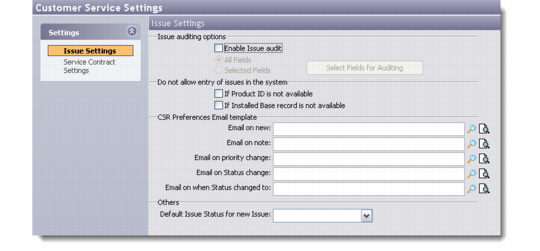
1 Choose Customer Service|Customer Service Settings. The Issue Settings screen displays.
Issue Settings
Enable Issue Audit
Select this option to enable issue auditing. Issue auditing provides a system-generated record of modifications to an issue record according to the specified settings.
Note: Labels of fields that are audited display on a screen with a hash (#) prefix.
You can view audit records from the Change Log tab on the Issue Details screen; for details, see
Change Log.
When this option is selected, the following options are available:
All Fields. All fields for the issue are audited.
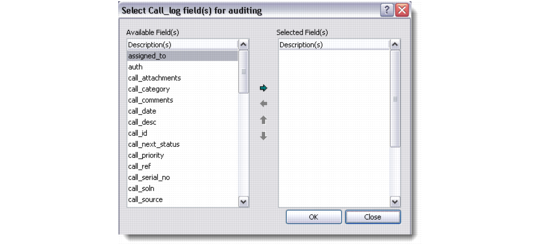
Selected Fields. Only the selected fields are audited. Click the Select Fields for Auditing button and specify the fields to audit by moving fields from the Available Fields listbox into the Selected Fields listbox.
Select Fields for Auditing
2 Specify the criteria that must be met in order for the issue to be recorded in the system.
If Product ID Is Not Available
Select this option to enable issues to be recorded for any item. Clear this option to restrict issues to those defined in your product database. This setting is generally used to restrict service to items you manufacture and sell.
If Installed Base Record Is Not Available
Select this option to enable issues to be taken for any item. Clear this option to restrict issues to those for which there is an installed base record.
3 Specify preferences for the CSR e-mail template. These preferences determine the template to use depending on the circumstance.
Note: For details on maintaining e-mail templates, refer to QAD Customer Relationship Management Administration Guide.
E-mail on new
Enter an e-mail template to use for a new issue recorded in the system.
E-mail on note
Enter an e-mail template to use when an issue recorded in the system has a note attached.
E-mail on priority change
Enter an e-mail template to use when an issue’s priority rating is changed.
E-mail on status change
Enter an e-mail template to use when an issue’s status is changed. If the status of an issue has a subsequent status, you can also use a template to indicate when the issue’s status is changed to this subsequent status.
4 Specify other preferences as required.
Default Issue Status for New Issue
Select a default status for new customer service issues recorded in the system.