Defining Issue Details
Use the Issue Details dialog box to define a service issue. This screen controls issues from two primary perspectives:
• Issue information. Where is an issue placed in your support organization (Service Queue)? How is it categorized (Problem Description, Category, Severity)? When should it be updated (Next Status Date and Time)? Where is the issue in relation to the issue life cycle (Status)? Is the issue related to another issue received previously (Relationship)?
• Engineer assignment. Which service engineer should be assigned to work on this issue? Who is best equipped for the particular problem?
Note: Service issues also can be created at the profile level. For details, see
Issues.
To display the Issue Details screen, right-click the Issues browser in the Issue Management workspace and then choose Add. Alternatively, click the Log a Support Issue button on the application toolbar.
Note: You can attach a note to a service issue record by selecting the issue record and then clicking the Make a Note button in the toolbar. Then click the Associate it with button on the Contact Notes tab. Locate the issue record and enter the text of your note into the Contact Notes panel. The note is available in the Notes panel on the Activity tab.
Details
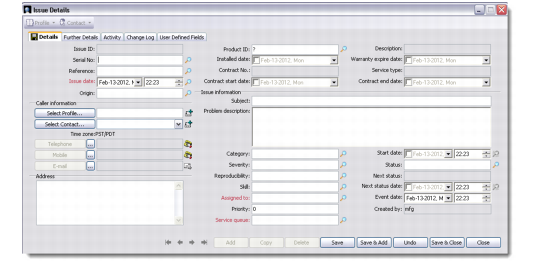
Use the Details tab to define identifying information for an issue.
Issue Details - Details Tab
1 Provide the issue identifying information, as required. The issue ID is generated automatically by the system when the issue is recorded.
Serial No
Enter a serial number. The system finds any associated installed base record and populates the customer, contract, and product information.
Origin
Enter the origin of the issue. For example, Email or Telephone Call.
2 Enter the caller information, as required.
Note: When logging a service issue, you can quickly create a profile or contact from the Issue Details screen by clicking the Add button to the right of the Select Profile and Select Contact fields.
3 Enter the issue information, as required.
Subject
Enter a subject. It is recommended that the subject be as meaningful as possible since this will be displayed in the Issue Management workspace in the Subject column.
Problem Description
Enter a short description of the problem with the item. The text entered here displays in the area under the Open Issue(s) browser.
Category
Specify a category for the service issue. For example, you might want to enter a category such as Hardware or Software. Categories help facilitate filtering issue records; for example, you can filter your records to view only those issues relating to a specific type of item.
Severity
Enter a severity for the problem. Severity indicates the end user’s perception of how bad the problem is.
Note: The system can be configured to send an e-mail to a CSR when an issue with a specified severity is logged in the system. For details, see
Preferences.
Reproducibility
Enter an indication of how easily the problem is reproduced. For example, enter Always or Sometimes.
Skill
Enter an indication of the technical difficulty of resolving this service issue. For example, you might rate a problem that can be resolved with little or no technical training as Low.
Assigned To
Enter the CSR you want to assign this service issue to. CSRs are users defined in the system. Issues cannot be saved until assigned a CSR or a service queue.
Priority
Enter a priority rating for the issue.
Service Queue
Enter the service queue to assign to the service issue. Issues cannot be saved until assigned a CSR or a service queue.
Start Date
Enter the date on which the CSR started work on the issue.
Note: The date on which the issue was logged by the system is the Issue Date. The Issue Date field is read-only and cannot be modified.
Status
Enter a status for the service issue.
Next Status Date
Enter the date on which the status of the issue will change, if required.
Note: The Event Date field displays the date on which activity was generated against an issue—for example, if a note was added. The Event Date field is populated by the system and cannot be modified.
Further Details
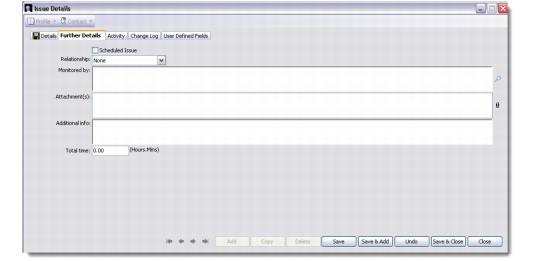
Use the Further Details tab to record whether the service issue is related to other issues in the system. You also can record more information about reproducing the problem if required.
Issue Details - Further Details Tab
Scheduled Issue
Select this option to indicate the issue was scheduled.
Relationship
If this issue is related to another service issue in the system, specify the relationship using the drop-down menu. For options indicating a relationship, you also must select the associated issue record.
Monitored By
Enter a user who monitored this issue.
You also can specify attachments and the time taken to record the service issue, as required.
Activity
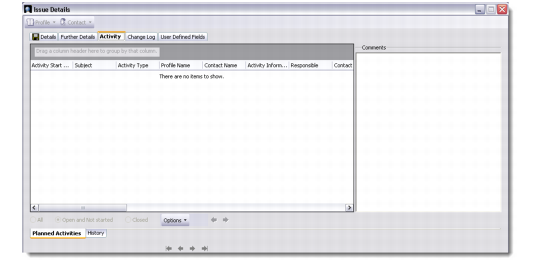
Use the Activity tab to view planned activities or history for the selected service issue; for example, you can view notes that have been added to an issue record.
Issue Details - Activity Tab
1 Specify settings on the Planned Activities tab as required.
All
Select this option to display all activities logged against this issue.
Open and Not Started
Select this option to display open and not started activities logged against this issue.
Closed
Select this option to display all closed activities logged against this issue.
Options
Select an option to control the information displayed.
View Reading Pane. Enable this option to display the reading pane on the right-hand side of the screen. The reading pane displays any notes recorded for a service issue.
Auto Preview. Enable this option to preview any notes associated with an issue in the issue listing.
Options. Choose the option to display the Report Record Selection dialog that lets you either specify a number of records to display or to display all records.
2 Specify settings on the History tab as required.
Notes Only
Select this option to only display notes associated with an issue record.
Change Log
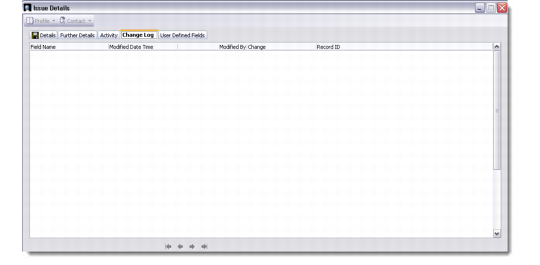
Use the Change Log tab to display audit records for selected fields for a service issue record. The change log displays the fields that were modified, modification time and date, user responsible, and the nature of the change. The Change Log tab displays issue log modifications for audited fields that are user-originated as well as system-originated.
Issue Details - Change Log Tab
User Defined Fields
Use the User Defined Fields tab to display issue records using fields defined by your organization. For details on user-defined fields refer to the QAD Customer Relationship Management Administration Guide.