Parts List
The master parts lists are used to build a standard list of parts for a preventive maintenance or repair work order. You can create multiple parts lists, group them by user-defined type fields, provide descriptions, and cross-reference other quality systems procedures. You can associate one master parts list with a number of PM templates or you can copy the list to corrective maintenance work orders.
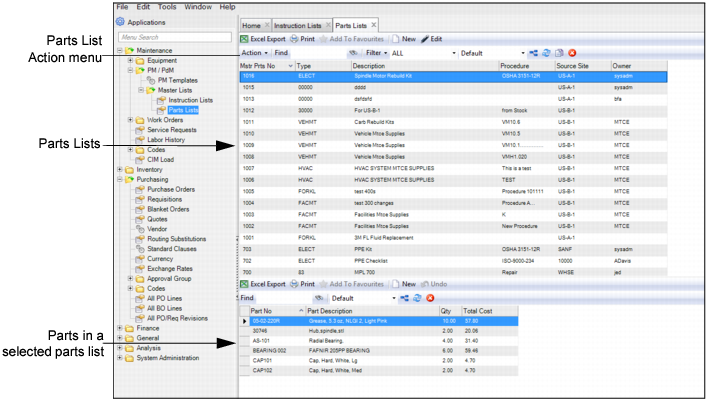
The Parts List browse is located in Maintenance|PM/PdM|Master Lists|Parts Lists.
Parts List Browse
Creating a Parts List
Follow these steps to create a parts list:
1 Open the Parts List browse and click New in the upper browse.
A blank parts list record opens. The system automatically assigns a parts list number, which you cannot modify.
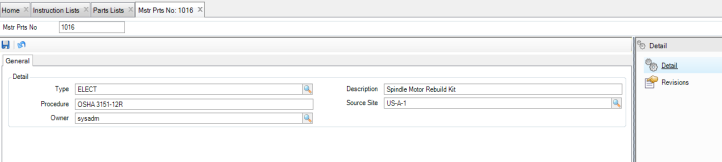
2 Enter the necessary information in the General tab.
Parts List Header General Tab
Type
Select from a user-defined grouping for parts lists: parts associated with specific pieces of equipment or certain types of repairs.
Description
Enter the purpose of the master parts list.
Procedure
Enter a cross-reference to another application such as a quality system to identify this master parts list.
Source Site
Select the site from which this master parts list sources its parts. The part lookup filters to the specified source site.
Owner
Select an owner from the lookup. This field limits record modification to the user or group specified here.
3 Once all the information has been entered, click Save.
Adding Parts to a Parts List
Follow these steps to add parts to a parts list:
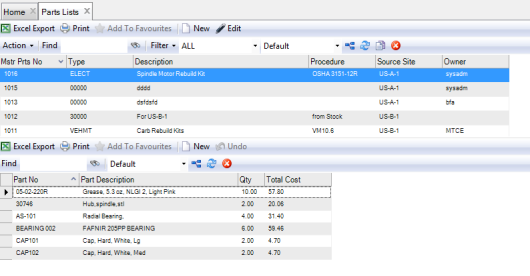
1 Select the parts list and click New in the lower browse.
2 Enter the necessary information in the following fields:
Part No
Use the lookup to select the part to add to the list. To add a non-stock part to the parts list, enter the part number in the Part No field.
Note: The part lookup, which displays the part numbers from the Inventory module, is filtered to the specified source site.
Part Description
Displays the part description. For non-stock parts, enter the part description in this field.
Qty
Enter the quantity that is required for this part.
Total Cost
Displays the total cost for the parts, which EAM calculates by multiplying the part’s current cost by the planned quantity in the parts list. For non-stock parts, enter the total cost for the parts in this field by multiplying the part cost by the quantity required.
3 Repeat these steps to add parts as necessary.
Adding Parts to a Parts List
Create a Parts List from an Equipment BOM
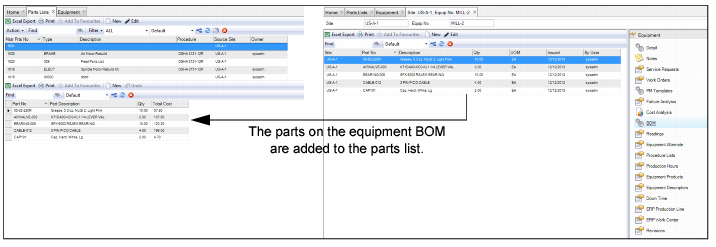
Rather than adding each part to a parts list separately, EAM allows you to create a parts list from an equipment BOM using the Copy BOM feature in the Parts List Action menu. This feature saves time and ensures data integrity.
Follow these steps to create a parts list from an Equipment BOM:
1 Open the Parts List browse and select Copy BOM from the Parts List Action menu.
2 Double-click to select the equipment from the list.
The system automatically creates a blank parts list record and assigns a parts list number, which you cannot modify. Each part in the equipment BOM is added to the parts list.
Create a Parts List from an Equipment BOM
3 Open the parts list record and enter the necessary information in the General tab.
Type
Select from a user-defined grouping for parts lists: parts associated with specific pieces of equipment or certain types of repairs.
Description
Enter the purpose of the master parts list.
Procedure
Enter a cross-reference to another application such as a quality system to identify this master parts list.
Source Site
Select the site from which this master parts list sources its parts. The part lookup filters to the specified source site.
Owner
Select an owner from the lookup. This field limits record modification to the user or group specified here.
4 Once all the information has been entered, click Save.
View Revision History for a Parts List
Because many quality systems call for strict record keeping about the revisions made to parts lists, the Revisions submenu provides an audit trail of all modifications that are made to these records. The revision records, which are stored in the Revisions submenu and in the Revisions module at General|Revisions, are automatically created when a modification is made to the parts list.
Note: Parts list revision history is enabled by selecting the Mstr List Rev? check box in System Administration|System Control on the Detail tab. See
System Control: Detail Tab.
To view the revision history for a parts list, open the parts list and select the Revisions submenu.
Revision History for a Parts List