QAD Enterprise Asset Management 2017.1
>
User Guide
>
Maintenance
>
Equipment
>
Viewing Equipment Information
Viewing Equipment Information
Printing Equipment Descriptors
The Print Descriptors option allows you to print an equipment descriptor, which is used to store technical information about a piece of equipment. Descriptor can be defined using the Equipment Descriptor submenu.
To print an equipment descriptor, open the Equipment browse and select the equipment record. Then select the Print Descriptors option from the Action menu.
To print descriptors for a group of equipment, select the equipment records. Then select Global Print Descriptors from the Action menu.
Display the Work Orders Associated with Equipment
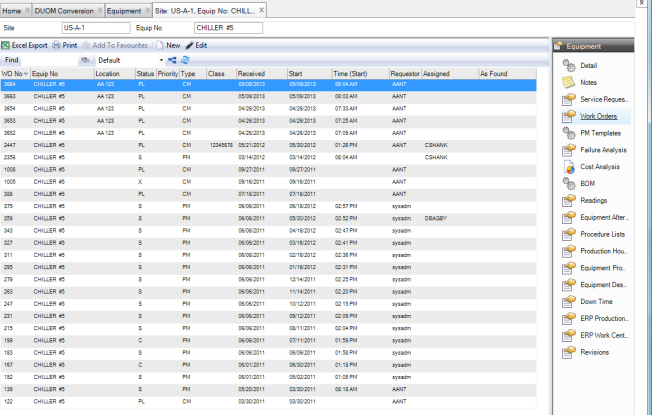
To view the work orders associated with a piece of equipment, open the equipment record and select the Work Order submenu. Drill into a work order by double-clicking the record.
Equipment: Work Orders Submenu
Display the PM Templates Associated with an Equipment
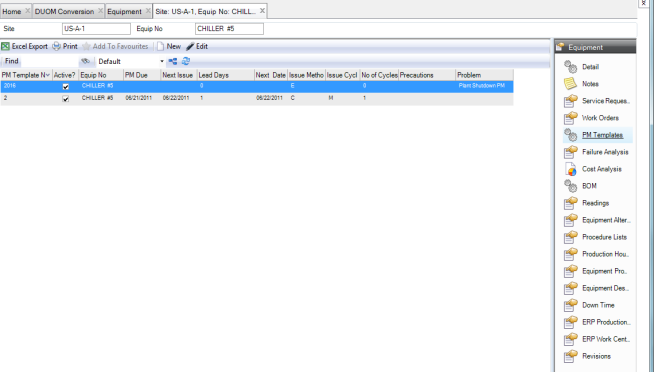
To view the PM templates associated with an equipment record, open the record and select the PM Templates submenu. Drill into the PM template by double-clicking the record.
Equipment: PM Template Submenu
View the Failure Analysis for Equipment
Since most manufacturing companies are concerned about the reliability of their equipment, Failure Analysis allows managers to make informed decisions about equipment and their PM programs. Equipment Failure Analysis is based on work order history and failure codes associated with a piece of equipment’s work orders. It provides reliability data.
Note: Schedule the batch job Equipment Failure Analysis to keep this information up to date and accurate. It recalculates the mean time between failure, the average cost for downtime hours, the average time equipment is down for each failure, and the next expected failure date.
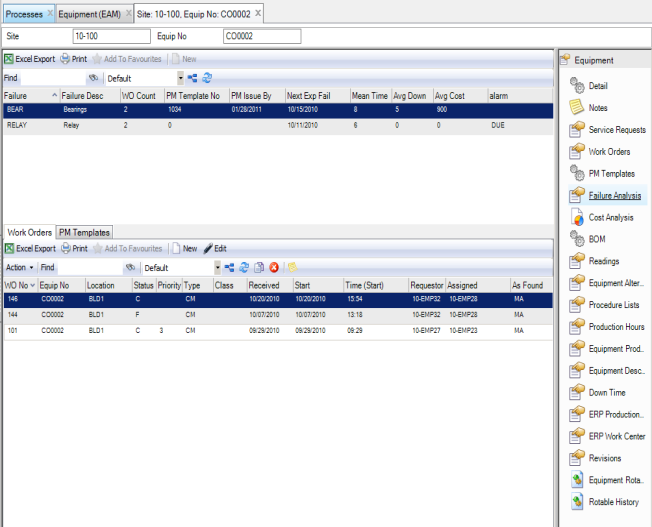
To view the failure analysis for a piece of equipment, open the equipment record and select the Failure Analysis submenu.
Equipment: Failure Analysis Submenu
The Equipment Failure Analysis submenu displays the following fields:
• Failure. Displays a code to specify the equipment failure that is then associated with a work order.
• Failure Description. Displays the description of the failure code.
• WO Count. Displays the total number of work orders containing a specific failure code for this piece of equipment.
• Mean Time (between failure). Calculated as (Last date of failure - first date of failure) / (total WO count - 1)
• Average Downtime. Calculated as Total Downtime/Number of Times Down
• Average Costs. Displays the cost per hour of downtime to compare the impact of an hour of downtime between equipment.
• Preventive PM Number. The PM noted to prevent the failure on the piece of equipment.
• PM Issue By. The next date that the PM is due.
• Next Expected Failure. Calculated as the date of the last failure of that type + the Mean Time between failure.
• Failure Alarm. Determined by comparing the Expected Failure date and the next PM Issue By date.
Two tabs are on the Failure Analysis screen:
• Work Orders. This tab allows you to access specific work orders referencing the WO Count column. This information provides you with the ability to quickly analyze common failures on the piece of equipment.
• PM Templates. If a PM is designated as preventing a specific failure, you can access the PM Module, allowing you to update/change PM frequency or procedures.
View the Cost Analysis for Equipment
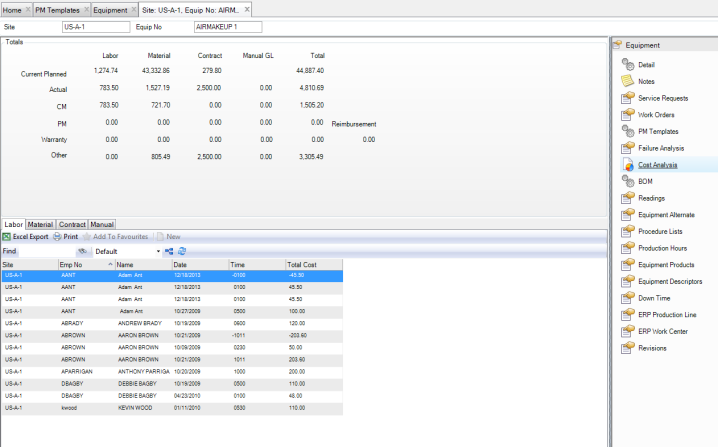
The Cost Analysis submenu allows you to view summary and detailed cost analysis for a piece of equipment. At a glance, you can see equipment cost totals for planned and actual, or for CM and PM work orders for the equipment. By selecting the Labor, Material, Contract, and Manual tabs in the lower browse, you can review cost details associated with labor postings, part issues, outside contractor charges, and manual GL transactions.
Note: The Cost Analysis Manual tab displays GL transactions that reference an equipment number and were created by a manual EAM general ledger entry in Unposted GL Transactions. You must post these transactions to add them to the equipment cost analysis.
Note: Warranty/reimbursement functionality is planned for a future release.
Equipment: Cost Analysis Submenu
View Equipment DUOM Readings and History
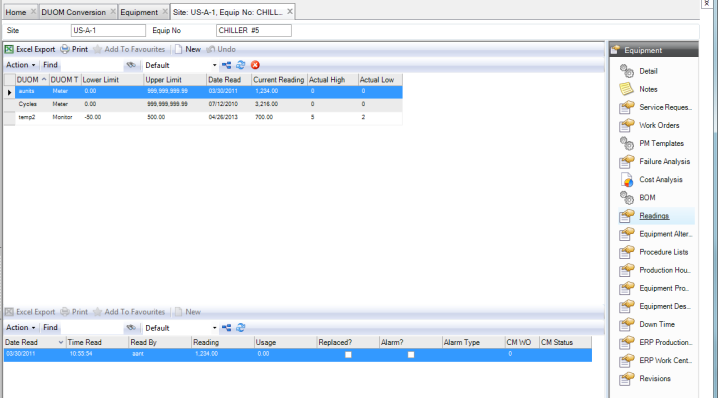
To view the equipment DUOM readings and history, open the equipment record and select the Readings submenu.
Equipment: Readings Submenu
View the Rotable Parts on a Piece of Equipment
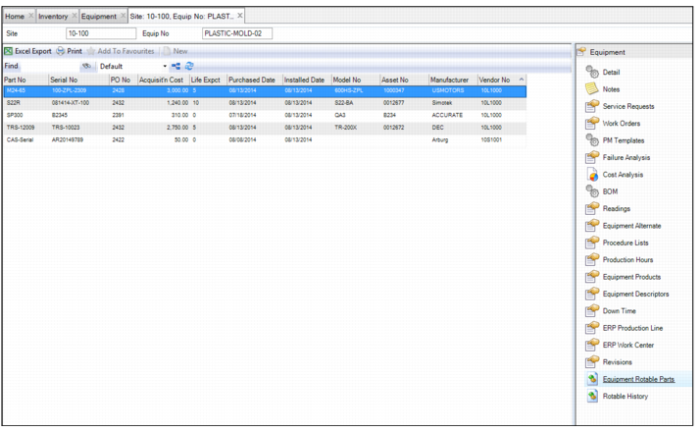
If rotable parts have been issued to a piece of equipment, the equipment record is a virtual record that represents the location of the rotable part. A parent is also associated with the equipment number to indicate where the rotable part has been placed.
To view the rotable parts that have been issued to a piece of equipment, open the equipment record and select the Equipment Rotable Parts submenu. Multiple rotable parts can be issued to a piece of equipment. To issue rotable parts to a piece of equipment, see
Issue a Rotable Part to a Piece of Equipment.
Equipment: Rotable Parts Submenu
View Rotable Part History on a Piece of Equipment
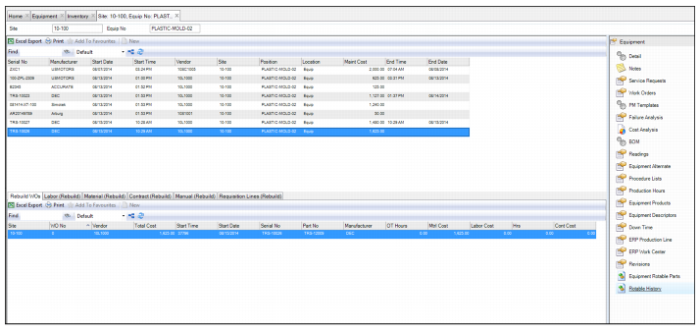
The Rotable History submenu displays all serial-numbered parts that have been issued to the selected equipment. The upper browse displays when a component was issued to the equipment and when it was removed. It also displays the manufacturer that supplied the part and the total cost of maintaining the component while on the equipment.
The lower browse displays cost analysis information about the selected rotable part. In this browse, you can view detailed information about expenses charged to an individual serialized part and any work orders, labor postings, material issues, and contractor expenses that reference the rotable part.
Equipment: Rotable History Submenu
View the Revision History for an Equipment Record
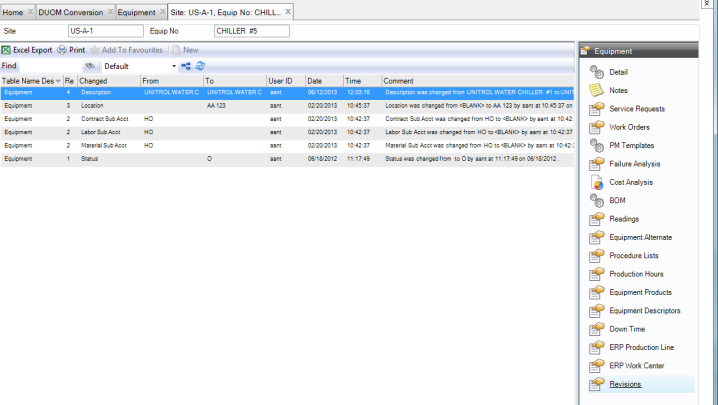
Because many quality systems call for strict record keeping about the revisions made to equipment records, the Revisions submenu provides an audit trail of all modifications that are made to this record. The revision records, which are stored in the Revisions submenu and in the Revisions module at General|Revisions, are automatically created when a modification is made to the equipment record.
To view the revision history for an equipment record, open the equipment record and select the Revisions submenu.
Note: Revision control is activated in the Purchasing|General|Business Units|Sites menu. See
Enable Revision Control.
Equipment Revisions Submenu
View Downtime Records for Equipment
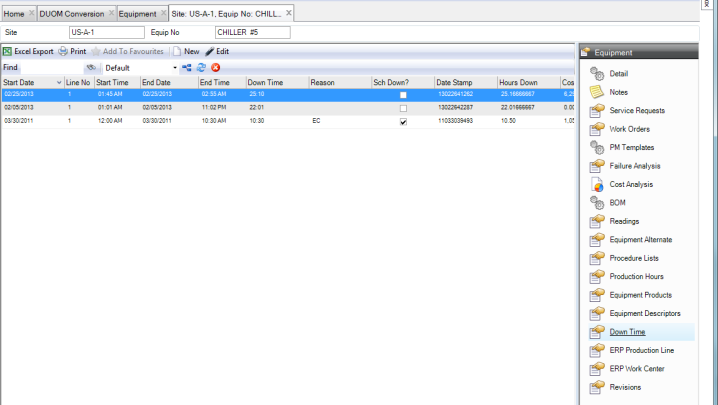
EAM provides a method of tracking downtime directly to a specific equipment record. Downtime may or may not be associated with a maintenance work order. Each downtime record is associated with an equipment record and, potentially, codes for system, assembly, reason down, and failure.
To view the equipment downtime records, open the equipment record and select the Down Time submenu. Drill into the downtime record by double-clicking the record.
Note: EAM also provides a browse that displays all the downtime for all equipment. See
All Downtime Browse.
Equipment Downtime Submenu