Create Work Orders from PM Templates
EAM gives you the ability to create a single work order or multiple work orders from PM templates. When you create a WO from a PM template, EAM pulls in all the data from the PM template and automatically enters it into the WO. This feature saves you time and ensures data integrity. If a WO has been created from a PM template, the WO is directly tied to the PM template and the associated WO numbers appear in the PM template submenu.
Create a Single WO from a PM Template
Follow these steps to create a single WO from a PM template:
1 Open the PM Template browse in Maintenance|PM/PdM|PM Templates.
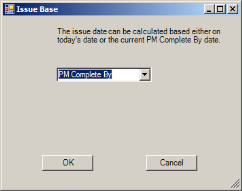
2 Highlight the PM template and select Issue from the PM Template Action menu. The Issue Base window opens.
3 Select the issue date from the drop-down menu and then click OK.
• PM Complete By. WO is issued on the PM template’s PM Complete By date. The PM Complete By date is located on the Issue Method tab.
• Today. WO is issued today.
Create WO from PM Template
Filling Out the WO
Create Multiple WOs from PM Templates
Use Global Issue to create multiple work orders. Select a single PM template for multiple issues or multiple PM templates. Select multiples manually or by filtering. If you select multiple PMs, use this option to schedule them for issue. Issue multiples from a PM template up to the end date.
Follow these steps to create multiple WOs from PM templates:
1 Open the PM Template browse in Maintenance|PM/PdM|PM Templates.
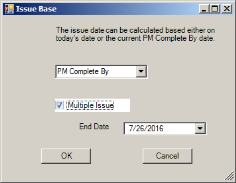
2 Highlight the PM templates and select Global Issue from the PM Template Action menu. The Issue Base window opens.
3 Select the issue date from the drop-down menu.
• PM Complete By. WO is issued on the PM template’s PM Complete By date. The PM Complete By date is located on the Issue Method tab.
• Today. WO is issued today.
Create WOs from PM Templates
4 If the issue cycle is less than the end specified, select the Multiple Issue check box to issue multiple WOs per PM. This allows a planner to issue daily PMs for each day of the week without going in each day and issuing them.
Note: If the Multiple Issue check box is not selected, a single WO is issued for the selected PM templates.
5 If the Multiple Issue check box is selected, specify the End Date to limit the date range when the WO is issued.
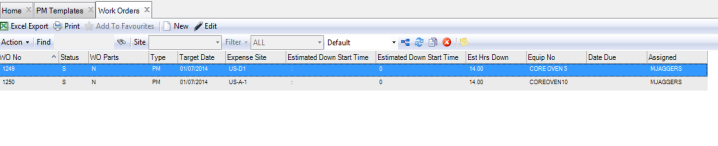
6 Click OK. The WO browse opens. The WOs that were created are displayed. If necessary, open the WOs and enter any addition information. See
Filling Out the Work Order.
Filling Out the WO
Creating a WO from the Work Order Submenu
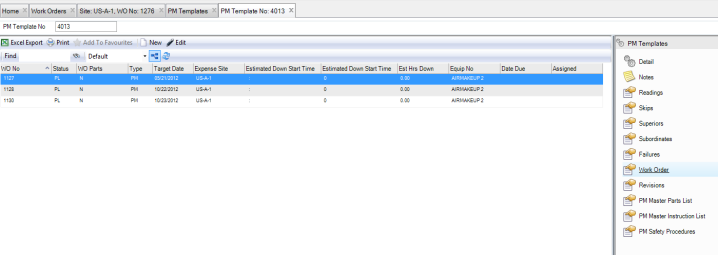
You can also create a work order from a PM template in the Work Orders submenu. To create a work order, open the PM template and select the Work Orders submenu. Click New and a blank WO record opens. Fill out the work order record with the necessary information. See
Filling Out the Work Order.
Filling Out the WO