QAD Enterprise Asset Management 2017.1
>
User Guide
>
Inventory
>
Inventory
>
Managing Consignment Inventory
Managing Consignment Inventory
Adding a Consignment Part – Modify Consignment
Follow these steps to add a consignment part to inventory:
1 Open the Inventory browse and highlight the consignment part record.
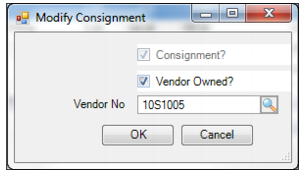
2 Select Modify Consignment from the Inventory Action menu. The Modify Consignment window opens. Enter the required information in the following fields:
Vendor Owned?
By default, this check box is selected, indicating that the consignment part is vendor owned. If the vendor does not own the consignment part, clear this check box. If this check box is not selected, the Vendor No field is disabled.
Vendor No
If the consignment part is vendor owned, use the lookup to select the vendor.
Add Consignment Part to Inventory
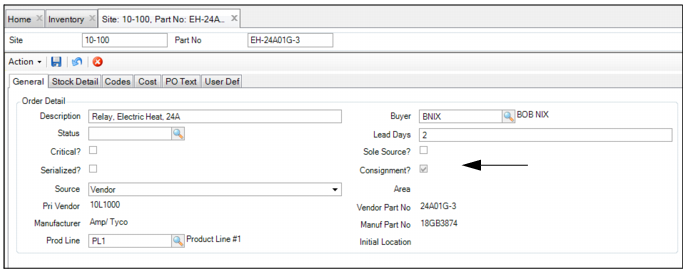
3 Click OK to add the consignment part to inventory. The Consignment? check box on the part record is now selected, indicating that this part is a consignment part.
Add Consignment Part to Inventory
Consignment Inventory Transactions
Issue Consignment Inventory
Follow these steps to issue a consignment part from inventory:
1 Open the Inventory browse and highlight the consignment part record.
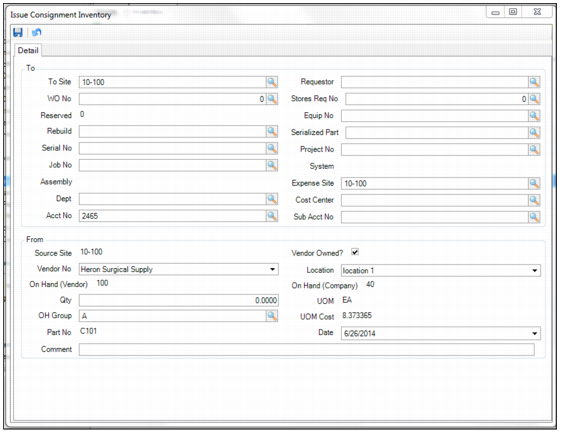
2 Select Issue from the Inventory Action menu. The Issue Consignment Inventory window opens.
Issue Consignment Inventory
3 Enter the required information in the fields.
Note: The Issue Consignment Inventory window contains consignment-related fields, which are used for vendor information. This window also contains standard inventory-related fields. For definitions of those fields, see
Issue Parts.
Vendor Owned
This check box, which only appears when issuing for consignment parts, indicates if the vendor or the company owns the consignment part. Select this check box to issue a vendor-owned consignment part.
Vendor No
If this consignment part is vendor owned, select the vendor who owns this part.
On Hand (Vendor)
Using the information linked to the vendor specified in the Vendor field, this field displays the available OH quantity for the vendor-owned consignment part.
On Hand (Company)
Displays the available on-hand quantity for the company-owned part.
4 Click OK to issue the part.
Return Consignment Part to Inventory
The procedure to return a consignment part to inventory is the same as returning an MRO part to inventory. See
Return Parts to Inventory.
Relocate Consignment Part
Follow these steps to relocate consignment parts to other locations and/or other sites:
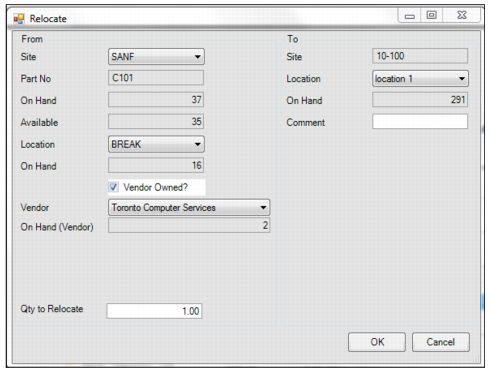
1 Open the Inventory browse. Highlight the consignment part record and select Relocate from the Inventory Action menu. The Relocate window opens.
Relocate Consignment Inventory
2 Enter the relocation information in the fields.
Note: The Relocate window contains consignment-related fields, which are used for vendor information. This window also contains standard inventory-related fields. For definitions of those fields, see
Relocate Parts to Other Locations and Sites.
Vendor Owned?
Select this check box to indicate that a vendor owns the consignment part. If this check box is cleared, the OH quantity is considered to be company owned.
Vendor
If the consignment part is vendor owned, select the vendor that owns this part.
On Hand (Vendor)
Using the information linked to the vendor specified in the Vendor field, this field displays the OH quantity of the vendor-owned consignment part.
3 Once you have entered the relocation information, click OK to relocate the part.
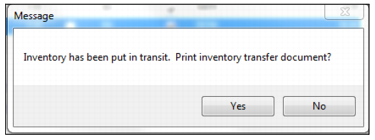
4 If you are relocating a part to another site, the system informs you that the part has been put in transit. If necessary, click Yes to print the inventory transfer document. To complete the relocation, receive the parts in the new site by performing the Receive from Relocation action.
Note: If you are relocating a part to another location in the same site, this message does not appear.
Part in Transit Message
Receive Consignment Part from Relocation
To receive a consignment part from relocation, see
Receive Parts from Relocation.
Adjust On-Hand Quantity of a Consignment Part
Follow these steps to adjust the on-hand quantity for a consignment part:
1 Open the Inventory browse and highlight the consignment part record.
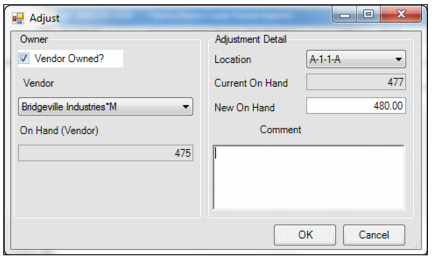
2 Select Adjust from the Inventory Action menu. The Adjust window opens.
Adjust On-Hand Quantity
3 Enter the required information in the fields.
Note: The Adjust window contains consignment-related fields, which are used for vendor information. This window also contains standard inventory-related fields. For definitions of those fields, see
Adjust On-Hand Quantity of an MRO Part.
Vendor Owned?
Select this check box to indicate that a vendor owns the consignment part. If this check box is cleared, the OH quantity is considered to be company owned.
Vendor
If the consignment part is vendor owned, select the vendor that owns this part.
On Hand (Vendor)
Using the information linked to the vendor specified in the Vendor field, this field displays the on-hand quantity of the vendor-owned consignment part.
4 Click OK to confirm.
Modify Cost of a Consignment Part
The Modify Cost action allows you to change the cost of a part. When this action is performed, general ledger entries are generated based on the changes.
Note: Use this option only with approval from your Finance department.
Follow these steps to modify the cost of a consignment part:
1 Open the Inventory browse and highlight the part record.
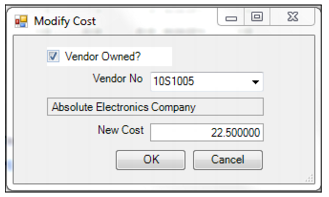
2 Select Modify Cost from the Inventory Action menu. The Modify Cost window opens. Enter the required information in the following fields:
Vendor Owned?
Select this check box if the vendor owns the consignment part.
Vendor No
If the Vendor Owned? check box is selected, the system populates this field with the primary vendor for this part. The vendor name is displayed below this field.
New Cost
Enter the new cost of the consignment part in this field.
Modify Cost of a Consignment Part
3 Click OK to accept the new cost.
View Consignment Cost Stack
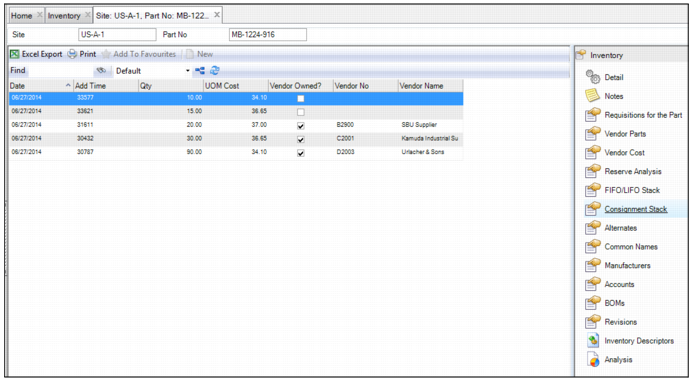
Vendors can stock consignment parts at your company’s location and retain ownership until you use those parts. To help you monitor the consignment parts, EAM provides the Consignment Cost Stack submenu, which allows you to view the following:
• The quantity of consignment parts that are available for each vendor
• A part’s next-issue cost, which is based on FIFO, for each vendor
• Whether the part is vendor or company owned
Note: This submenu is only available for parts where the Consignment? check box is selected.
Consignment Stack Submenu
Transfer Ownership of a Consignment Part to Company Owned
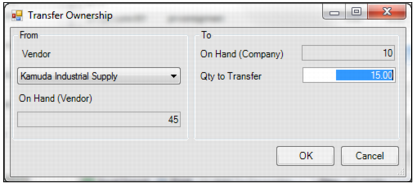
The Transfer Ownership action allows you to indicate another owner for the consigned part. Follow these steps to transfer ownership of a consignment part to company-owned:
1 Open the Inventory browse and highlight the part record.
2 Select Transfer Ownership from the Inventory Action menu. The Transfer Ownership window opens. Enter the relevant information in the following fields:
From
Vendor
Use the drop-down list to select the vendor that owns the consignment part.
On Hand (Vendor)
Displays the quantity of consignment parts that are on hand for the selected vendor.
To
On Hand (Company)
Displays the quantity of parts on hand that the company owns.
Qty to Transfer
Enter the quantity of consignment parts to transfer from vendor-owned to company-owned.
Transfer Ownership of a Consignment Part
3 Click OK to complete the transfer of ownership.