Stores Requisition List Activity
Reserve Parts on a Stores Requisition List
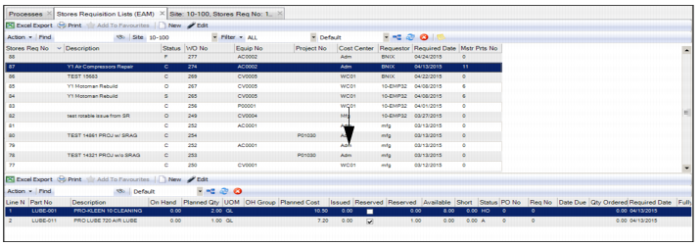
The Reserve action allows you to hard-reserve available inventory for a specific work order from the scheduled start date. When you reserve a part, EAM checks if there are any available parts in storage, and if so, it reserves and reduces the available quantity by the number requested for that particular part on the work order.
To reserve a part, highlight the part in the lower browse and select Reserve from the Action menu. Once a part has been reserved, the Reserved check box is selected.
To reserve multiple parts, highlight the part records in the lower browse and select Global Reserve from the Action menu.
Reserve Parts on a Stores Requisition List
Unreserve Parts on a Stores Requisition List
The Unreserve action allows you to release the quantity reserved for that part on the work order. When you unreserve a part, EAM releases a part quantity and increases the available amount in inventory, making more parts available for other work orders.
To unreserve a part, highlight the part in the lower browse and select Unreserve from the Action menu. When a part is unreserved, the Reserved check box is cleared.
To unreserve multiple parts, highlight the part records in the lower browse and select Global Unreserve from the Action menu.
Issue Parts on a Stores Requisition List
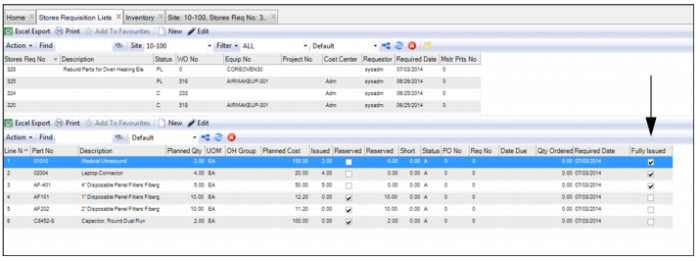
The Issue action allows you to perform a material issue for the designated planned quantity of the part selected. To issue all planned quantities for every line item, use the Global Issue action. Once a part has been issued, the Fully Issued check box is selected.
To issue a part on a stores requisition list, highlight the part in the lower browse and select Issue from the Action menu.
To issue multiple parts, highlight the part records in the lower browse and select Global Issue from the Action menu.
Issue Parts on a Stores Requisition List
Partially Issue Parts on a Stores Requisition List
Follow these steps to partially issue a part from a stores requisition list:
1 Open the Stores Requisition Lists browse and highlight the part in the lower browse.
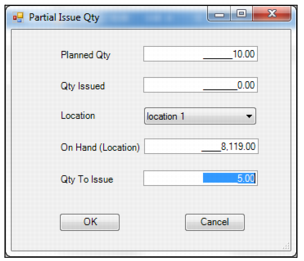
2 Select Partial Issue from the Action menu. The Partial Issue Qty window opens.
3 Enter the quantity to issue in the Qty To Issue field.
Partially Issue Parts on a Stores Requisition List
4 Click OK to issue the parts.
Return Parts on a Stores Requisition List
Follow these steps to return parts on a stores requisition list:
1 Open the Stores Requisition Lists browse and highlight the part in the lower browse.
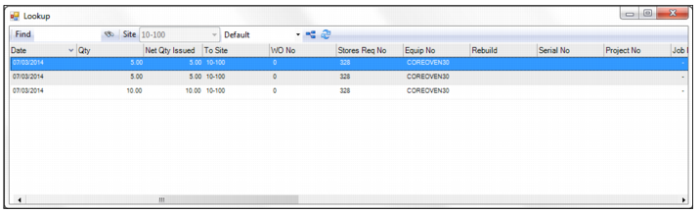
2 Select Returns from the Action menu. A lookup opens displaying the issue lines for the part. Double-click to select the issue line.
Note: If the part was partially issued multiple times, there are multiple lines representing each time the part was issued.
Return Parts on a Stores Requisition List
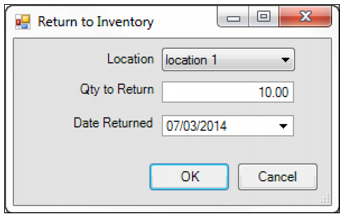
3 The Return to Inventory window opens. Enter the return quantity in the Qty to Return field.
Return Parts on a Stores Requisition List
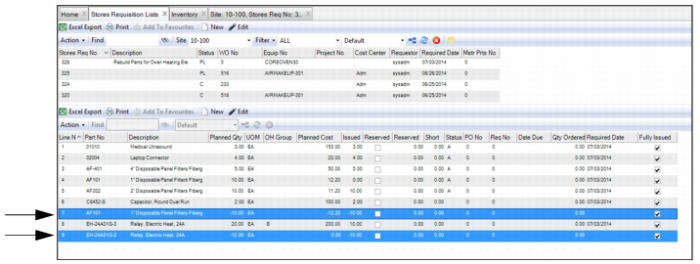
4 Click OK to return the parts to inventory. The system adds lines in the lower browse to reflect any parts that have been returned.
Return Parts on a Stores Requisition List
Create Requisitions for Parts on a Stores Requisition List
Create Requisition
Follow these steps to create a requisition for a part on a stores requisition list:
1 Open the Stores Requisition Lists browse and highlight the part record in the lower browse.
2 Select Create Requisition from the Action menu.
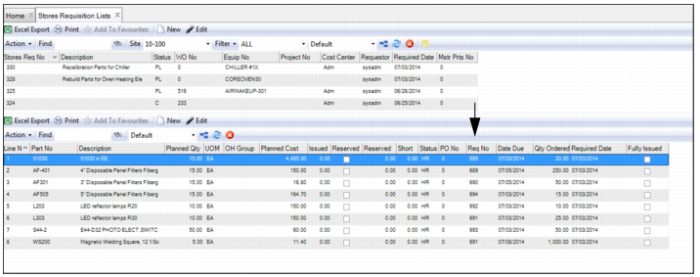
4 The requisitions that are created are displayed in the Req No field.
Create Requisitions for Parts on a Stores Requisition List
Global Create Requisition
Follow these steps to create a requisition for multiple parts on a stores requisition list:
1 Open the Stores Requisition Lists browse and highlight the part records in the lower browse.
2 Select Global Create Requisition from the Action menu.
4 The requisitions that are created are displayed in the Req No field.