Creating a Requisition
Follow these steps to create a requisition:
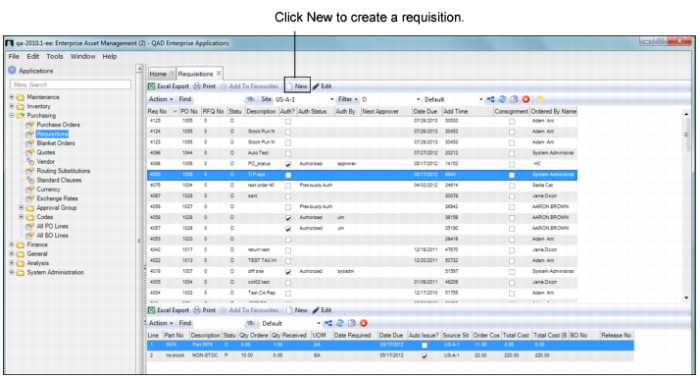
1 Open the Requisitions browse in Purchasing|Requisitions.
Requisition Browse
2 Click New. A blank requisition record opens. The system automatically assigns a requisition number, which you cannot modify
4 Once all the information has been entered, click Save.
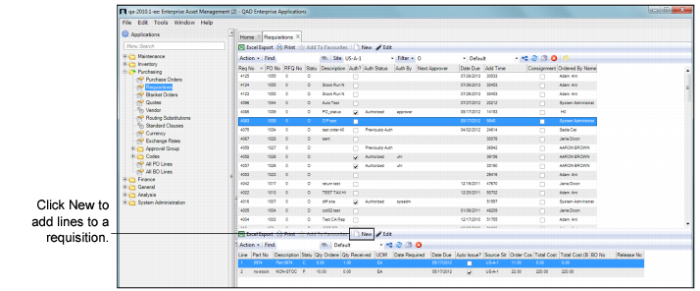
5 Add lines to the requisition. Select the requisition that you created and click New in the lower, requisition lines browse.
Adding Lines to a Requisition
7 Click Save.
Filling Out the Requisition Header
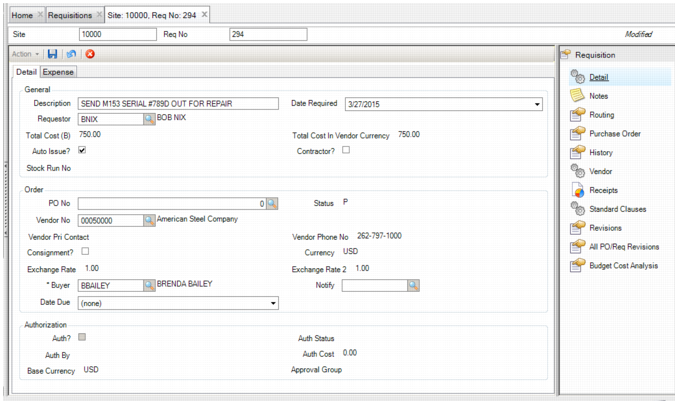
Enter information about the requisition in the Detail and Expense tabs.
Requisition: Detail Tab
Requisitions Tab: Detail
General
Description
Enter up to a 30-character alphanumeric description of the requisition. You can filter and sort by the description.
Date Required
The required date for the material or service, entered by the creator of the requisition. You can enter a date or select a date from the drop-down calendar.
The buyer uses this scheduling information when negotiating with vendors.
Requestor
The employee who requested the items, goods, or services associated with the requisition.
When you create a requisition, EAM adds the employee number of the user ID entering the new requisition in the Requestor field. You can override this field using the lookup window.
Total Cost (B)
EAM calculates the total cost in the base currency by multiplying the quantity times the order cost in the base currency on each line of the requisition, and displays the total.
Requisition routing approval uses the total cost value. EAM compares the total requisition cost to the approving individual’s spending limits.
Total Cost in Vendor Currency
The cost in the vendor’s currency.
Auto Issue?
This check box denotes whether to directly expense parts or services upon receipt.
If a line item on the requisition is a stock part that is set to auto issue, a non-stock part, or a service, the fields on the Expense tab identify the cost center, account, and sub-account number to charge. The item is received against the PO and expensed to those accounts on the line and EAM credits the accounts payable liability account.
If you select Auto Issue?, you can direct the expense by referencing:
• WO number
• Stores req number
• Equip number
• Rebuild
• Rotable part
• Serial no
• Project number
• Job number
• Cost center/account/sub-account
Select the check box to display expense accounting structure defaults.
The Auto Issue? check box also affects what displays and prints on the purchasing documents:
• Requisition document
• If Auto Issue? is selected, the department, cost center, account, and sub-account number from the expense section display and print.
• If Auto Issue? is clear, the inventory dept, inventory cost center, inventory account number, and inventory sub-account display and print.
• Purchase order
• For each requisition, if Auto Issue? is selected, the cost center, account, and sub-account number from the expense section display and print.
• If Auto Issue? is clear, the inventory cost center, inventory account number, and sub-account display and print.
Contractor?
This check box denotes whether the requisition is for an outside contractor or services. It is only active when Auto Issue? is selected.
Typically, a work order or equipment identification number links to the requisition. The system uses the contractor cost center, account, and sub-account number from the work order or equipment, instead of the material cost center, account, and sub-account number when the requisition is auto-issued or expensed upon receipt.
Stock Run Number
When a requisition is automatically created through a stock run, the system fills this field with the stock run number.
Note: If a stock run does not auto create the requisition, the system fills this field with a 0.
Order
PO No
The requisition is attached to this purchase order. Enter the purchase order number or select one from the lookup.
EAM retains the requisition throughout its entire life. Instead of copying a requisition to a purchase order, EAM attaches a requisition to the purchase order. EAM displays the purchase order number in the PO number field.
Status
Status defaults to P (planned). After placing the requisition on order, the system automatically assigns it an O (ordered) status in the PO. From within the requisition, you can select the Change Status action and either cancel (X) or close (C) the requisition.
Vendor No
Enter or select the vendor number associated with the requisition. If a PO number has been entered and the PO has a designated vendor, EAM displays that vendor number.
When a purchase order is created for the requisition, the system copies the vendor from the requisition to the purchase order.
Note: The vendor name displays next to the vendor number.
Vendor Primary Contact
The primary contact designated in the vendor record, copied to the requisition.
Vendor Phone Number
The vendor phone number, copied to the requisition from the vendor record.
Consignment?
This check box indicates whether this requisition is for parts on the premises that are vendor-owned.
Currency
The primary currency the vendor uses. Requisitions for this vendor default to this currency. EAM defaults to the base currency if there is no vendor or PO number.
Exchange Rate
The current exchange rate for the requisition currency from the QAD ERP application.
Exchange Rate 2
The secondary exchange rate from the QAD ERP application.
Buyer
If this is a stock part and a buyer is associated with the part number, the buyer’s employee ID and name are pulled into the requisition line. A buyer specified on the requisition copies to line items attached to the requisition.
If the buyer is blank, select one from a lookup of valid buyers. After requisition approval, EAM restricts who can change a requisition. Only the buyer and the person who authorized the expenditure are allowed to change the requisition and its lines.
Notify
If a particular type of event occurs that affects the requisition or purchase order, select the individual or group of individuals to e-mail.
The individual or group in this field can consist of a user ID or a group of users, called a mail group. As a requisition goes through the routing approval, ordering, and receipt stages; the system notifies the user or group with updates.
Date Due
The date the buyer expects to receive the parts, based upon the vendor’s feedback. You can change the date on each line.
Authorization
Auth?
This system check box denotes whether the requisition is authorized.
Auth Status
The authorization status of the requisition.
If the authorization has not been started, the status remains blank. If the requisition is in the routing process, the status is Routing. If it is authorized, the status is Authorized.
Auth By
The user ID who authorized the expenditure of the requisition.
EAM validates spending limits, cost center group, and/or account group. If you can spend at least the amount required and can approve against the cost center number or account number, the requisition becomes authorized. Your user ID displays in the Auth By field. If you do not meet these criteria, the requisition routes to others for consideration of approval. The quality approver or user ID who meets the spending limit authorizes the requisition.
Auth Cost
The current requisition cost at authorization.
The Auth Cost field displays the original approval requisition because it can differ from the final amount.
The buyer and the final authorizer can change the requisition after authorization. In the General|Business Units|Domain|PO/Reqs tab, set a buyer limit (either percentage or amount), limiting the buyer’s ability to increase the authorized requisition’s cost. If it is required to be incremented in a small amount, the buyer can manage a requisition. If changes exceed the buyer limits, the system also forces the requisition to reroute for approval. EAM enters a new authorized cost every time it changes.
Base Currency
The base currency of the site’s domain, which is specified on the General|Business Units|Domain|PO/Reqs tab.
Approval Group
The group of users to which the requisition is routed for approval.
Requisition: Expense Tab
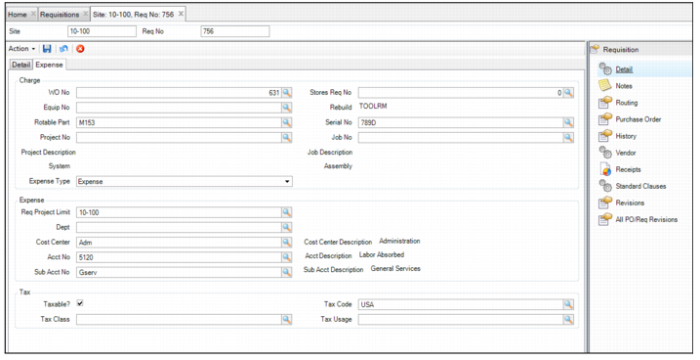
Enter expense and tax information about the requisition on the Expense tab.
Requisitions: Expense Tab
Charge
WO No
If the requisition is associated with a work order number, you can identify it here. It is validated from the work order table and only displays open work orders. Identifying the work order on a requisition has two effects:
• If the requisition is set to auto issue, when the parts, goods, or services are received through the purchasing system, they charge directly to the work order’s expense accounting data.
• If the work order is associated with the requisition but Auto Issue? is cleared, these parts are still for the work order. When the parts are received, EAM reserves them for the work order. The parts go into inventory, to be issued to the work order later, and the accounting data reflects the inventory asset data. When the parts are issued, they are charged to the work order’s expense accounting data.
Stores Req No
When you enter a WO number with an associated stores requisition number, it displays in this field.
Equip No
The identifying number for a piece of equipment.
If the requisition is associated with a piece of equipment, identify the equipment in this field. Enter or select the equipment from the lookup.
Identifying the equipment on a requisition creates the expense GL transaction only if Auto Issue? is selected. When purchasing receives the parts, goods, or services, it directly charges the equipment’s expense accounting data.
If the equipment is associated with a requisition with no auto issue, the parts are still ordered for the equipment. Inventory receives the parts and the Account Number fields reflect the expense account number. In this case, the equipment number serves only as a note that the parts were ordered for this piece of equipment.
Rebuild
Select the rebuild location using the lookup.
Rotable Part
Select the rotable part using the lookup. This lookup only displays the rotable parts that are available in the selected rebuild location.
Serial No
Use the lookup to select the serial number of the rotable part. This lookup only displays the serial numbers that are available for the selected rotable part.
Project No
The identifying number for a project.
When a project number is associated with a requisition, EAM copies the project’s primary expense accounting number.
Job No
The job number associated with the project to expense for this purchase.
First, identify a project to use a job number.
If Auto Issue? is selected, the cost of the goods and services on the requisition automatically flows to the identified project and job expense accounting structure on the requisition.
System
This field is associated with equipment ID, identified on a requisition.
Create a requisition to charge directly or issue upon receipt against a specific piece of equipment. Associate a valid system for more detailed analysis of where this cost was expensed on the equipment.
Each piece of equipment must have an associated BOM type. To reference a system, use the lookup to see a table of valid system codes associated with the equipment through the BOM type. Associate an assembly below the system field for more detailed analysis.
Assembly
The assembly associated with the system code, which is associated with a piece of equipment.
If the requisition is a direct charge and identifies a piece of equipment, then the part expenses directly to that equipment. For more detailed analysis of where on the piece of equipment this part goes, associate the part to a specific system code.
Expense Type
The requisition expense type: capital or expense.
The default is Expense. Expense type refers to the approval process for a requisition. In User Maintenance, each user has two spending limits for expense and capital requisitions. The Requisition check box determines the kind of spending limit. If you enable the Req Proj Limit? check box in General|Business Units|Sites|Authorization Options tab, EAM uses a third limit value, if it is present.
Implementation Issue: In a facility where people sign approvals for goods and services, they may have two types of spending limits. For example, for regular expenses, an individual has $500 approval. On capital items (typically larger purchases), the same individual has an approval limit of $5000.
Expense
Expense Site
The site to which to expense this requisition.
Dept
The department charged for the requisition upon receipt.
Select Auto Issue? to expense the requisition to a department.
Note: If a department, cost center, or sub-account is required and the requisition is not auto issued, the system ignores the required field setting.
Cost Center
The cost center, which is an area of the facility that can receive materials or services and can, in turn, be charged for them.
Select the cost center from a table of cost centers, previously created in Finance|Groups|Cost Centers.
If a cost center is required and the requisition is not auto issued, the system ignores the required field setting.
Acct No
The account number that receives the auto-issued requisition charges during the purchasing routine.
The account number table validates the account number. If you are using a cost center, the account number must be valid within the cost center.
The system copies the default account number. If an auto-issued requisition identifies a piece of equipment or a work order, then the system copies the work order’s account number by default.
Note: A stock replenishment purchase automatically uses the part inventory cost center, account, and sub-account number, and if it is blank, then the system uses the site default.
Sub Acct No
The sub-account number associated with a specific account number. The PO charges the sub-account number when it receives the requisition.
When a PO receives goods and services specifically for this line item or requisition, the cost charges to the sub-account number.
You can identify a sub-account number only if a sub-account number was previously identified or associated with the requisition.
Tax
Taxable?
The vendor’s default tax setting. Click to change this setting.
Tax Code
The vendor’s default tax code.
Tax Class
The vendor’s default tax class.
Tax Usage
The vendor’s default tax usage.
Add Lines to a Requisition
Create an individual request for purchase of an inventory stock item, non-stock parts, or service work. Access this information from the bottom browse in Requisitions.
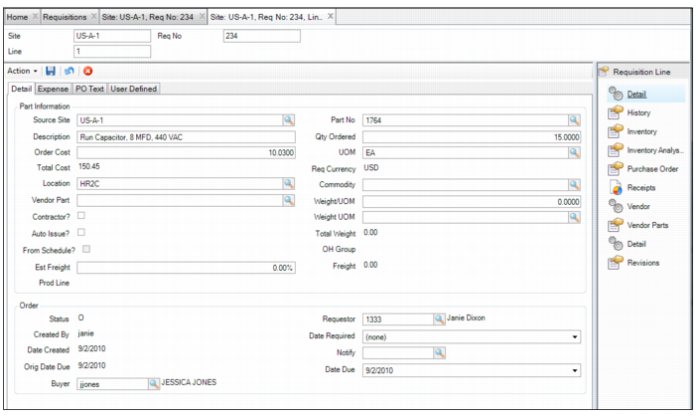
Enter information about the requisition line on the Detail, Expense, PO Text, and User Defined tabs.
Requisition Line: Detail Tab
Requisition Lines Detail Tab
Part Information
Source Site
The site from which the part number on the requisition is selected. If you need to purchase a part for a site other than the current working site, select a different source site. In the lookup, EAM displays only those parts associated with the identified source site.
Part Number
The part number associated with the requisition. Access the lookup at the Part No field. The lookup displays a list of valid part ID numbers. From this list, select the part to order and to replenish stock. If the part number you enter is a valid EAM stock number, the system pulls in all the relevant information such as the description, purchase order text, and account number structure. However, EAM allows you to enter any number, such as a vendor part number, non-stock part, or service description, which allows you to create an auto-issued requisition. If you enter a part number that does not exist in Inventory, EAM treats this as a non-stock purchase and you must identify the expense accounts for expensing on receipt.
Description
Enter up to a 30-character alphanumeric description of the requisition. If a stock part number is added to the requisition, the part’s description in Inventory|Inventory is copied to this field.
Qty Ordered
The quantity to order on the requisition. If the stock replenishment routine creates the requisition, EAM calculates the quantity ordered based on user-defined parameters. Otherwise, you can create a requisition and specify a quantity to order. EAM may also check to see if the vendor has minimum order quantities set up in the vendor part record.
Order Cost
The price per unit of measure that the organization pays for the given goods or services. If this is a stock part, the following hierarchy determines which of three prices is used:
• If the vendor has a valid price schedule, that price is pulled into the requisition.
• If no vendor price schedule exists, the system populates the order cost with the last price in the requisition currency charged for this part from the vendor.
• If no price schedule or last price in the requisition currency exists, EAM pulls in the cost established for the part in the Inventory record.
Note: While EAM may provide a default, in many cases, the buyer validates this price by direct contact with the vendor and you can enter a new price directly on the requisition. On receipt, for this part and vendor, a new last price is updated for future purchases.
UOM
The vendor’s specified order unit of measure for the part or service. If this is a stock part, the field is filled in with the part’s order UOM as entered in the part record. When parts are purchased and received in inventory, the purchasing unit of measure is automatically converted to the issuing unit of measure. Whenever the listing of available parts is viewed, they are shown in the issue unit of measure.
Example: A vendor might sell parts by the box, but your organization uses and issues the parts by Each, meaning one at a time. The Inventory|UOM (Unit of Measure) Conversion module facilitates automatically creating a conversion when transitioning between issue unit of measures and purchase unit of measures.
Total Cost
EAM calculates the total cost by multiplying the quantity ordered by the order cost on the requisition.
Req Currency
The vendor currency, which defaults from the requisition header.
Location
The first bin location found in the part record is defaulted to the requisition. You can override that bin location and identify another valid location within the Location lookup. You can only use locations associated with this part. If the requisition is for a non-stock part or service, you can select any valid location from the Location lookup.
Commodity
A user-defined table used to describe the type of part. If the requisition is for a stock part and the part had a commodity code listed in its record, then that commodity code is copied over to the requisition. This field is required when a buyer has been assigned to a commodity code. See
Buyer/Commodity Purchasing?.
Vendor Part
If a vendor is specified in the requisition and this line is for a stock part, the system searches for a vendor part number associated with the EAM part record. If a vendor part number exists and is set to primary, it copies into the requisition by default. You can override this value and link another vendor part number to a vendor, if available. If the requisition is for a non-stock part, you can enter a vendor’s part number if a manufacturer’s part number was entered in the Part No field.
Weight/UOM
The weight of one order unit of measure for this part. The accompanying UOM field displays the weight’s unit of measure such as pounds. By default, the system calculates the weight of one order unit of measure based on data found in the part record. For example, the issue UOM is Each and the order UOM is Box. The system refers to the UOM conversion to calculate how many Eaches (issue unit) are in a Box (order unit). The system multiplies the number of issue units per order unit by the weight of an issue unit, yielding a product that equals the total weight for the order unit. If the issue UOM and order UOM are the same, the system simply displays the weight of the issue UOM as entered in the part record.
Contractor?
Select this check box if the requisition line is for outside contractor services. If enabled, then the requisition is an auto issue. A work order or equipment identification number is typically noted on the Expense tab of the requisition or this requisition line. The system uses the contractor’s expense accounting data from the work order or equipment instead of the material accounting data when the part is auto issued upon receipt.
Auto Issue?
This field denotes whether to directly expense parts or services upon receipt.
If a line item on the requisition is a stock part set to auto issue, then fields on the Expense tab identify the cost center, account, and sub-account number to charge. Inventory receives the purchase order part directly, then expenses it to the cost center, account, and sub-account on the requisition.
If it is a non-stock part or service, then the designated expense account structure on the requisition is charged, debiting the requisition and crediting the accounts payable liability account.
If this check box is clear, EAM prompts you to select Auto Issue? Fill out any of the following fields:
• WO No
• Stores Req No
• Equip No
• Rebuild
• Project Number/Job
• Cost Center/Account/Sub-account
From Schedule?
This check box notes whether the default unit price came from the part’s price schedule.
OH Group
The overhead group code associated with the requisition. This field is available if the Auto Issue? field is selected. Click the field for a lookup of valid overhead group codes. The overhead group code adds either a fixed amount or percentage to the total cost passed on when the part is issued, allowing the organization to recover overhead expenses from operational cost centers and departments.
Est Freight
Estimated freight is not meant to be an exact amount but a method for allocating freight to part cost. The estimated freight percentage on the requisition line defaults from the stock part’s estimated freight percentage or the site’s non-stock freight percentage.
Freight
The estimated freight costs for the requisition, also referred to as allocated freight costs.
Product Line
Select a product line code from the lookup.
Note: The codes entered here are used exclusively for SAF accounting purposes set up in QAD Enterprise Edition Financials. Add and edit product line codes in System Administration|Product Line. The product line codes defined there should match the corresponding product line codes in the QAD ERP.
Order
Status
Status defaults to P (planned). After placing the requisition lines on order, the system automatically assigns it an O (ordered) status in the PO. From within the requisition, you can select the Change Status action and elect to either cancel (X) or close (C) a requisition line.
Requestor
The employee who requested the items, goods, or services associated with the requisition line.
When you create a requisition, EAM adds the employee number and name of the user entering the new requisition in the Requestor field. You can override this field.
Created By
The creator’s user ID displays in this field.
Date Required
The required date for the material or service, entered by the creator of the requisition.
The buyer uses this scheduling information when negotiating with the vendors.
Date Created
The date the requisition line was created. The system updates this field.
Notify
If a particular event affects the requisition line or purchase order, the system can notify an individual or group of individuals by e-mail. Using the lookup, select the user or mail group to notify.
Orig Date Due
The original date the buyer expected to receive the parts before vendor feedback.
Date Due
The date on which the buyer expects to receive the parts, based on the vendor’s feedback. The buyer or requisition creator can change the date.
Buyer
If this is a stock part and a buyer is associated with the part number, the buyer’s employee ID and name are pulled into the requisition line. Additionally, if Buyer/Commodity Purchasing? is selected on the Domain|Inventory tab, Buyer defaults to the buyer associated with the commodity code that in turn is linked to this part. A buyer specified on the requisition copies to line items attached to the requisition.
If the buyer is blank, select one from a lookup of valid buyers. After requisition approval, EAM restricts who can change a requisition. Only the buyer and the person who authorized the expenditure are allowed to change the requisition and its lines.
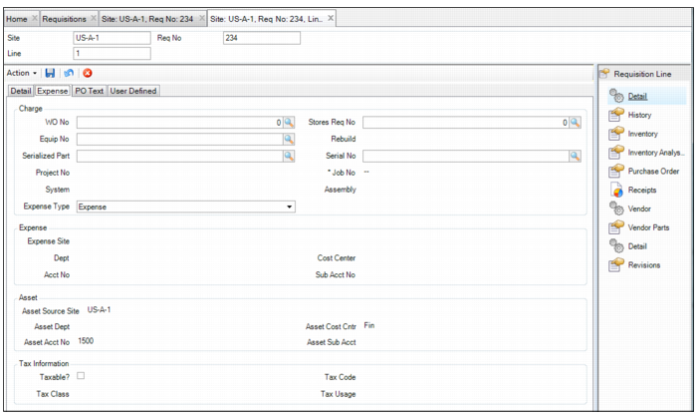
Requisition Line: Expense Tab
Requisition Lines Expense Tab
Charge
WO No
If the part or service on the requisition line is for a work order, identify it in the WO No field. It is validated from the work order table. Linking a work order to a requisition line has two effects:
• If the requisition line is set to auto issue, when the parts, goods, or services are received through the purchasing system, they charge directly to the work order expense accounting data.
• If a work order is associated with the requisition but Auto Issue? is cleared, the parts still belong to the work order. When the parts are received, EAM reserves them for the work order. The parts go into inventory, to be issued to the work order later, and the accounting data reflects the inventory asset data. When the parts are issued, they are charged to the work order’s expense accounting data.
Stores Req No
The stores requisition number associated with a WO number, if one exists.
You can enter a specific stores requisition number manually or you can select one from the lookup.
Equip No
The identifying number for a piece of equipment.
If the requisition line is associated with a piece of equipment, identify the equipment in this field. Select the equipment from the lookup. Identifying the equipment on a requisition line creates the expense GL transaction only if Auto Issue? is selected. When purchasing receives the parts, goods, or services, it directly charges the equipment’s expense accounting data.
If the equipment is associated with a requisition line with no auto issue, the parts are still ordered for the equipment. Inventory receives the parts and the Account Number fields reflect the expense account number. The equipment number serves as a note that the parts were ordered for this piece of equipment.
Rebuild
Select the rebuild location using the lookup.
Rotable Part
Use the lookup to select the rotable part. This lookup only displays the rotable parts that are available in the selected rebuild location.
Serial No
Use the lookup to select the serial number of the rotable part. This lookup only displays the serial numbers that are available for the selected rotable part.
Project No
The identifying number for a project.
When a project number is associated with a requisition line, EAM copies the project’s primary expense accounting data.
Job No
The job number associated with the project to expense for the purchase. Identify a project to use a job number.
If Auto Issue? is selected, the cost of the goods and services on the requisition line automatically flows to the identified project and job expense accounting structure on the requisition line.
System
This field is associated with equipment ID, identified on a requisition line.
Create a requisition line to charge directly or issue upon receipt against a specific piece of equipment. Associate a valid system for more detailed analysis of where this cost was expensed on the equipment.
Each piece of equipment must have an associated BOM type. Use the lookup to see a table of valid system codes associated with the equipment through the BOM type. Associate an assembly below the System field for more detailed analysis.
Assembly
This field displays the assembly associated with the system code, which associates to a piece of equipment.
If the requisition line is a direct charge and identifies a piece of equipment, then the part expenses directly to that equipment. For more detailed analysis of where on the piece of equipment this part goes, associate the part to a specific system code. Beneath the system code, there is a specific assembly code associated with the system.
Note: The assembly code table must be valid. It must also be valid for the associated system code. A system code is required to use an assembly code.
Expense Type
This field determines the requisition line expense type: capital or expense.
Default is Expense. Expense Type refers to the approval process for a requisition. In User Maintenance, each user has a spending limit for two types of requisitions: expense or capital. The Requisition check box determines the kind of limit you have for that type of requisition.
Implementation Issue: In a facility where people sign approvals for goods and services, they may have two types of spending limits. For example, for regular expenses, an individual has $500 approval. On capital items (typically, larger purchases), the same individual has an approval limit of $5000.
Expense
Expense Site
The site to which to expense the requisition line.
Dept
The department charged for the requisition line upon receipt.
Select Auto Issue? to expense the requisition line to a department.
Note: If department, cost center, account, or sub-account is required (in System Administration|Mandatory Fields) and the requisition is not auto issued, the system ignores the mandatory field setting.
Cost Center
Select the cost center from a table of cost centers, previously created in Finance|Groups|Cost Centers.
Acct No
The account number that receives the auto-issue requisition line charges during the purchasing routine. The account number table validates the account number. If you are using a cost center, the account number must be valid within a cost center.
The system copies the default account number. If an auto-issued requisition identifies a piece of equipment or a work order, then it copies the work order account number by default.
Note: A stock replenishment purchase automatically uses the part asset account number or system site default.
Sub Acct No
The sub-account number associated with a specific account number. The PO charges the sub-account number when it receives the requisition.
When a PO receives goods and services, specifically this requisition line item, the cost charges to the sub-account number.
You can identify a sub-account number only if a sub-account number was previously identified or associated with the requisition.
Asset
Note: If you selected Auto Issue?, all the fields under the Asset heading are blank. If Auto Issue? is clear, EAM displays the asset sub-account information under the heading Asset.
Asset Source Site
The site to debit when the requisition line is received.
Asset Dept
If the requisition line part includes the inventory department (Inventory|Inventory|Cost tab), it is displayed here. If this information in the part record is blank, then the site default (General|Business Units|Sites|Purchase Order tab) is displayed.
Asset Cost Cntr
If the requisition line part includes the inventory cost center (Inventory|Inventory|Cost tab), it is displayed here. If this information in the part record is blank, then the site default (General|Business Units|Sites|Purchase Order tab) is displayed.
Asset Acct No
If the requisition line part includes the inventory account number (Inventory|Inventory|Cost tab), it is displayed here. If this information in the part record is blank, then the site default (General|Business Units|Sites|Purchase Order tab) is displayed.
Asset Sub Acct
If the requisition line part includes the inventory sub-account information (Inventory|Inventory|Cost tab), it is displayed here. If this information in the part record is blank, then the site defaults (General|Business Units|Sites|Purchase Order tab) are displayed.
Note: If you change the requisition line part number, the system pulls in new asset account information, along with the other defaults from the part record or System Site Maintenance.
Tax Information
Taxable?
Select this check box if the requisition line is taxable.
Tax Code
The default tax code, copied to the requisition line.
Tax Class
The system copies the default tax class to the requisition line.
Tax Usage
The system copies the default tax usage to the requisition line.
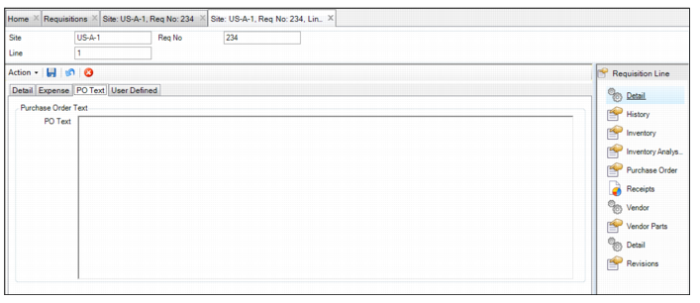
Requisition Line: PO Text Tab
Requisition Lines PO Text Tab
Purchase Order Text
PO Text
Enter an expanded description, specifications, or other data for you and the supplier. The purchase order may contain this information. EAM copies PO text from the stock record for stock parts. You can enter unlimited PO text for a non-stock part. PO text prints on the purchase order.
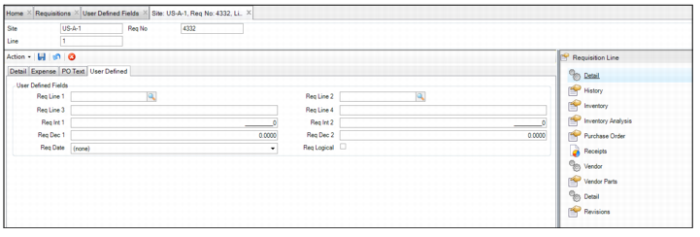
Requisition Line: User-Defined Tab
Requisition Lines User-Defined Tab
User Defined Fields
Req Line 1 - Req Line 2
User-defined character fields, validated against tables that you add.
Req Line 3- Req Line 4
Free-form user-defined character fields, not validated against tables.
Req Int 1 - Req Int 2
User-defined integer fields for requisition lines.
Req Dec 1 - Req Dec 2
User-defined decimal fields for requisition lines.
Req Date
Enter a date-type field here.
Req Logical
User-defined check box.
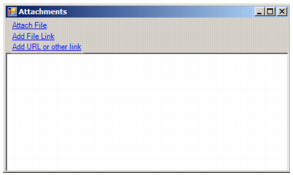
Attaching and Linking External Files to a Requisition Line
EAM allows you to attach and link an unlimited number of files and link an unlimited number of files to a requisition line. If you can run the file on your operating system, you can run it from EAM when it is attached or linked.
Attach or Link Files to a Requisition Line
Attach a File
Follow these steps to attach a file to a requisition line:
1 Select the requisition line in the Requisitions browse.
2 Select Attachments from the Requisition Line Action menu.
3 In the Attachments window, select Attach File.
4 Locate the file on your computer and click Open. The file is now attached to the requisition line.
Link a File
Follow these steps to link a file to a requisition line:
1 Select the requisition line in the Requisitions browse.
2 Select Attachments from the Requisition Line Action menu.
3 In the Attachments window, select Add File Link.
4 Locate the file on your computer and then click Open. The file is now attached to the requisition line.
Link a URL
Follow these steps to link a URL to a requisition line:
1 Select the requisition line in the Requisitions browse.
2 Select Attachments from the Requisition Line Action menu.
3 In the Attachments window, select Add URL or other link.
4 Copy and paste the URL in the Link window and then click OK. The link is now attached to the requisition line.
Creating a Quote from a Requisition
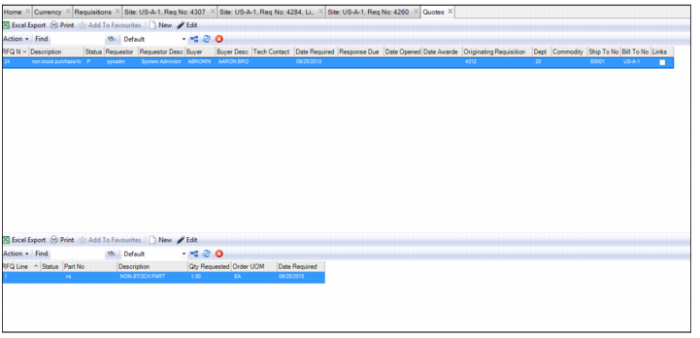
When you create a quote from a requisition, EAM pulls in all the data from the requisition and automatically enters it into the quote. This feature saves you time and ensures data integrity. If a quote has been created from a requisition, the quote is directly tied to the requisition and the associated quote number appears in the RFQ No column in the Requisition browse.
Follow these steps to create a quote from a requisition:
1 Open the Requisition browse and select the requisition.
2 Select Create Quote from the Action menu.
3 A browse opens displaying the Quote record. The system automatically assigns a quote number, which you cannot modify.
Requisition: Request for Quote
4 Open the quote and finish entering all the necessary information. See
Creating a Quote.
Entering Notes for a Requisition
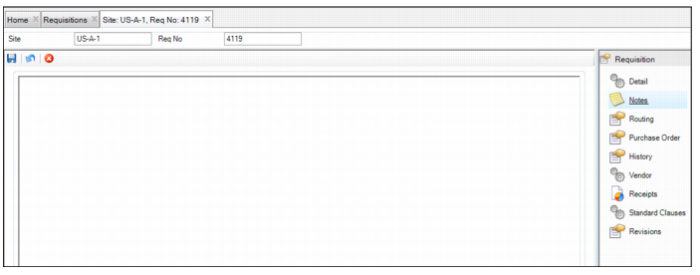
To enter internal notes for this requisition, open the requisition header and select the Notes submenu. Enter any notes in the text box.
Note: The notes that are entered in the Notes submenu are only in the requisition. If a PO or quote is created from a requisition, the text in the Notes submenu is not copied to the PO or quote.
Requisition Header: Notes Submenu
Adding Standard Clauses to a Requisition
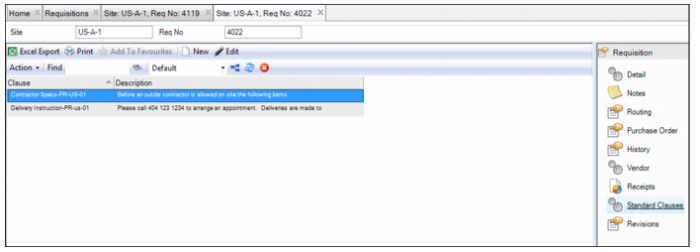
In the Standard Clauses submenu, you can add an existing standard clause or create a clause and add it to the requisition.
Add Existing Standard Clauses to a Requisition
Follow these steps to add standard clauses to a requisition:
1 Open the requisition and select the Standard Clauses submenu.
Requisition Header: Standard Clauses Submenu
2 To add an existing standard clause, select Copy Standard Clause from the Action menu.
A lookup appears that lists all the available standard clauses.
3 Double-click to select the clause that you want to add to the requisition.
The standard clause is added to the requisition.
Create a Standard Clause and Add it to the Requisition
Follow these steps to create a standard clause and add it to a requisition:
1 Open the requisition and select the Standard Clauses submenu.
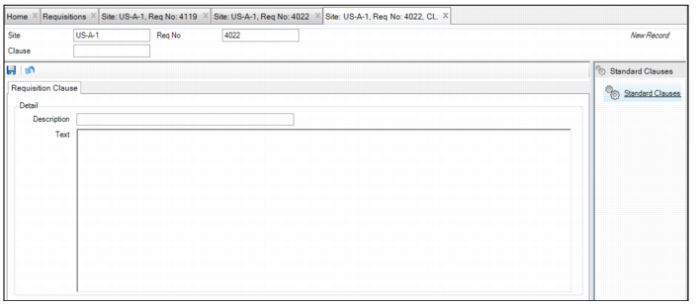
2 Click New and enter the following information in the Requisition Clause tab:
Clause
Enter the name of the standard clause.
Description
Enter a short description of the standard clause.
Text
Enter any detailed information about the standard clause.
Note: The Text field has a 1140-character limit. Any text beyond character 1140 is cut from the requisition.
Creating a Standard Clause
3 Click Save.
Printing a Requisition
To print a requisition, select the requisition and select Print Document from the Action menu.
Analyzing Budget Cost
To analyze your expenses compared with your budget, open the requisition and select the Budget Cost Analysis submenu. You can track a requisition’s progress as it moves through the approval process, assessing the requisition’s expense versus its budget. You can define what columns are shown by selecting the column header names from the right-click menu. The analysis contains current purchase information for a wide-range of budget considerations, including:
• Site
• Account Number
• Sub Account Number
• Cost Center
• Committed
• Authorized Purchases
• Planned Purchases
• Total Cost in Base Currency
• Budget/YTD Budget