QAD Enterprise Asset Management 2017.1
>
User Guide
>
Finance
>
Tax
Tax
Global Tax Management (GTM) in QAD ERP allows multinational enterprises to calculate taxes on business transactions. The types of taxes, the formulas used to calculate them, and the times at which taxes are assessed often vary considerably between countries. GTM can process taxes for multiple countries within the same database.
EAM always calculates its own taxes and has no concept of a tax environment. EAM Tax Management includes tax classes, tax codes, tax rates, and tax types. These data items can depend on one another, and most are based on tax laws relevant to the corporation and location.
Setting Up Tax Structures in EAM
Tax elements are specified in the following EAM sections:
• Project
• Vendor
• Part
• Site
• Ship to
Taxes default onto purchase transactions in the following order:
• Project on requisition
• Part on requisition
• Vendor on requisition
• Ship to from site
See
Tax for detailed information on this hierarchy.
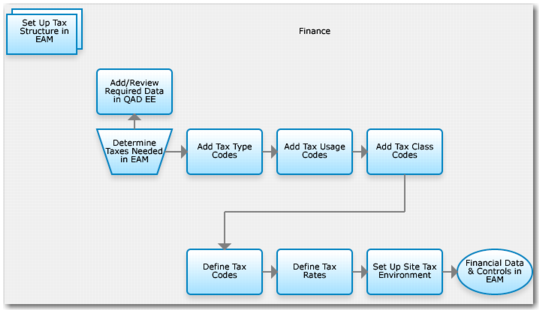
Set Up Tax Structure in EAM Process Flow
1 Enter and review required data in QAD ERP.
2 Determine taxes needed in EAM.
3 Add tax type codes.
4 Add tax usage codes.
5 Add tax class codes.
6 Define tax codes.
7 Define tax rates.
8 Define project tax definitions on the Project General tab.
9 Record part tax definitions on the Inventory Codes tab.
10 Record vendor tax definitions on the Vendor Codes tab
11 Record requisition tax definitions on the Requisitions Expense tab.
12 Set up the site tax environment.
Tax Classes
Use this table to create and modify tax class codes. Tax class codes track a class of people or items. A tax class can represent a customer, supplier, or item. In some cases, tax law specifies that the tax applies based on tax class. In QAD ERP, the tax class determines the tax rate for tax types in the set of tax types for related transactions.
Note: In EAM, tax class is associated with a tax rate.
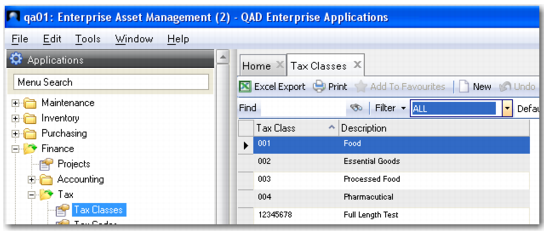
Tax Classes Browse
Access this browse from Finance|Tax|Tax Classes. Organize and display records, access supporting functions, and edit or create new records.
Tax Classes Browse
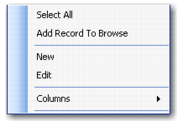
Tax Classes Right-Click Menu
The right-click menu contains administrative functions and options from the Action menu.
Tax Class Right-Click Menu
Creating a New Tax Class
1 Click New.
2 Enter a tax class name (maximum of three characters) and description.
Editing a Tax Class
1 Double-click a record from the browse or click Edit to open the tax class record detail.
2 Enter or edit a tax class description.
Tax Codes
A tax code specifies the tax types that apply to a particular taxable purchase.
Tax types are individually associated or grouped under a tax code.
When you specify a tax code on a purchase transaction, EAM validates associated tax types against rates that include those types, as well as any tax class or usage associated with the purchase.
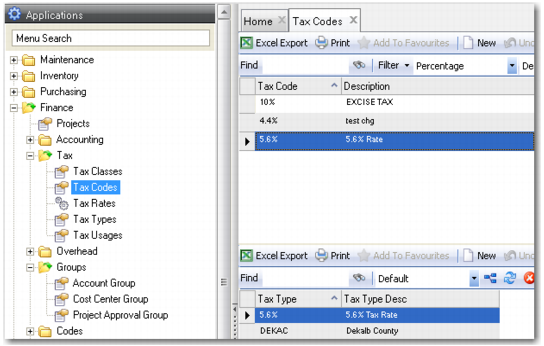
Tax Codes Browse
Access this browse from Finance|Tax|Tax Codes. Use it to organize and display records, to access supporting functions, and to edit or create new records.
Tax Codes Browse
Tax Codes Right-Click Menu
The right-click menu contains administrative functions and options from the Action menu.
Tax Codes Right-Click Menu
New
Use New to open the tax code record detail to create a record.
Edit
Use Edit to open the tax code record detail to edit the selected record.
Columns
A list of columns available to the browse displays here. Select a column header to display it. Clear the column header to hide it.
Creating a New Tax Code
1 Click New.
2 Enter a tax code and description.
3 Click New on the lower browse and add one or more tax types.
Editing a Tax Code
1 Double-click a record from the browse or click Edit to open the tax code record detail.
2 Enter or edit the tax code description.
Tax Rates
Use a tax rate to define a specific tax rate percentage. Each tax rate must have an associated tax type. Associate a tax class or usage code with a rate code to identify a specific rate percentage.
The tax rate defines tax accrual.
During a taxed purchase transaction, EAM begins the tax calculation by validating the tax code on the requisition. EAM validates each associated tax type code. It matches them with the applicable tax rate. If tax type codes are combined with the specified class or usage codes on a tax rate, the system adds those applicable percentages to the tax calculation.
The combination of tax type, tax class, and tax usage determines the tax rate in EAM.
Tax Type + Tax Class + Tax Usage = Tax Rate
Note: Tax class and tax usage are not required. The tax type can define the tax rate.
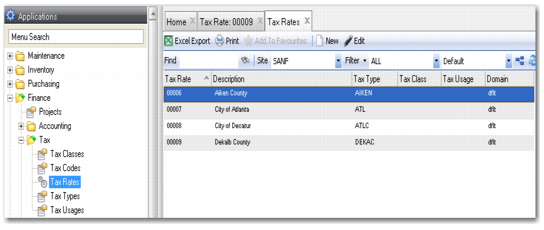
Tax Rates Browse
Access this browse from Finance|Tax|Tax Rates. Use it to organize and display records, to access supporting functions, and to edit or create new records.
Tax Rates Browse
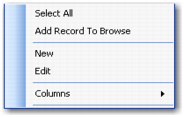
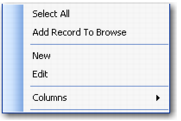
Tax Rate Maintenance Right-Click Menu
The right-click menu contains administrative functions and options from the Action menu.
Tax Rates Right-Click Menu
New
Use New to open the tax rate record detail to create a record.
Edit
Use Edit to open the tax rate record detail to edit the selected record.
Columns
A list of columns available to the browse displays here. Select a column header to display it. Clear the column header to hide it.
Creating a New Tax Rate
1 Click New.
2 Enter a tax rate, description, type, class, usage, and other relevant information.
Editing a Tax Rate Record
1 Double-click a record from the browse or click Edit to open the tax rate record detail.
2 Enter or edit a tax rate description, type, class, usage, or other relevant information.
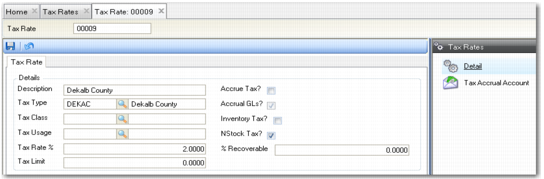
Tax Rate Record Detail
The record detail contains all information about this tax rate. Assign a tax rate code, enter other tax elements previously established, set limits for this rate, and select variables unique to this rate.
Tax Rates Browse
Tax Rate
Enter the code to define a tax percentage based on tax type, and optionally combine with a tax class and tax usage.
(Tax Rate) Description
A text description of the tax rate. Enter meaningful text to identify the tax rate.
Tax Type
Enter the tax type code. A tax type is associated with a specific tax rate, alone or with a tax class and tax usage. If there are various tax class and tax usage codes to include in the calculation, you can include the same tax type in multiple tax rates.
Tax Class
This code represents a customer, supplier, or item. Use this code to track a class of people or items.
Tax Usage
This code represents the operation type or how the purchased items are used.
Tax Rate%
This field contains the percent of tax charged on receipts of goods upon close and receipt of the PO.
% Recoverable
Enter a percentage if this tax rate permits you to recover some of the entire purchase tax amount.
Tax Limit
This field contains the upper limit on the taxable amount. EAM automatically ceases to include this tax when you reach that limit. Set up a tax limit only when the law stipulates a ceiling on the cumulative total.
Accrue Tax?
Select this check box if the amount of tax for this tax rate should be accrued instead of paid to the vendor.
Accrue G/L?
Select this check box if you create GL transactions for the accrual of the tax upon receipt in EAM. Use it when the Accounts Payable department wants to calculate the accrued amount of tax based on actual invoices.
Inventory Tax?
Select this check box if you want the tax on stock items to go to the cost of the inventory item and include it when the part is issued. Do not select it if you want the tax on a stock item to go to a tax expense account.
Non Stock Tax?
Select this check box if you want the tax on non-stock items to go to a tax expense account.
Tax Types
Tax types are the building blocks of tax codes. A tax type represents the tax definition for a region (state, county, city, and so on). EAM groups tax types under a tax code. They apply to all domains in the database. In QAD ERP, tax types are individually calculated and reported as regional taxes or tax exemptions. They apply to all domains in the database. Some samples are Canadian PST/GST, California sales tax, and federal excise tax. On transactions, the system calculates taxes for line items based on the tax types specified.
You can create as many tax types and as many tax codes as you need.
When you specify a tax code on a purchase transaction, EAM validates associated tax types against rates that include those types, as well as any tax class or usage associated with the purchase.
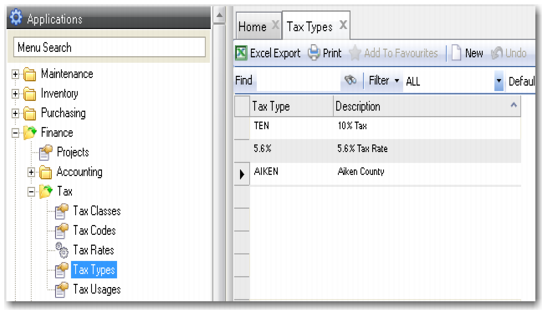
Tax Types Browse
Access this browse from Finance|Tax|Tax Types. Use it to organize and display records, to access supporting functions, and to edit or create new records.
Tax Types Browse
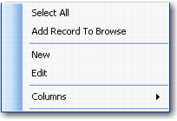
Tax Types Right-Click Menu
The right-click menu contains administrative functions and options from the Action menu.
Tax Types Right-Click Menu
New
Use New to open the tax type record detail to create a record.
Edit
Use Edit to open the tax type record detail to edit the selected record.
Columns
A list of columns available to the browse displays here. Select a column header to display it. Clear the column header to hide it.
Creating a New Tax Type
1 Click New.
2 Enter a tax type (maximum of 16 characters) and description.
Editing a Tax Type
1 Double-click a record from the browse or click Edit to open the tax type record detail.
2 Enter or edit a tax type description.
Tax Usages
You can create as many tax usages as you need.
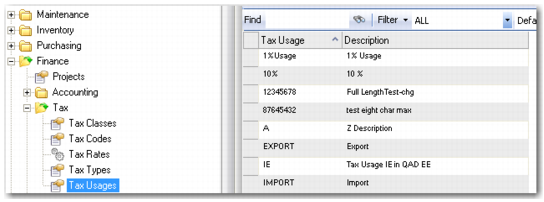
Tax Usages Browse
Access this browse from Finance|Tax|Tax Usages. Use it to organize and display records, to access supporting functions, and to edit or create new records.
Tax Usages Browse