Creating a Purchase Order
Follow these steps to create a purchase order:
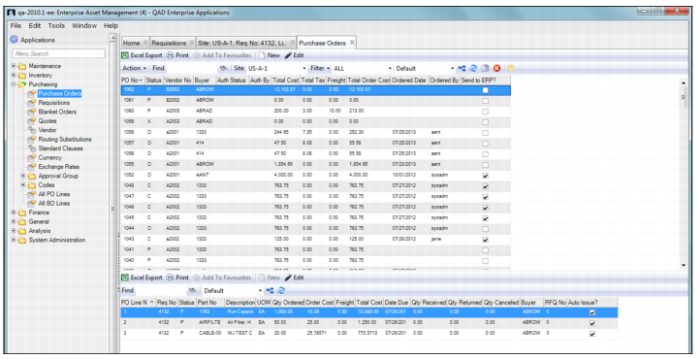
1 Open the Purchase Order browse in Purchasing|Purchase Orders.
Purchase Order Browse
2 Click New. A blank purchase order record opens. The system automatically assigns a PO number, which you cannot modify.
4 When all the information has been entered, click Save.
Filling Out the Purchase Order
Enter information about the PO on the Order, Misc, User Def, and Intrastat tabs.
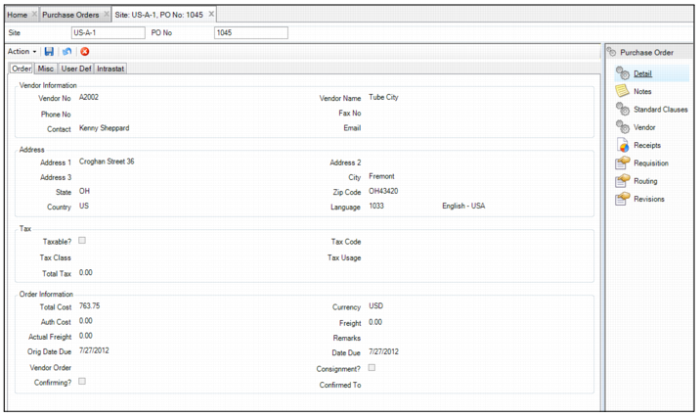
Purchase Order: Order Tab
Purchase Order: Order Tab
Vendor Information
Vendor Number
Enter the vendor number associated with the PO.
Vendor Name
The vendor name associated with the PO. The vendor name, which copies directly from the vendor master record when the vendor number is entered, cannot be edited on the PO.
Phone Number, Fax Number, Contact, and Email
The primary vendor’s contact information. The phone number, fax number, contact, and e-mail copy directly from the vendor master record when the vendor number is entered. If necessary, you can make changes to these fields on the PO. If you change these fields on the PO, it does not change the information on the vendor record.
Note: A valid e-mail address is required to save a new PO.
Address
Address 1, Address 2, Address 3, City, State, Zip Code, and Country
These fields display the vendor’s address details. The address details, which copy from the vendor master record when the vendor number is entered, cannot be edited on the PO.
Language
The vendor’s language code, which copies directly from the vendor master record when the vendor number is entered and can be edited on the PO. If you modify the language code on the PO, the code on the vendor record does not change.
Note: When you print the purchase order document, EAM uses this language code. If no vendor or language is specified on the vendor record, EAM uses the language marked as default from General|Codes|Language.
Tax
The tax information is pulled into the PO based on the following hierarchy:
• Project. The system checks if the PO is tied to a taxable project. If the project is not taxable, the PO is not taxed and the Taxable? check box is not selected. If the project is taxable, the system pulls in the project’s tax data. If the project is taxable, but the system cannot pull in the tax data, it checks if the part is taxable.
• Vendor. The system looks for the vendor’s tax information. If the vendor is not taxable, the PO is not taxed and the Taxable? check box is not selected. If the vendor is taxable, the system uses the tax settings from the vendor record. If the vendor is taxable, but the system cannot pull in the tax data, it checks if the site’s default ship-to is taxable.
• Part. If the PO is not tied to a project, the system looks for the part’s tax information. If the part is not taxable, the PO is not taxed and the Taxable? check box is not selected. If the part is taxable, the system uses the tax settings from the part record. If the part is taxable, but the system cannot pull in the tax data, it checks if the vendor is taxable.
• Ship To. If the site’s default ship-to is taxable, the system uses the tax settings from the ship-to. If the ship-to is not taxable, the PO is not taxed and the Taxable? check box is not selected.
If, at any point in the hierarchy, the system finds that the project, part, vendor, or ship-to is not taxable, the PO is not taxed and the Taxable? check box is not selected. If the system finds that it is taxable, but it is not able to pull in the tax data, the system moves through the hierarchy until it finds the tax data.
Taxable?
Select this check box if the PO is taxable.
Tax Code
The default tax code for the vendor.
Tax Class
The default tax class for the vendor.
Tax Usage
The default tax usage for the vendor.
Total Tax
The total tax associated with the purchase.
Order Information
Total Cost
A non-editable field that displays the total cost of the purchase.
Currency
The vendor’s currency.
Authorized Cost
The amount authorized to spend on this purchase.
Freight
The cost to ship goods to the purchaser.
Actual Freight
A buyer normally enters this data after all requisitions are attached to the PO.
Remarks
This field contains notes relevant to this purchase order. Use this field to enter general remarks pertaining to the vendor, usually about the order or the shipping process. These notes are displayed on the PO.
Original Date Due
The date the purchase order was originally due.
Date Due
The date that the vendor has committed to deliver the parts or the service to the facility. The buyer enters the due date and uses it to inform the requester of the PO status. If a due date changes after a PO is ordered, EAM can send e-mail to inform the requester of any due date changes.
Vendor Order
This is an updatable field that identifies the vendor’s corresponding order number, used as a cross-reference for the purchaser to communicate with the vendor when trying to locate a specific order.
Consignment
This field indicates whether this PO is for consigned parts.
Confirming?
Select the check box to indicate whether the vendor should consider this purchase order entirely new or to confirm it has already been placed.
Confirmed to
The vendor representative who confirmed the order.
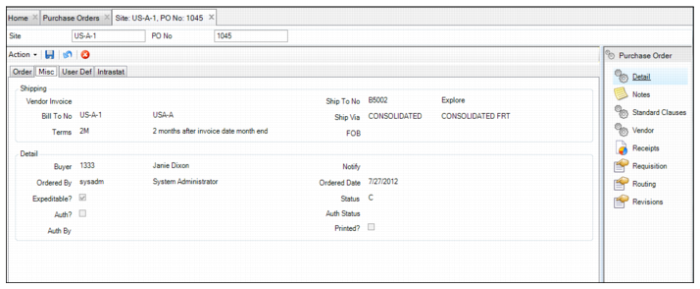
Purchase Orders: Miscellaneous Tab
Purchase Order: Miscellaneous Tab
Shipping
Vendor Invoice
Enter the vendor invoice number associated with the PO.
Ship To Number
The code for the ship-to location. Specify a default ship-to for each PO in General|Business Units|Domain. The buyer can override this code.
Bill To Number
The code for the bill-to location. Specify a default bill-to for each PO in General|Business Units|Domain. The buyer can override this code.
Ship Via
The preferred method to ship goods from this vendor. You can edit the ship-via method, which copies directly from the vendor master record when the vendor number is entered on the PO.
Terms
The vendor payment terms, which copy directly from the vendor master record when the vendor number is entered and can be edited on the PO.
FOB
Free on Board (FOB) denotes whether freight charges are part of the PO price or are billed separately after the invoice, and who pays for freight (buyer or vendor). For example, if the buyer lives in Des Moines and buys a product FOB New York, the buyer must pay the shipping charges from New York to Des Moines. The FOB information, which copies directly from the vendor master record when the vendor number is entered, can be edited on the PO.
Detail
Buyer
The buyer associated with the PO. Select the buyer from a lookup of valid buyers.
After requisition approval, EAM restricts who can change a requisition. Only the buyer and the person who authorized the expenditure are allowed to change the requisitions on the PO.
Notify
If a particular event affects a requisition or purchase order, EAM can notify an individual or group of individuals by e-mail.
Select the user or group to notify for the PO. As a purchase order goes through the routing approvals, ordering, and receipt process; the system e-mails the user or group with updates.
Some users do not get an e-mail if their Mail Options are not selected. See
User Tab: Mail Opts.
Ordered By
The name of the person who changed the status to O (ordered).
Ordered Date
The date the order was placed.
Expeditable
Select the check box if the order can be expedited.
Status
The order’s status. PO statuses are P (planned), O (ordered), C (closed), or X (canceled). EAM assigns a new PO a status of P. PO Order Action changes the status from P to O. EAM changes the status of the PO from O to C when 100% of the goods are received, or when the receiver indicates that the order is complete.
Authorization Status
The authorization status of the PO. The system updates this field.
The status remains blank if the authorization has not been started or if PO Authorization is not enabled at General|Business Units|Sites. If the PO authorization is in process, the status is Routing.
Authorized?
This field denotes whether the PO is authorized. After a user authorizes the PO, the system selects this field.
Authorized By
The user ID who authorized the expenditure of the PO. EAM validates spending limits. If you can spend at least the amount required, the PO is authorized. Your user ID displays in the Authorized By field. If you do not meet these criteria, the PO routes to others for consideration of approval. The user who meets the spending limit authorizes the PO.
Printed?
EAM prompts you to acknowledge that the PO was printed. The system selects this field after you indicate successful printing.
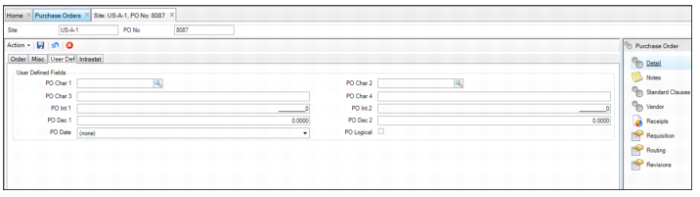
Purchase Order: User-Defined Tab
Purchase Order: User-Defined Tab
User-Defined Fields
PO Char 1/PO Char 2
User-defined character fields, validated against tables that you add.
PO Char 3/PO Char 4
Free-form user-defined character fields, not validated against tables.
PO Date
A user-defined date-type field.
PO Dec 1/PO Dec 2
User-defined decimal fields for POs.
PO Int 1/PO Int 2
User-defined integer fields for POs.
Po Logical
A user-defined check box for POs.
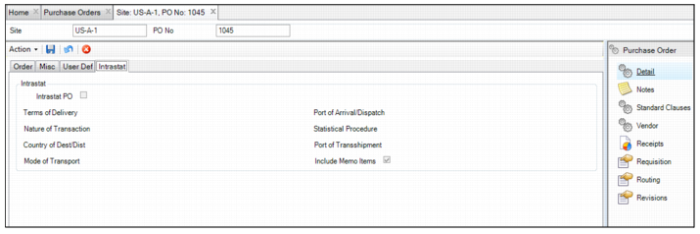
Purchase Order: Intrastat Tab
Purchase Order: Intrastat Tab
Intrastat
If the PO qualifies as Intrastat, you can edit the Intrastat fields. The default Intrastat data is pulled in from the ERP’s Intrastat Control record.
Intrastat PO
Select the check box if this purchase order and its lines are ones where Intrastat data should be collected.
Terms of Delivery
Enter the Intrastat terms of delivery (FOB point) used to calculate the statistical value of the relevant goods at the border for Intrastat purposes.
Port of Arrival/Dispatch
When the system creates Intrastat history records automatically, it uses the port of arrival/dispatch code that is recorded for the order line that is associated with the Intrastat history record.
Nature of Transaction
Enter a valid code if your country requires this information.
Statistical Procedure
When the system creates Intrastat history records automatically, it uses the statistical procedure code that is recorded for the order line that is associated with the Intrastat history record.
Country of Dest/Dist
Enter a valid country code.
Port of Transshipment
Enter a valid code defined in Port Maintenance use as the default when collecting Intrastat data in supported functions. During order entry, you can override this value.
Mode of Transport
Enter a one-character code that identifies the mode of transport used to carry the goods to the border.
Include Memo Items
Select the check box if you typically create Intrastat history records for memo items.
Note: All of the Intrastat data entered on the PO header defaults to all the lines on the PO. However, the PO line data can be changed on a line-by-line basis. Depending on the requirements of the country where you use Intrastat, some codes are required and others are optional.
Note: This browse can only be updated if the requisition lines for the PO have been added. On this tab, designate a purchase order and its lines as ones where Intrastat data should be collected. Click the Intrastat tab to display the Intrastat details on the PO header.
Adding Standard Clauses to a Purchase Order
In the Standard Clauses submenu, you can add an existing standard clause or create a clause and add it to the PO.
Add Existing Standard Clause to a PO
Follow these steps to add standard clauses to a purchase order:
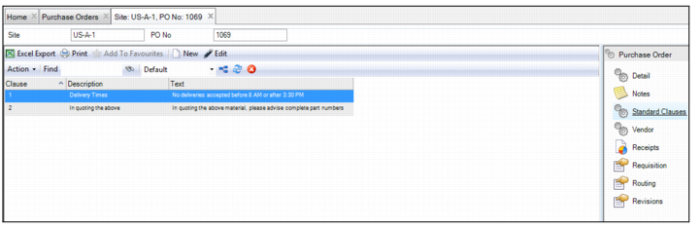
1 Open the purchase order and select the Standard Clauses submenu.
Purchase Order Header: Standard Clauses Submenu
2 To add an existing standard clause, select Copy Standard Clause from the Action menu.
A lookup appears that lists all the available standard clauses.
3 Double-click to select the clause you want to add to the PO.
The standard clause is added to the PO.
Create a Standard Clause and Add it to a PO
Follow these steps to create a standard clause and add it to a PO:
1 Open the PO and select the Standard Clauses submenu.
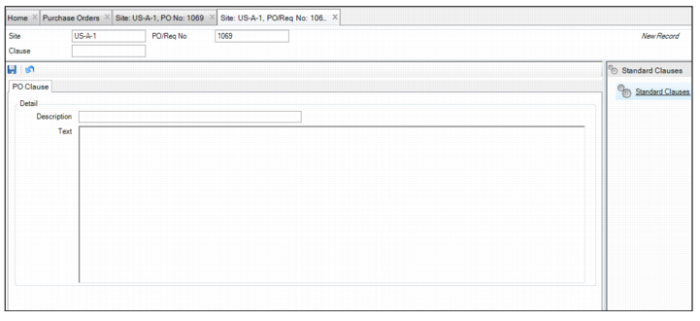
2 Click New and enter the following information in the PO Clause tab:
Clause
Enter the name of the standard clause.
Description
Enter a short description of the standard clause.
Text
Enter any detailed information about the standard clause.
Note: The Text field has a 1140-character limit. Any text beyond character 1140 is cut from the PO.
Creating a Standard Clause
3 Click Save.
Printing a Purchase Order
To print a PO, select Print Document from the Purchase Orders Action menu. The purchase order is printed in the language specified on the PO header, which can be the default vendor language. All PO labels are presented in the vendor language. To print multiple POs, highlight those POs and select Global Print Document from the Purchase Orders Action menu.
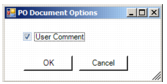
If you have made revisions to the PO, you can choose to print the user-generated comments. After you select Print Document from the Action menu, the PO Document Options pop-up window appears.
PO Print Options
To print the user comments that have been entered during revisions, leave the User Comment check box selected. If you do not want to include those comments, clear the check box before pressing OK to print.
If you have associated external files or URLs with the PO via requisition lines, you can print those attachments as part of the purchase order. After you select Print Document from the Action menu, a pop-up window appears that asks if you want to print the related attachments. Select either Yes or No to proceed with printing the purchase order or select Cancel to not print the purchase order or the attachments. This feature also works with the Global Print Document action and all attachments associated with the selected purchase orders print.
Note: You can only print POs with an Ordered status.
If you print a PO, EAM automatically selects the e-mail option for that PO.
E-mailing a Purchase Order
To e-mail a PO to a supplier, select Email PO from the purchase order Action menu. The e-mail is sent to the vendor e-mail address defined in the Order tab of a purchase order at Purchasing|Purchase Orders. You can only e-mail POs with an Ordered status.
A duplicate e-mail is sent to the buyer defined in the Miscellaneous tab of a purchase order at Purchasing|Purchase Orders. The e-mail displays the buyer’s e-mail address as the From/Reply-To address.
Note: You must define both the vendor and the buyer e-mail addresses. If either is undefined, EAM returns an error message and no e-mail is sent.
Note: Your DNS name or the IP address of the SMTP server must be specified in the System Control Maintenance screen in order to e-mail purchase orders. See
System Control Tabs.
When the e-mail has sent successfully, EAM updates the Printed? and Emailed? columns on the Purchase Order browse by automatically selecting the check boxes in those columns.
Global Email PO
To e-mail two or more POs at once, highlight those POs and select Global Email PO from the purchase order Action menu. If any POs do not meet the requirements of ordered status, vendor e-mail address, or buyer e-mail address, those POs do not send, but all others proceed.