Editing Blanket Order Lines
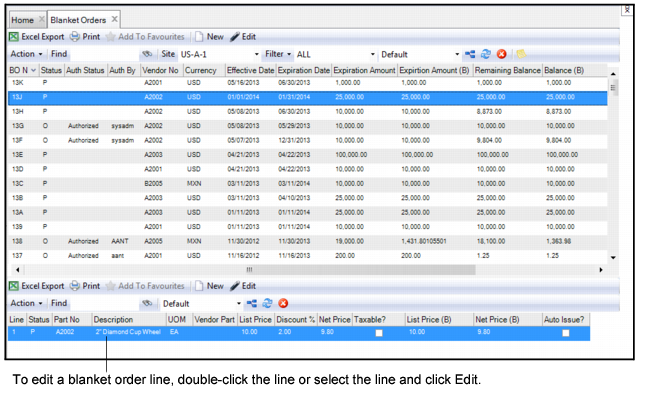
To modify a blanket order line, open the line and make the necessary changes. When you have finished, click Save. See
Add Lines to a Blanket Order.
Note: When you save a blanket order line, an e-mail is sent to the designated buyer. The body of the e-mail notes the change by showing the original and the new value. New lines should be viewed as changes.
Editing Blanket Order Lines
Change Status of a Blanket Order Line
The Change Status option allows you to change the status for the blanket order line to Cancel (X). When the status for the line is set to Cancel (X), the line cannot be released.
To change the status of a blanket order line, select Change Status from the Blanket Order Line Action menu. Double-click Cancel (X) and the status of the blanket order line changes to X.
Reopen a Blanket Order Line
The Reopen option allows you to make the blanket order line available again for use with the blanket order. When you reopen a blanket order line, the status is reset to P. When the blanket order is authorized, the status changes to O and you can select the line for release.
To reopen a blanket order line, select Reopen from the Blanket Order Line Action menu. The status of the blanket order line changes to P.
View Revision History of a Blanket Order Line
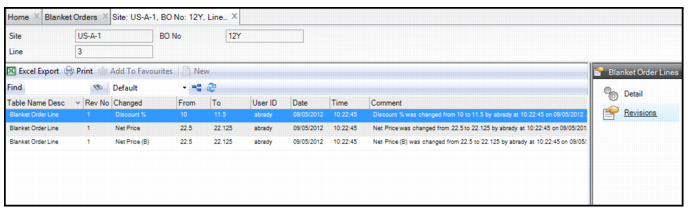
To view the revision history of a blanket order line, select Revisions from the Blanket Order Line submenu.
Note: Revision control is activated in the Purchasing|General|Business Units|Sites menu. See
Enable Revision Control.
Blanket Order Lines: Revision History