Creating a Blanket Order
Creating the blanket order is the first step in the blanket order process flow.
Follow these steps to create a blanket order:
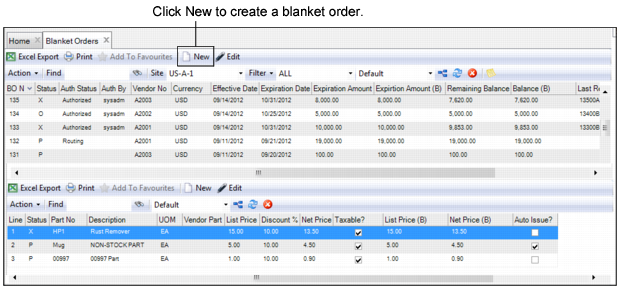
1 Open the Blanket Order browse in Purchasing|Blanket Orders.
Blanket Orders Browse
2 Click New. A blank blanket order record opens. The system automatically assigns a blanket order number, which you cannot modify.
4 When all the information has been entered, click Save.
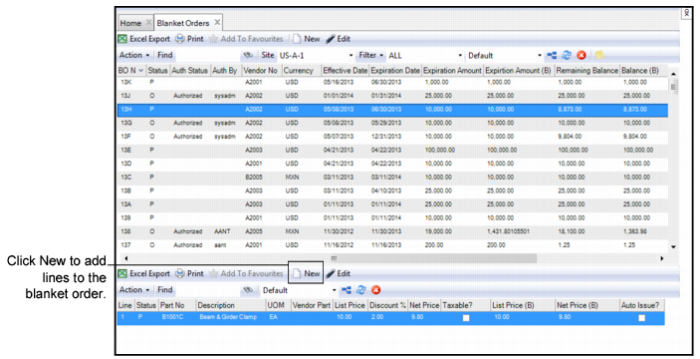
5 Add lines to the blanket order. Select the blanket order and click New in the blanket order lines browse.
Adding Lines to the Blanket Order
7 Click Save. If you have selected Validate Req/PO Mandatory for BO on Save on the General|Business Units|Sites|Purchase Order tab, then EAM validates that all fields defined as mandatory for POs and requisitions are populated before saving a BO.
Filling Out the Blanket Order
Enter information about the blanket order on the Detail and User Defined Fields tabs.
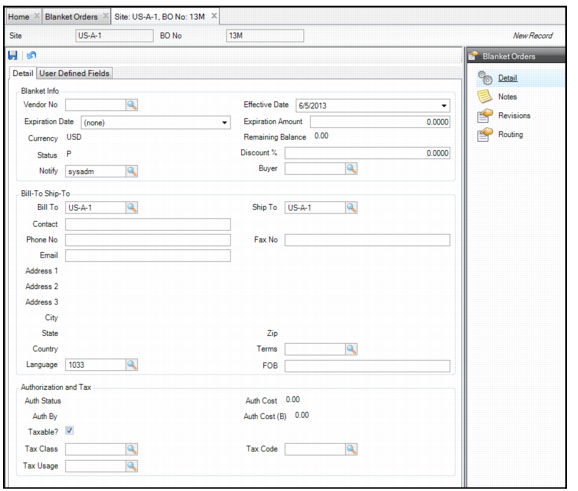
Blanket Orders: Detail Tab
Blanket Orders Detail Tab
Blanket Info
Vendor Number
Enter the vendor number of an active vendor associated with the BO. The vendor’s contact, phone, fax, e-mail, address, language, terms, and tax data automatically populate the appropriate fields. You can update the vendor’s contact, phone, fax, and e-mail from this screen.
Effective Date
Set a starting date on which releases from the blanket order can be made. Effective Date is a required field on the blanket order header.
When an item is added to a blanket order, the system checks to see if that item exists on another open blanket order. If it does, you are prevented from adding the item. The only exception to this rule is for non-stock items.
The system also validates items whenever the effective date or expiration date is changed.
An open blanket order is one in which the status is O (Open) and today’s date falls between the order’s effective date and its expiration date.
When releasing items (using Release on the Action menu), the Effective Date must be greater than or equal to today’s date. Once a release has been made from the blanket order, the Effective Date cannot be changed.
Expiration Date
Set an ending date before or on which releases from the blanket order can be made. A valid expiration date is required before releases can be made from the blanket order.
If the expiration date is set to today’s date, then releases can continue until the end of today, but not tomorrow.
When modifying the expiration date, the system verifies that there is not another open blanket order with any of the same line items, except for non-stock items, in which the new effective date falls between the other blanket order’s effective and expiration dates.
If the new expiration date is less than or equal to the current date, the system checks to see if there are any current planned releases from the blanket order that would be canceled due to the change to the expiration date. If so, a warning message is displayed and you can cancel the change to the expiration date. If you proceed with the date change, the planned releases are canceled.
An expiration date change does not affect releases with an Ordered status—the releases can still be modified.
Expiration Amount
Set an expiration amount for the blanket order. The blanket order expires and no additional releases can be made from it when this amount is reached.
If the expiration amount is increased from the original amount, then a reroute for approval occurs. The remaining amount is updated by the difference of the increase. There are no threshold ($ or %) options.
Once an expiration amount increase is approved, the Authorized Cost field is updated with the new amount.
The expiration amount can be decreased, but not below the current total spent plus ordered releases.
Currency
The vendor currency. The system defaults to the vendor’s primary currency, but this definition can be changed.
Only one currency can be defined per blanket order. All items are purchased in the currency displayed on the blanket order header. If multiple currencies are required for a vendor on a blanket order, create separate blanket orders for each currency.
Remaining Balance
The expiration amount less the total amount that has been released against the blanket to today’s date. The system automatically calculates this amount when releases are made from the blanket order. If a planned or ordered release is canceled or the quantity ordered is reduced, the system increases the remaining balance. Therefore, changing the Discount % field on a planned release also impacts the remaining balance.
Status
Status defaults to P (planned). After authorizing the blanket order, the system automatically assigns it an O (open) status.
Discount %
Enter the negotiated discount percentage, which is copied to all the blanket order lines. The discount percentage can be changed on the blanket order lines.
An alternative is to leave the Discount % field blank on the blanket order header and enter the Discount % only at the line level. This is most useful when each item has a different Discount %.
Changing the Discount % field in the blanket order header applies the change to all line items. A message indicating this displays and gives the option to proceed or cancel.
In addition, a message displays asking if the new Discount % should be applied to planned releases. Selecting Yes applies the discount to the blanket order and recalculates a new price per UOM and net price.
Notify
The individual or group of individuals to e-mail, based on certain events occurring against the blanket order. Select the user or group to notify from a lookup.
The individual or group in this field can consist of a user ID or a group of users called a mail group. As a blanket order goes through the routing approvals, the system e-mails the specified user or group with updates.
Buyer
After a blanket order has been approved, only the buyer can:
• Modify the blanket order.
• Cancel a line item.
• Lock or unlock the blanket order. Releases cannot be made on a locked blanket order.
Bill-To Ship-To
Bill To
Enter the code for the bill-to location. Specify a default bill-to for each blanket order in General|Business Units|Domain. The buyer can override this code.
Ship To
Enter the code for the ship-to location. Specify a default ship-to for each blanket order in General|Business Units|Domain. The buyer can override this code.
Contact
The primary contact designated in the vendor record, copied from the vendor record to the blanket order.
Phone Number, Fax Number, and Email
The primary vendor’s contact information.
Address 1, Address 2, Address 3, City, State, Zip Code, and Country
The vendor’s address details.
Terms
The vendor payment terms.
Language
The vendor’s language code, which you can change on this blanket order.
FOB
Free on Board (FOB) denotes whether freight charges are part of the BO price or are billed separately after the invoice, and who pays for freight (buyer or vendor). For instance, if the buyer lives in Des Moines and buys a product FOB from New York, the buyer must pay the shipping charges from New York to Des Moines.
Authorization and Tax
Auth Status
The authorization status of the blanket order. All blanket orders must be authorized. This is not optional.
The status remains blank if the authorization routing for approval has not been started.
If the blanket order has been routed for approval, the status displayed is Routing.
If it is authorized, the status displayed is Authorized.
Only the buyer or approver indicated in the Auth by field can modify the blanket order once it has been authorized. If the Any Buyer check box is selected in the domain for the BO site, then other buyers can modify the BO as well.
Auth Cost
The current blanket order cost at authorization, which is the total amount that has been authorized to spend against this blanket order. If the blanket order currency is different than the base currency, the value here is displayed in the blanket order’s currency.
Auth Cost (B)
The authorized cost amount converted to the base currency for the site.
Auth By
The user ID that authorized the expenditure of the blanket order. The Auth by approver and buyer are the only ones able to modify the blanket order after it has been authorized. If the Any Buyer check box is selected in the domain for the BO site, then other buyers can modify the BO as well.
Taxable?
Select this check box if the BO is taxable.
Tax Code
The default tax code for the vendor, copied to the BO.
Tax Class
The default tax class for the vendor, copied to the BO.
Tax Usage
The default tax usage for the vendor, copied to the BO.
Blanket Orders: User Defined Fields Tab
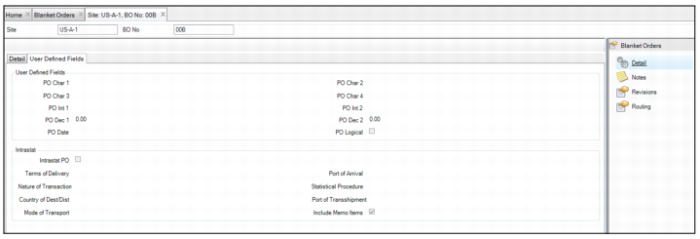
The Blanket Order User Defined Fields tab contains fields for additional information associated with the blanket order, which you define to suit the requirements of your site. See
Purchase Order: User-Defined Tab.
For a description of the Intrastat fields, see
Purchase Order: Intrastat Tab.
Blanket Orders User Defined Fields Tab
Add Lines to a Blanket Order
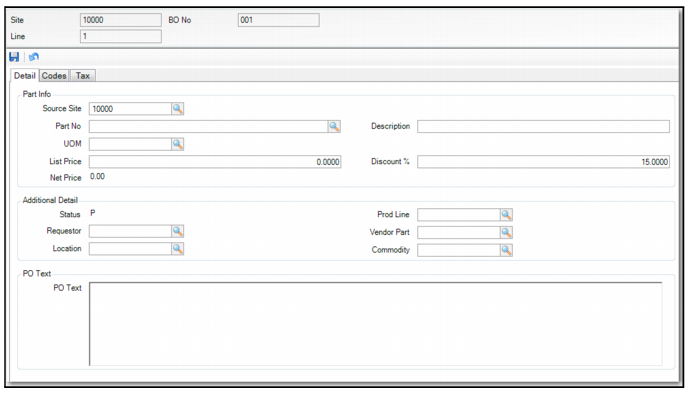
Enter information about the blanket order line on the Detail, Codes, and Tax tabs.
Note: If you have selected Validate Req/PO Mandatory for BO on Save on the General|Business Units|Sites|Purchase Order tab, then EAM validates that all fields defined as mandatory for requisition lines are populated before saving a BO line.
Blanket Order Line: Detail Tab
Blanket Order Line Detail Tab
Part Info
Source Site
The site from which the part number on the blanket order is selected.
Part Number
Use the lookup and select the part number for the blanket order line. If the part is a non-stock item, you can manually enter the part number in this field.
Description
The item description associated with the part number selected. If the part is a non-stock item, you can manually enter the part description in this field.
UOM
The unit of measurement (UOM) associated with this part number. If the part is a non-stock item, use the lookup to select the correct UOM. For non-stock items, the default UOM is Each (EA).
List Price
The list price of the item associated with the part number per unit of measurement. If the part is a non-stock item, you can manually enter the list price in this field.
Discount
Enter the discount from the list price on this item.
Net Price
The price per unit of measurement of the item when the discount has been applied to the list price.
Additional Data
Status
Shows the status of the blanket order with which this line item is associated: P (planned) or O (opened).
Requestor
Select the requestor of the item from the drop-down menu.
Location
Select the location of the item from the drop-down menu.
Product Line
Select the product line associated with the item from the drop-down menu.
Vendor Part
Select the vendor part number associated with the item from the drop-down menu.
Commodity
Select the commodity code associated with the item from the drop-down menu.
PO Text
PO Text
Enter, edit, and view additional text associated with this blanket order line item.
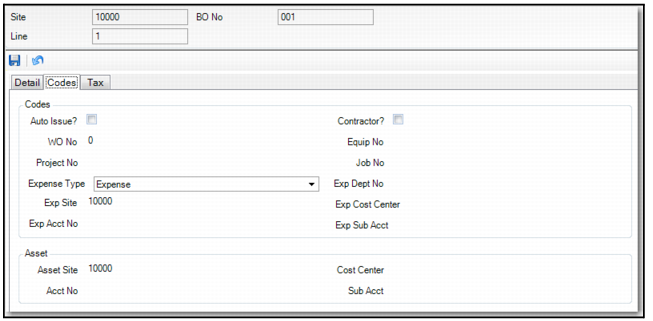
Blanket Order Line: Codes Tab
Blanket Order Line Codes Tab
Codes
Auto Issue?
This field denotes whether to directly expense parts or services upon receipt.
If a line item on the blanket order is a stock part set to auto issue or a non-stock or service, fields on the expense tab identify the cost center, account, and sub-account number to charge. The item is received against the BO and expensed to the cost center, account, and sub-account number on the blanket order. EAM credits the accounts payable liability account.
If you selected Auto Issue?, you can direct the expense by referencing:
• WO No
• Stores Req No
• Equip No
• Rebuild
• Project Number/Job
• Cost Center/Account/Sub-account
Select the check box to display expense accounting structure defaults.
The Auto Issue? check box also affects what displays and prints on the purchasing documents:
• Blanket order document
• If Auto Issue? is selected, the department, cost center, account number, and sub-account number from the expense section display and print.
• If Auto Issue? is clear, the inventory dept, inventory cost center, inventory account number, and inventory sub-account display and print.
• Purchase order
• For each blanket order, if Auto Issue? is selected, the cost center, account, and sub-account number from the expense section display and print.
• If Auto Issue? is clear, the inventory cost center, inventory account number, and inventory sub-account display and print.
Contractor?
Is the blanket order for an outside contractor or services? A blanket order with Contractor selected is auto issue. Typically, a work order or equipment identification number links to the blanket order. The system uses the contractor cost center, account, and sub-account number from the work order or equipment, instead of the material cost center, account, and sub-account number when the blanket order is auto issued or expensed upon receipt.
WO No
If the blanket order is associated with a work order number, you can identify it here. It is validated from the work order table. Identifying the work order on a blanket order has two effects. If the blanket order is set to auto issue, when the parts, goods, or services are received through the purchasing system, they charge directly to the work order’s expense accounting data. If the work order is associated with the blanket order but Auto Issue? is cleared, these parts are still for the work order. Inventory receives them and the accounting data reflects the inventory asset data. When the parts are received, EAM reserves them for the work order. They go into inventory, to be issued later to the work order. Then, they are charged to the work order’s expense accounting data.
Equip No
The identifying number for a piece of equipment.
If the blanket order is associated with a piece of equipment, identify the equipment by selecting it from the lookup.
Identifying the equipment on a blanket order creates the expense GL transaction only if Auto Issue? is selected. When purchasing receives the parts, goods, or services, it directly charges the equipment’s expense accounting data.
If the equipment is associated with a blanket order with no auto issue, these parts are still ordered for the equipment. Inventory receives them and the account number fields reflect the expense account number. In this case, the equipment number serves only as a note that the parts were ordered for this piece of equipment.
Project No
The identifying number for a project. When a project number is associated with a blanket order, EAM copies the project’s primary expense accounting number.
Job No
The job number, associated with a project, to expense for this purchase. First, identify a project to use a job number. If Auto Issue? is selected, the cost of the goods and services on the blanket order automatically flows to the identified project and job expense accounting structure on the blanket order.
Expense Type
The blanket order expense type: capital or expense.
All blanket orders default to expense. Expense type refers to the approval process for a blanket order. In User Maintenance, each user has two spending limits for expense or capital blanket orders. The blanket order check box determines the kind of spending limit. If you enable the Req Proj Limit? check box in the General|Business Units|Sites|Authorization Options tab, EAM uses a third limit value, if it is present.
Implementation Issue: In a facility where people sign approvals for goods and services, they may have two types of spending limits. For example, for regular expenses, an individual has $500 approval. On capital items (typically larger purchases), the same individual has an approval limit of $5000.
Exp Dept No
The department charged for the blanket order line upon receipt. Select Auto Issue? to expense the blanket order line to a department.
If department, cost center, account, or sub-account is required (in System Administration|Mandatory Fields) and the blanket order is not auto issued, the system ignores the mandatory field setting.
Exp Site
The site to which to expense this blanket order.
Exp Cost Center
Select the cost center from a table of cost centers, previously created in Finance|Groups|Cost Centers.
Exp Acct No
The account number that receives the auto-issue blanket order line charges during the purchasing routine.
The account number table validates the account number. If using a cost center, the account number must be valid within a cost center.
The system copies the default account number. If an auto-issue blanket order identifies a piece of equipment or a work order, then it copies the work order account number by default.
A stock replenishment purchase automatically uses the part asset account number or system site default.
Exp Sub Acct
The sub-account number associated with a specific account number. The PO charges the sub-account number when it receives the blanket order.
When a PO receives goods or services, specifically this blanket order line item, the cost charges to the sub-account number.
You can identify a sub-account number only if a sub-account number was previously identified or associated with the blanket order. The sub-account must be valid for the previous account number.
If you selected Auto Issue?, all the fields under the Asset heading are blank. If Auto Issue? is clear, EAM displays the asset sub-account information under the Asset heading.
Asset
Asset Site
The site to debit when this blanket order line is received.
Cost Center
If the blanket order line part includes the inventory cost center (Cost tab of the Inventory record), it is displayed here. If this information in the part record is blank, then the site default (POs tab of System Site Maintenance) is displayed.
Acct No
If the blanket order line part includes the inventory account number (Cost tab of Inventory record), it is displayed here. If this information in the part record is blank, then the site default (POs tab of System Site Maintenance) is displayed.
Sub Acct
If the blanket order line part has the inventory sub-account filled out (Cost tab of the Inventory record), it is displayed here. If this information in the part record is blank, then the site default (POs tab of System Site Maintenance) is displayed.
If you change the blanket order line part number, the system pulls in new asset account information along with the other defaults from the part record or System Site Maintenance.
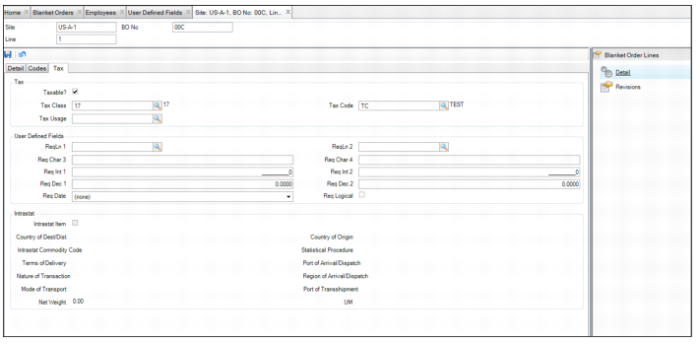
Blanket Order Line: Tax Tab
Blanket Order Line Tax Tab
Tax
Taxable?
Select this check box if the blanket order line is taxable.
Tax Class
The default tax class, copied to the blanket order line.
Tax Code
The default tax code, copied to the blanket order line.
Tax Usage
The default tax usage, copied to the blanket order line.
User Defined Fields
For a description of these fields, see
Requisition Line: User-Defined Tab.
Intrastat
The Intrastat data in these fields defaults from the blanket order header. Use the lookups on the fields to select different data.
Intrastat Item
Select this field to have the system automatically create Intrastat history records for the item. For items for which you do not want Intrastat records created, such as intangible goods or items related to motorized vehicles, clear the check box.
County of Dest/Dist
Enter a valid country code.
Country of Origin
This code indicates the country of origin. The data defaults from Intrastat Control in EE.
Intrastat Commodity Code
This code can be entered for the part in EAM so it defaults for the part on this Intrastat PO line. If this code is not defined for an EAM part, then the code from Intrastat Control defaults into the field. You can change the defaulted code using the lookup.
Statistical Procedure
When the system creates Intrastat history records automatically, it uses the statistical procedure code that is recorded for the order line that is associated with the Intrastat history record.
Terms of Delivery
Enter the Intrastat terms of delivery (FOB point) used to calculate the statistical value of the relevant goods at the border for Intrastat purposes.
Port of Arrival/Dispatch
When the system creates Intrastat history records automatically, it uses the port of arrival/dispatch code that is recorded for the order line that is associated with the Intrastat history record.
Nature of Transaction
Enter a valid code if your country requires this information.
Region of Arrival/Dispatch
A fiscal region code, predefined for each country.
Mode of Transport
Enter a one-character code that identifies the mode of transport used to carry the goods to the border.
Port of Transshipment
Enter a valid code defined in Port Maintenance to be used as the default when collecting Intrastat data in supported functions. During order entry, you can override this value.
Net Weight
The weight of one order unit of measure for this part. By default, the system calculates the weight of one order unit of measure based on data found in the part record. For example, the issue UOM is Each and the order UOM is Box. The system refers to the UOM conversion to calculate how many Eaches (issue unit) are in a Box (order unit). The system multiplies the number of issue units per order unit by the weight of an issue unit, yielding a product that equals the total weight for the order unit. If the issue UOM and order UOM are the same, the system simply displays the weight of the issue UOM as entered in the part record.
UM
Displays the weight’s unit of measure, such as pounds.
Copy Blanket Order
When you copy a blanket order, note the following:
• No release history from the original blanket order is copied to the new blanket order.
• The status on the new blanket order is Planned (P).
• The new blanket order is not authorized.
Follow these steps to copy a blanket order:
1 Select the blanket order that you want to copy.
2 Select Copy Blanket Order from the Blanket Order Action menu.
3 Enter a new effective date, expiration date, and expiration quantity for the copied blanket order.
Note: The new blanket order must meet all of the following conditions to be created:
• The effective date must be later than the original blanket order’s Expiration Date and later than today’s date.
• The expiration date must be later than today’s date or left blank.
• The expiration quantity must be greater than zero.
5 Click Save.
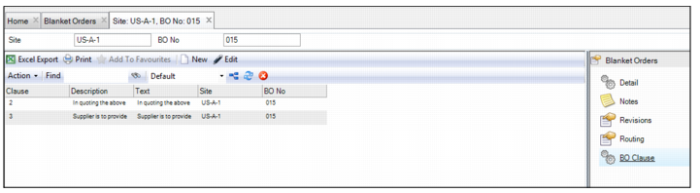
Adding Standard Clauses to a Blanket Order
In the BO Clause submenu, you can add an existing standard clause or create a clause and add it to the blanket order.
Add Existing Standard Clause to a Blanket Order
Follow these steps to add standard clauses to a blanket order:
1 Open the blanket order and select the BO Clause submenu.
Blanket Order Header: BO Clause Submenu
2 To add an existing standard clause, select Standard Clauses from the Action menu.
A lookup appears that lists all the available standard clauses.
3 Double-click and select the clause you want to add to the blanket order.
The standard clause is added to the blanket order.
Create a Standard Clause and Add it to the Blanket Order
Follow these steps to create a standard clause and add it to the blanket order:
1 Open the blanket order and select the BO Clause submenu.
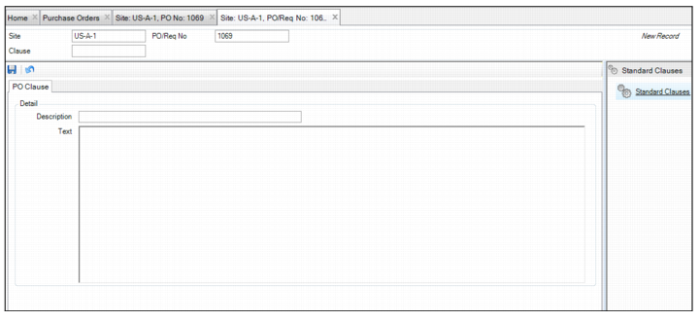
2 Click New and enter the following information in the BO Clause tab:
Clause
Enter the name of the standard clause.
Description
Enter a short description of the standard clause.
Text
Enter any detailed information about the standard clause.
Note: The Text field has a 1140-character limit. Any text beyond character 1140 is cut from the blanket order.
Creating a Standard Clause
3 Click Save.
Print Document
To print a blanket order, select Print Document from the Blanket Order Action menu.