QAD Enterprise Asset Management 2017.1
>
User Guide
>
Purchasing
>
Quotes
>
Creating a Quote
Creating a Quote
Follow these steps to create a quote:
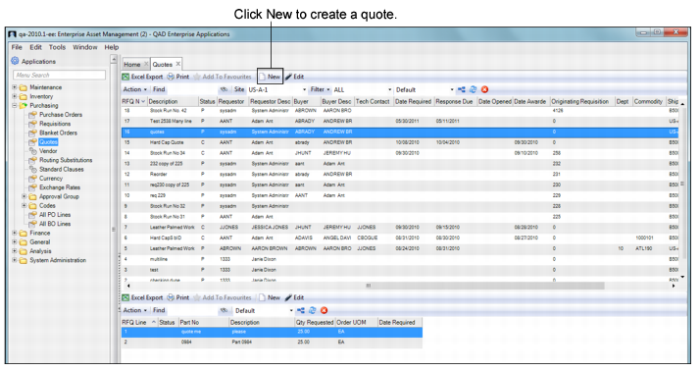
1 Open the Quotes browse in Purchasing|Quotes.
Quotes Browse
2 Click New. A blank quote record opens. The system automatically assigns a quote number, which you cannot modify.
4 When all the information has been entered, click Save.
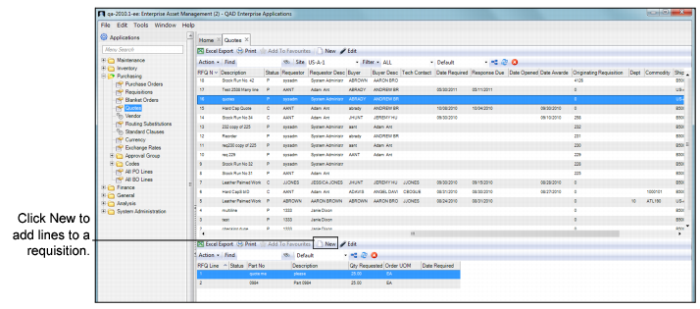
5 Add lines to the quote. Select the quote that you created and click New in the Quote Lines browse.
Adding Lines to a Quote
7 Click Save.
Filling Out the Quote Header
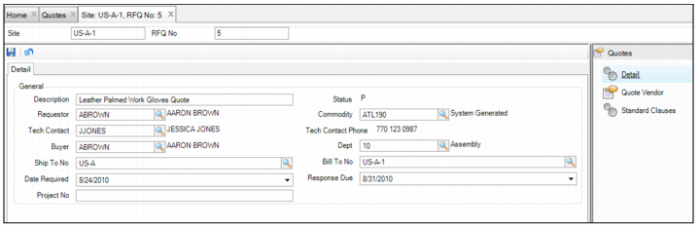
Enter the relevant information in the Quotes Detail tab.
Quote Header Detail Tab
General
Description
Enter up to a 30-character alphanumeric description of the quote. You can filter and sort by the description.
Status
Status defaults to P (planned) on a new quote. From the Action menu on the Quote browse, select Change Status to cancel (X) or close (C) to quote.
Requestor
When you create a quote, EAM adds the employee number of the user ID entering the new quote in the Requestor field. You can override this field.
Commodity
Specify a commodity code here in the quote header or in the upper browse. This code is not added to the individual lines on the quote. This user-defined code is used in the inventory, requisition, quotes, and vendor modules to group general classifications of parts and services.
Tech Contact
The designated employee, identified by an employee ID number, who the vendor is to contact with any technical issues surrounding the quote.
Tech Contact Phone
The technical contact’s phone number.
Dept
Enter the department requesting the goods or services.
Ship To No
The address that is used as the ship-to, which is eventually used on the PO created from the quotation header.
Bill To No
A bill-to address on the quote header for use when the quote is turned into a purchase order.
Date Required
The required date for the material or service, entered by the creator of the quote. The buyer uses this scheduling information when negotiating with the vendors. It is printed on the quotation document sent to the vendor.
Response Due
The date the buyer requires the vendor to have the response to the quote sent back.
Project
The project associated with this quote.
Adding Lines to the Quote
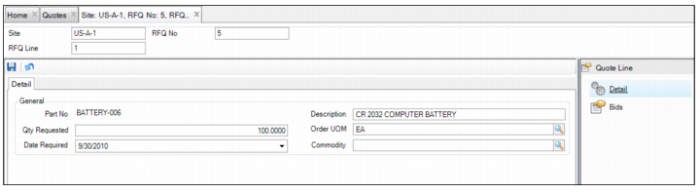
Enter the relevant information in the Quote Line Detail tab.
Quote Lines Detail Tab
General
Note: If the quote is generated from a requisition, you cannot update the information on the quote lines. However, you can view the Detail tab by double-clicking a quote line. You can then access the Bids submenu and enter additional vendors and bid data.
Part Number
The part number associated with the quote. Access the lookup at the part number field. The lookup displays a list of valid stock part ID numbers. However, EAM allows you to type in any number, such as a vendor part number, non-stock part, or service description. If you enter a valid EAM stock number, the system pulls in all the relevant information such as the description and commodity code.
Description
Enter up to a 30-character alphanumeric description of the quote. If a stock part number is added to the quote, the part’s description in Inventory|Inventory is copied to this field.
Qty Requested
The quantity required on this quote for the specified part.
Order UOM
The vendor’s specified order unit of measure for the part or service. If this is a stock part, the field is filled in with the part’s order UOM, as entered in the part record.
Date Required
The required date for the material or service, entered by the creator of the quote. The buyer uses this scheduling information when negotiating with the vendors.
Commodity
A user-defined table used to describe the type of part. If the quote is for a stock part and the part had a commodity code listed in its record, the commodity code is copied over to the quote. You can specify a commodity code on each quote line.
Adding Standard Clauses to a Quote
In the Standard Clauses submenu, you can add an existing standard clause or create a clause and add it to the quote.
Adding an Existing Standard Clause to a Quote
Follow these steps to add standard clauses to a quote:
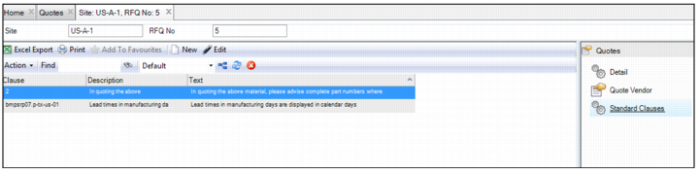
1 Open the quote and select the Standard Clauses submenu.
Quote Header: Standard Clauses Submenu
2 To add an existing standard clause, select Copy Standard Clause from the Action menu.
A lookup appears that lists all the available standard clauses.
3 Double-click and select the clause you want to add to the quote.
The standard clause is added to the quote.
Creating a Standard Clause and Adding it to the Quote
Follow these steps to create a standard clause and add it to a quote:
1 Open the quote and select the Standard Clauses submenu.
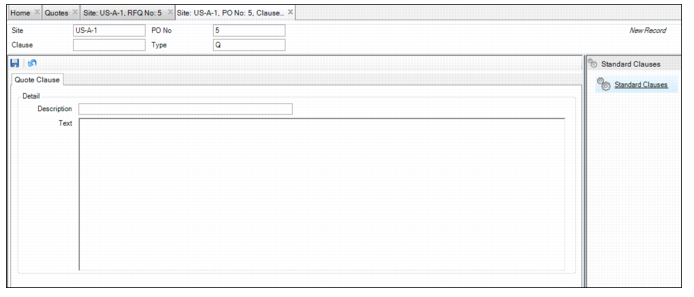
2 Click New and enter the following information in the Quote Clause tab:
Clause
Enter the name of the standard clause.
Description
Enter a short description of the standard clause.
Text
Enter any detailed information about the standard clause.
Note: The Text field has a 1140-character limit. Any text beyond character 1140 is cut from the quote.
Creating a Standard Clause
3 Click Save.
Printing a Quote
To print a quote, select Print Document from the Quote Action menu.
Note: If there are multiple vendors associated with the quote, EAM automatically prints separate quotes for each vendor.