QAD Enterprise Asset Management 2017.1
>
User Guide
>
Purchasing
>
Quotes
>
Editing a Quote
Editing a Quote
To edit a quote, open the quote and make the necessary changes to the Detail tab. See
Filling Out the Quote Header.
Canceling a Quote or Quote Line
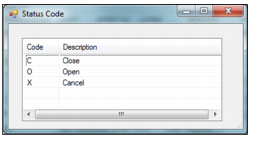
To cancel a quote, select the quote and then select Change Status from the Action menu. Double-click and select either Close (C) or Cancel (X). If you select Close or Cancel, you cannot reopen the quote. Changing the status of a quote header changes the status of the quote lines as well.
Note: When a quote is awarded, the system automatically closes the quote.
To cancel a quote line, select the quote line and then select Change Status from the Quote Line Action menu. Double-click and select Cancel (X).
Change Quote Status
Attaching and Linking Files to the Quote
EAM allows you to attach and link an unlimited number of files and link an unlimited number of URLs to an EAM quote record. If you can run the file on your operating system, you can run it from EAM when it is attached or linked.
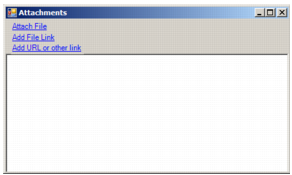
Attach or Link Files to a Quote
Attach a File
To attach a file to a quote:
1 Select the quote from the Quotes browse.
2 Select Attachments from the Action menu.
3 In the Attachments window, select Attach File.
4 Locate the file on your computer and click Open. The file is now attached to the quote.
Link a File
To link a file to a quote:
1 Select the quote from the Quotes browse.
2 Select Attachments from the Quotes Action menu.
3 In the Attachments window, select Add File Link.
4 Locate the file on your computer and then click Open. The file is now linked to the quote.
Link a URL
To link a URL to a quote:
1 Select the quote from the Quotes browse.
2 Select Attachments from the Action menu.
3 In the Attachments window, click Add URL or other link.
4 Copy and paste the URL in the Link window and then click Open. The URL is now linked to the quote.
View the Vendor’s Bidding Details
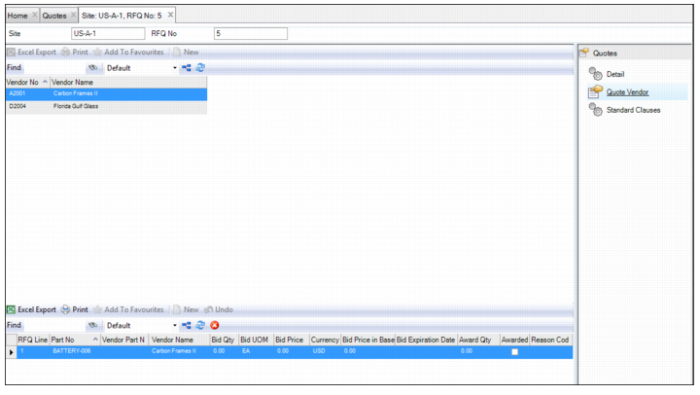
The Quote Vendor submenu displays the vendors and the parts they are bidding on in this quote. The upper browse lists the vendors associated with this quote. The lower browse displays the bid information for each of the parts for the selected vendor.
Note: In the Quote Vendor menu, you can enter bid information including bid quantity, bid price, award quantity, and the reason codes for why a vendor did not win a bid.
Quotes Vendor Browse