List of Job Programs
EAM provides the following job programs:
|
|
|
|
|
|
|
|
|
|
|
|
|
|
|
|
|
|
|
|
|
|
|
|
|
|
18 Send Service Request Mail from ERP
|
|
|
|
|
|
|
|
|
|
|
|
26 Refresh Voucher
|
|
|
|
|
|
|
|
|
|
|
|
|
|
|
|
|
|
38 Job Program number not in use
|
|
39 Job Program number not in use
|
|
|
|
|
|
|
|
Testing Program
Run Parameters – Testing Program
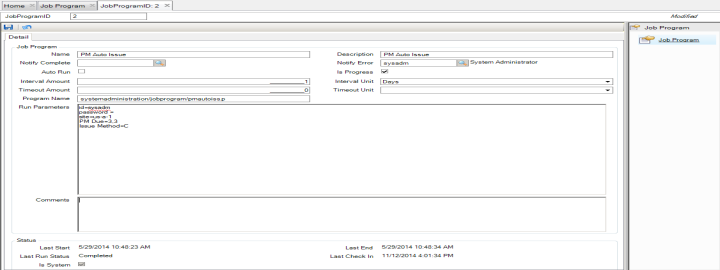
PM Auto Issue
The PM Auto Issue job program automatically issues a PM work order when criteria established in the Run Parameters field are met. This job can be set up to issue PM WOs based on a calendar schedule, DUOMs, a combination of DUOMs and calendar schedule, or on a specific event. As with the manual global issue of PM WOs, filtering by date can result in multiple issues for a given PM WO.
Certain PM WOs are automatically skipped. PMs are skipped in the following situations:
• Active? check box is clear
• Equip No is Locked
• Sliding Sch? check box is selected and there is an open work order for the PM
• PM is being issued during a Skip period
• Superior PM is being issued within entered time frame
Run Parameters – PM Auto Issue
• Site Code. Enter the site parameter using the format “site=xxxxxxxx”, where xxxxxxxx is the desired site code.
• Day Range. Enter the range of days during which you want the job to search for PMs that are due. Use the format “PM Issue By=nn,nn”, where the first nn is the starting point from today and the second nn is the number of days until the end of the range. In
Job Program: PM Auto Issue, PM Issue By=3,3 means start in three days and search over the next three days.
Note: It does not matter what issue cycle is used in the calendar-based PM because the job searches for any calendar-based PMs, where the PM Issue By date falls within the selected range of days.
• Issue Method. Enter the issue method using the format “Issue Method=x” where x is:
• C for calendar.
• U for DUOM. EAM issues a PM when Current Reading reaches the Next DUOM Issue value.
• B for both DUOM and calendar. EAM issues a PM when the Current Reading reaches the Next DUOM Issue value and/or the day range setting reaches the PM Issue By date.
• E for event based.
• Additional Parameters. You can use additional parameters to refine the PM WOs that the PM Auto Issue job generates. The following table contains a list of those parameters. The entries in the Field Name column are used to customize this job.
PM Auto Issue - Run Parameters
|
Field Label
|
Field Name
|
Data Type
|
|
SiteCode
|
site
|
character
|
|
IssueBase
|
issue base
|
character
|
|
UOMNextDate
|
Est Due Date
|
date
|
|
NextFailure
|
Next Failure
|
date
|
|
PMCompleteBy
|
PM Complete By
|
date
|
|
Date 1
|
date 1
|
date
|
|
AssyCode
|
Assembly
|
character
|
|
AssignTo
|
Assigned
|
character
|
|
Catalog
|
Catalog
|
character
|
|
Class
|
Class
|
character
|
|
Clearance
|
Clearance
|
character
|
|
AcctNoc
|
Cont Acct No
|
character
|
|
location
|
location
|
character
|
|
PlanCode
|
planner
|
character
|
|
SubAcctNoc
|
Cont Sub Acct
|
character
|
|
CC
|
Cost Center
|
character
|
|
CrewCode
|
Crew
|
character
|
|
DeptCode
|
Dept
|
character
|
|
Description
|
Description
|
character
|
|
DUOMCode
|
DUOM
|
character
|
|
UOMCycle
|
DUOM Cycle
|
character
|
|
EquipNo
|
Equip No
|
character
|
|
Event
|
Event
|
character
|
|
ExpSite
|
Expense Site
|
character
|
|
IssueSch
|
Issue Cycle
|
character
|
|
IssueMethod
|
Issue Method
|
character value
|
|
JobNo
|
Job No
|
character
|
|
AcctNo
|
Labor Acct
|
character
|
|
pLocation
|
Labor Sub Acct
|
character
|
|
LeadDays
|
Lead Days
|
integers only
|
|
AcctNop
|
Mtl Acct No
|
character
|
|
SubAcctNop
|
Mtl Sub Acct
|
character
|
|
UOMNextIssue
|
NextDUOM Issue
|
date
|
|
IssueCycle
|
No of Cycles
|
integers only
|
|
Notify
|
Notify
|
character
|
|
PMNo
|
PM Template No
|
integers only
|
|
Craft
|
Pri Craft
|
character
|
|
ProjectNo
|
Project No
|
character
|
|
ShiftCode
|
Shift
|
character
|
|
ShiftWkday
|
Shift Work Day?
|
integers only
|
|
SlidSch
|
Sliding Sch?
|
integers only
|
|
SysCode
|
System
|
character
|
Job Program: PM Auto Issue
Import Bid sml Files from SCP
The Import Bid sml Files from SCP job program (systemadministration/jobprogram/importbid.p) processes SCP .xml files to update bids within EAM. The job uses the .xml file to update RF quotes and RF quote line records in EAM. EAM does not perform validation on these quotes.
Run Parameters - Import Bid sml Files from SCP
The Import Bid sml Files from SCP job program contains the following run parameters, which are entered in the Run Parameters field:
• Site Code. Each job must have a parameter with site specified. Enter the site parameter using the format “site=xxxxxxxx”, where xxxxxxxx is the desired site code. You can specify one site or enter “site=*”, where the asterisk (*) represents all sites.
Currency Download from ERP
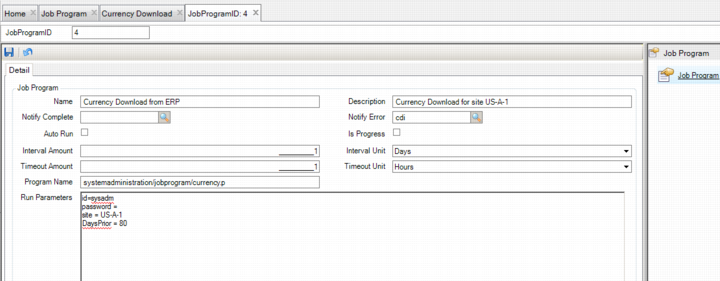
The Currency Download from ERP job program downloads new currency records to EAM from the ERP and also refreshes currency information already downloaded to EAM at System Administrator|ERP Interface|Download|Currency Download. This job updates in EAM any information that has been modified in the ERP.
Note: In order to use this option, EAM must be connected to the QAD ERP database.
Run Parameters – Currency Download
The Currency Download job program contains the following run parameters, which are entered in the Run Parameters field:
• Site Code. Each job must have a parameter with site specified. Enter the site parameter using the format “site=xxxxxxxx”, where xxxxxxxx is the desired site code. You can specify one site or enter “site=*”, where the asterisk (*) represents all sites.
• Days Prior. The number of days, counting backward from today, that the job should search for new currency records and changes to existing currency records. Enter an integer value.
Job Program: Currency Download from ERP
Purge Log File
The Purge Log File job program purges log files based on the time frame you define.
Run Parameters
The Purge Log File job program contains the following run parameters, which are entered in the Run Parameters field.
• Days. Enter the number of days for which you want the system to keep log files. Any log files older than that time frame are deleted. For example, if you enter 30, all log files 31 days and older are deleted each time the job runs. Recommended run time is at least once a month.
Refresh Project Cost
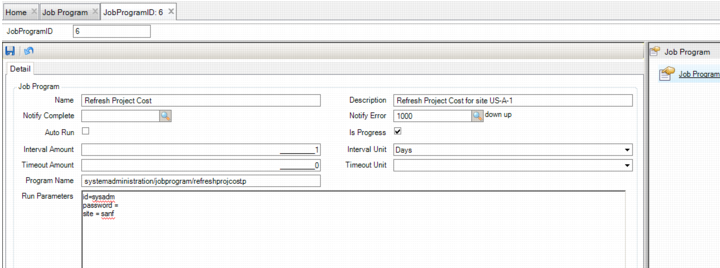
The Refresh Project Cost job program refreshes the cost of a project for one or more sites. This job recalculates the project costs and updates the Last Refreshed Date/Time on the Cost tab of the project in the Finance|Projects browse. The job performs the same function as the Refresh Action found in a project record.
Run Parameters – Refresh Project Cost
The Project Cost Refresh job program contains the following run parameters, which are entered in the Run Parameters field:
• Site Code. Each job must have a parameter with site specified. Enter the site parameter using the format “site=xxxxxxxx”, where xxxxxxxx is the desired site code. You can specify one site or enter “site=*”, where the asterisk (*) represents all sites.
Job Program: Refresh Project Cost
Vendor Refresh
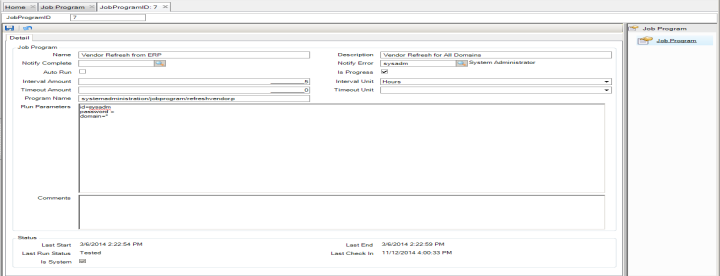
The Vendor Refresh job program refreshes the vendor records already downloaded to EAM at System Administration|ERP Interface|Download|Vendor Download. This job updates vendor records in EAM that have been modified in the ERP.
Note: In order to use this option, EAM must be connected to the QAD ERP database.
Run Parameters - Refresh Vendors
The Vendor Refresh job program contains the following run parameters, which are entered in the Run Parameters field:
• Domain. Enter the domain parameter using the format “domain=yyyyyyy”, where yyyyyyy is the desired domain code. You can specify one domain or enter “domain=*”, where the asterisk (*) represents all domains.
Job Program: Vendor Refresh
Send Mail on Price Schedule Expiration
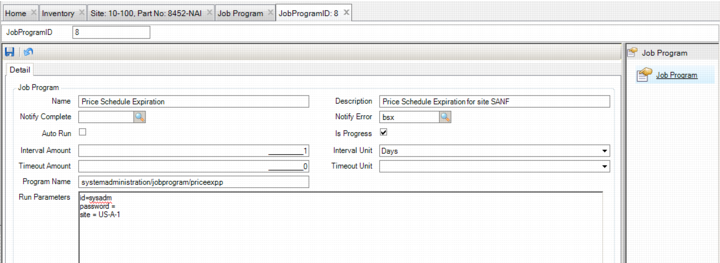
The Send Mail on Price Schedule Expiration program can be configured to send an e-mail notification when the expiration date is reached for each record found in the bottom browse of the Vendor Parts submenu at Inventory|Inventory. The job program finds pricing schedules that have expired and sends e-mail to the user ID or mail group designated in the Notify Error lookup.
Run Parameters – Price Schedule Expiration
The Price Schedule Expiration job program contains the following run parameters, which are entered in the Run Parameters field:
• Site Code. Each job must have a parameter with site specified. Enter the site parameter using the format “site=xxxxxxxx”, where xxxxxxxx is the desired site code. You can specify one site or enter “site=*”, where the asterisk (*) represents all sites.
Job Program: Price Schedule Expiration
Account Refresh from ERP
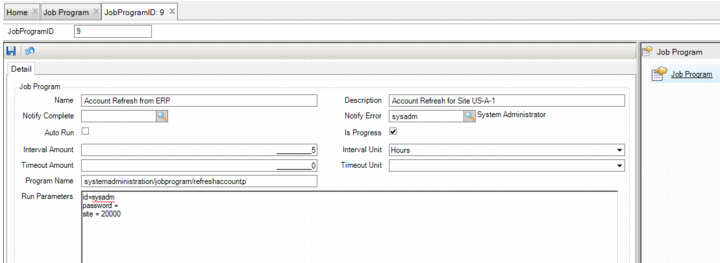
The Account Refresh job program refreshes the accounts already downloaded from ERP to EAM at System Administration|ERP Interface|Download|EE Account Download. This job updates account information in EAM that has been modified in the ERP.
Note: In order to use this option, EAM must be connected to the QAD ERP database.
Run Parameters – Account Refresh
The Account Refresh job program contains the following run parameters, which are entered in the Run Parameters field:
• Site Code. Each job must have a parameter with site specified. Enter the site parameter using the format “site=xxxxxxxx”, where xxxxxxxx is the desired site code. You can specify one site or enter “site=*”, where the asterisk (*) represents all sites.
Job Program: Account Refresh from ERP
Project Refresh from ERP
The Project Refresh from ERP job program refreshes the project information already downloaded from the ERP to EAM at System Administration|ERP Interface|Download|Project Download. This job updates in EAM any records that have been modified in the ERP.
Run Parameters - Project Refresh from ERP
The Project Refresh from ERP job program contains the following run parameters, which are entered in the Run Parameters field:
• Site Code. Each job must have a parameter with site specified. Enter the site parameter using the format “site=xxxxxxxx”, where xxxxxxxx is the desired site code. You can specify one site or enter “site=*”, where the asterisk (*) represents all sites.
Standard Clauses Refresh from ERP
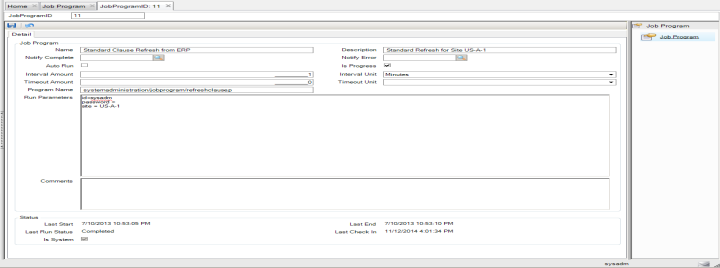
The Standard Clauses Refresh job program refreshes the standard clauses information already downloaded from the ERP to EAM at System Administration|ERP Interface|Download|Standard Clauses Download. This job updates in EAM any records that have been modified in the ERP.
Note: In order to use this option, EAM must be connected to the QAD ERP database.
Run Parameters – Standard Clauses Refresh from ERP
The Standard Clauses Refresh from ERP job program contains the following run parameters, which are entered in the Run Parameters field:
• Site Code. Each job must have a parameter with site specified. Enter the site parameter using the format “site=xxxxxxxx”, where xxxxxxxx is the desired site code. You can specify one site or enter “site=*”, where the asterisk (*) represents all sites.
Job Program: Standard Clauses Refresh
Terms Refresh from ERP
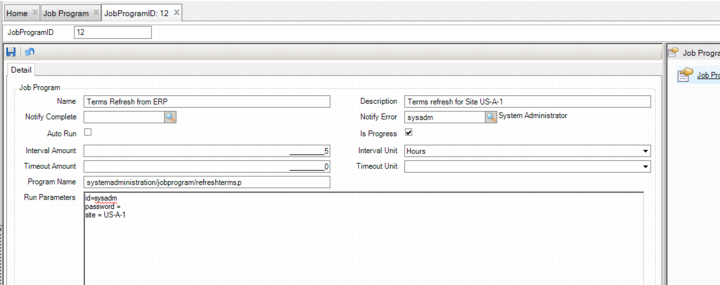
The Terms Refresh job program refreshes the terms information already downloaded from the ERP to EAM at System Administration|ERP Interface|Download|Terms Download. This job updates in EAM any information that has been modified in the ERP.
Note: In order to use this option, EAM must be connected to the QAD ERP database.
Run Parameters – Terms Refresh from ERP
The Terms Refresh from ERP job program contains the following run parameters, which are entered in the Run Parameters field:
• Site Code. Each job must have a parameter with site specified. Enter the site parameter using the format “site=xxxxxxxx”, where xxxxxxxx is the desired site code. You can specify one site or enter “site=*”, where the asterisk (*) represents all sites.
Job Program: Terms Refresh
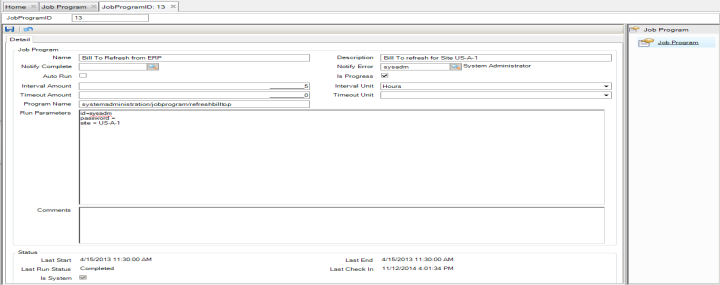
Bill To Refresh from ERP
The Bill To Refresh job program refreshes the Bill To information already downloaded from the ERP to EAM at System Administration|ERP Interface|Download|Bill To Download. This job updates in EAM any information that has been modified in the ERP.
Note: In order to use this option, EAM must be connected to the QAD ERP database.
Run Parameters – Bill To Refresh from ERP
The Bill To Refresh from ERP job program contains the following run parameters, which are entered in the Run Parameters field:
• Site Code. Each job must have a parameter with site specified. Enter the site parameter using the format “site=xxxxxxxx”, where xxxxxxxx is the desired site code. You can specify one site or enter “site=*”, where the asterisk (*) represents all sites.
Job Program: Bill To Refresh
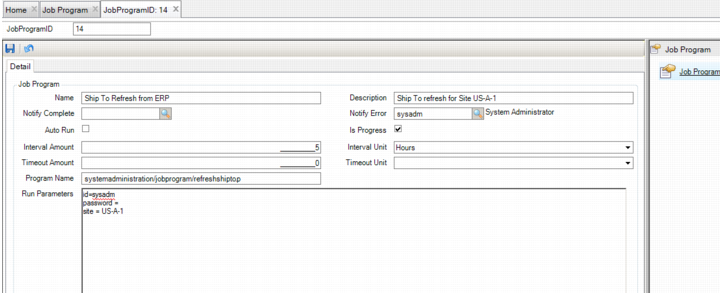
Ship To Refresh from ERP
The Ship To Refresh job program refreshes the Ship To information already downloaded from the ERP to EAM at System Administration|ERP Interface|Download|Ship To Download. This job updates in EAM any information that has been modified in the ERP.
Note: In order to use this option, EAM must be connected to the QAD ERP database.
Run Parameters – Ship To Refresh from ERP
The Ship To Refresh from ERP job program contains the following run parameters, which are entered in the Run Parameters field:
• Site Code. Each job must have a parameter with site specified. Enter the site parameter using the format “site=xxxxxxxx”, where xxxxxxxx is the desired site code. You can specify one site or enter “site=*”, where the asterisk (*) represents all sites.
Job Program: Ship To Refresh
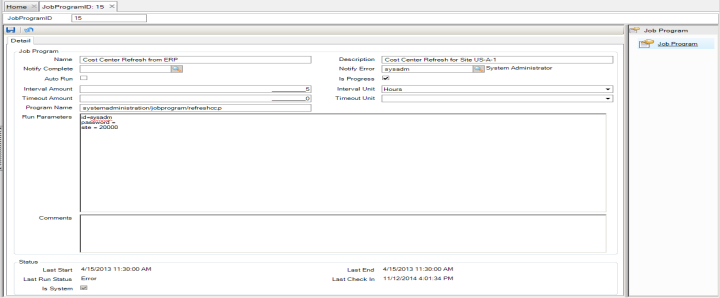
Cost Center Refresh from ERP
The Cost Center Refresh job program refreshes records from the ERP that were already downloaded to EAM at System Administration|ERP Interface|Download|EE Cost Center Download. This job updates in EAM any information that has been modified in the ERP.
Note: In order to use this option, EAM must be connected to the QAD ERP database.
Run Parameters – Cost Center Refresh from ERP
The Cost Center Refresh from ERP job program contains the following run parameters, which are entered in the Run Parameters field:
• Site Code. Each job must have a parameter with site specified. Enter the site parameter using the format “site=xxxxxxxx”, where xxxxxxxx is the desired site code. You can specify one site or enter “site=*”, where the asterisk (*) represents all sites.
Job Program: Cost Center Refresh from ERP
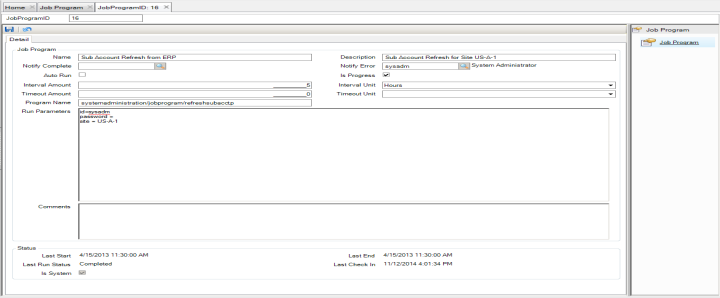
Sub Account Refresh from ERP
The Sub Account Refresh job program refreshes records from the ERP that already downloaded to EAM at System Administration|ERP Interface|Download|EE Sub Account Download. This job updates in EAM any information that has been modified in the ERP.
Note: In order to use this option, EAM must be connected to the QAD ERP database.
Run Parameters – Sub Account Refresh from ERP
The Sub Account Refresh from ERP job program contains the following run parameters, which are entered in the Run Parameters field:
• Site Code. Each job must have a parameter with site specified. Enter the site parameter using the format “site=xxxxxxxx”, where xxxxxxxx is the desired site code. You can specify one site or enter “site=*”, where the asterisk (*) represents all sites.
Job Program: Sub Account Refresh from ERP
Account Calendar Refresh from ERP
The Account Calendar Refresh from ERP job program refreshes the GL Calendar records already downloaded from the ERP to EAM at System Administration|ERP Interface|Download|GL Calendar Download. This job updates in EAM any records that have been modified in the ERP.
Run Parameters – Account Calendar Refresh from ERP
The Account Calendar Refresh from ERP job program contains the following run parameters, which are entered in the Run Parameters field:
• Domain. Enter the domain parameter using the format “domain=yyyyyyy”, where yyyyyyy is the desired domain code.
Equipment Failure Analysis
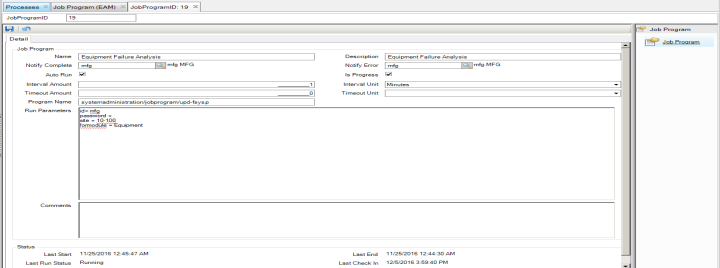
The Equipment Failure Analysis job program updates information for each equipment record in the Failure Analysis browse, which is located in Maintenance|Equipment|Equipment|Failure Analysis. The job program keeps the information on the Failure Analysis subdetail screen up to date by recalculating the Mean Time Between Failure, average cost for downtime hours, and the average time equipment is down for each specific failure code.
Run Parameters – Equipment Failure Analysis
The Equipment Failure Analysis job program contains the following run parameters, which are entered in the Run Parameters field:
• Site Code. Each job must have a parameter with site specified. Enter the site parameter using the format “site=xxxxxxxx”, where xxxxxxxx is the desired site code. You can specify one site or enter “site=*”, where the asterisk (*) represents all sites.
• ForModule. The module to which this job applies. Enter Equipment.
Job Program: Equipment Failure Analysis
Stock Replenishment
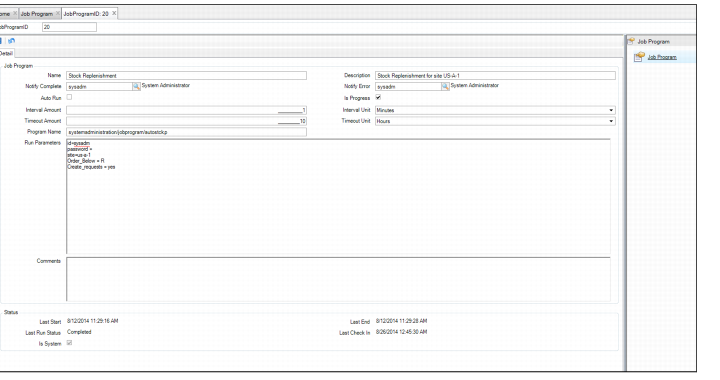
The Stock Replenishment job program (autostck.p) adds a new stock replenishment run, globally adds parts, and then creates requests based on the run parameters that are entered. This job program can produce the same results as if the stock replenishment run was added manually in the Inventory|Stock Replenishment browse.
When the Stock Replenishment job program runs, it first looks for any parts that match the entered run parameters. If it finds at least one part, it creates a stock replenishment run with a batch stock replenishment description. Records are created for any parts that match the entered run parameters with the order quantities calculated, just as in a manual stock run. If the “Create_requests=yes” run parameter is entered, the procedure then creates requests (requisitions and work orders) with the same functionality as selecting the Create Requests action in the Inventory|Stock Replenishment browse. In addition, it generates requisitions for items set to sole source in Sites|Misc tab, where the Sole Source Options setting of Automatically is set to at least Create a Requisition.
Run Parameters – Stock Replenishment
The Stock Replenishment job programs contains the following run parameters, which are entered in the Run Parameters field:
• Site. The job program must have a parameter with site specified. Enter the site parameter using the format “site=xxxxxxxx”, where xxxxxxxx is the desired site code. You can enter “site=*”, where the asterisk (*) represents all sites or you can specify one site.
• Additional Parameters. You can use additional parameters to tell the job which parts to replenish such as source, planner, or pri vendor.
The following table contains a list of parameters that can be used in the Stock Replenishment job program. The entries in the Field Name column are used to customize this job. For example:
• Add a parameter for Blanket by entering “blanket=yes”.
• Add a parameter for Source by entering “Source=internal” or “Source=vendor”.
• Create requests (requisitions and work orders) with the same functionality as selecting the Create Requests action in the Inventory|Stock Replenishment browse, by entering “Create_requests=yes”.
• Add a stock replenishment run for consignment parts by entering “Consignment?=yes”.
Stock Replenishment - Run Parameters
Field Label | Field Name | Data Type |
SiteCode | site | character |
Blanket | blanket | character |
Buyer | buyer | character |
CommCode | commodity | character |
Consign | consignment? | character |
Critical | critical? | character |
pLocation | location | character |
pPlanCode | planner | character |
PriVend | pri vendor | character |
PtStatus | status | character |
TypeCode | type | character |
Source | source | character |
SoleSource | sole source? | integers only |
MonthsAgo | last issued | integers only |
OrderBelow | order_below | character value |
CreateRequests | create_requests | character value |
Job Program: Stock Replenishment
Blanket Order Expiration
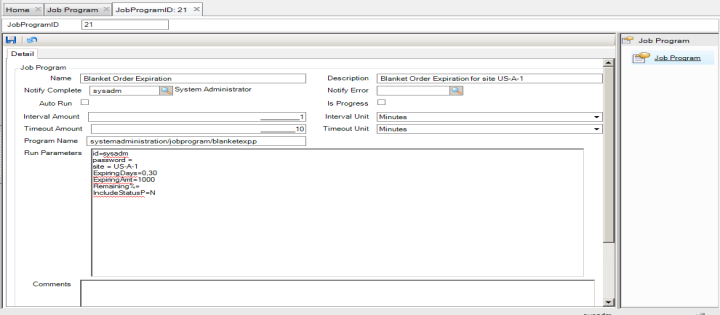
The Blanket Order Expiration job program can be configured to send an e-mail notification when the Expiration Amount or Expiration Date is reached for each Blanket Order in Purchasing|Blanket Orders. The job looks for any BO that meets the criteria set up in Run Parameters and then sends an e-mail to the buyer and any user ID or mail group designated in the Notify lookup on the BO Detail tab.
Run Parameters – Blanket Order Expiration
• Site Code. Each job must have a parameter with site specified. Enter the site parameter using the format “site=xxxxxxxx”, where xxxxxxxx is the desired site code. You can specify one site or enter “site=*”, where the asterisk (*) represents all sites.
• ExpiringDays. Enter the range of days you want the job to search for expiring or expired BOs. Use the format “ExpiringDays=nn,nn”, where the first nn is the starting point from today and the second nn is the number of days until the end of the range. In
Job Program: Blanket Order Expiration, ExpiringDays=0,30, which means start from today and search during the next 30 days.
• ExpiringAmt. Enter an expiration amount in the format “ExpiringAmt=nnnnn,” where nnnnn is the Dollar amount. In
Job Program: Blanket Order Expiration, ExpiringAmt=1000, which means if the remaining balance on a BO falls below $1,000, the buyer and/or the notify users receive an e-mail notification.
Note: The job can use either or both ExpiringDays and ExpiringAmt.
• IncludeStatusP. Y or N. If set to N, blanket orders with a status of Planned (P) are excluded.
Job Program: Blanket Order Expiration
The job does record if the buyer or the users identified in the Notify lookup have received or read the e-mail notifications. The job continues to send e-mail notifications until one or more of the following conditions are met.
• The expiration date falls outside the ExpiringDays range.
• The remaining balance falls outside the ExpiringAmt threshold.
• The BO is locked.
• The BO is canceled (X).
Forward Blanket Order Routing
The Forward Blanket Order Routings job forwards routing approval e-mails, based on the Wait Hrs set in System Administration|System Control Maintenance|Misc tab. For example, if a routing approval e-mail has not been forwarded by the assigned user within the designated wait hours, then the forwardborouting.p forwards the routing request to the next authorized user. Users who do not approve the authorization receive an e-mail telling them they were skipped due to the approval time limit and the system automatically enters a comment in the routing group submenu of “Skipped due to expired waiting time.”
Run Parameters – Forward Blanket Order Routings
The Forward Blanket Order Routings job program contains the following run parameters, which are entered in the Run Parameters field.
• Site. The job program must have a parameter with site specified. Enter the site parameter using the format “site=xxxxxxxx”, where xxxxxxxx is the desired site code. You can enter “site=*”, where the asterisk (*) represents all sites, or you can specify one site.
CIM Load
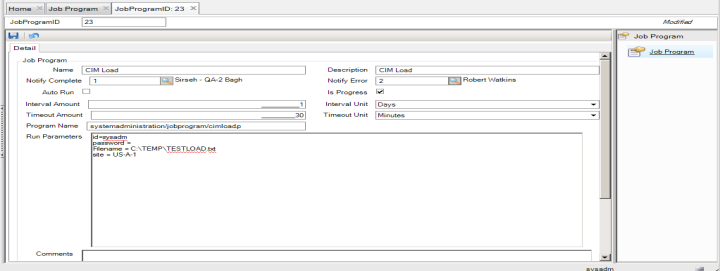
The CIM Load job program loads equipment DUOM readings from the data file designated in the job program. Before creating this job at System Administration|Job Control|Job Program, you must define the CIM Load setting on the Maintenance tab at General|Business Units|Sites. In the Equipment Options section of the Maintenance tab, select either Usage or Reading from the CIM Load drop-down menu.
Note: If you set the option to Usage, the text data file that the CIM Load job program loads must match the following format: Equip No, DUOM, Usage, Date, Time, User ID. If the CIM Load option is set to Reading, the data file must match the format Equip No, DUOM, Reading, Date, Time, User ID.
Run Parameters – CIM Load
The CIM Load job program contains the following run parameters, which are entered in the Run Parameters field:
• Filename. Enter the location and name of the text data file to load.
• Site Code. Each job must have a parameter with site specified. Enter the site parameter using the format “site=xxxxxxxx”, where xxxxxxxx is the desired site code. You can specify one site or enter “site=*”, where the asterisk (*) represents all sites.
Job Program: CIM Load
Reserve/Short Recalculation
The Reserve/Short Recalculation job program recalculates the reserve/short values on items.
Run Parameters – Reserve/Short Recalculation
The Reserve/Short Recalculation job program contains the following run parameters, which are entered in the Run Parameters field.
• Site. The job program must have a parameter with site specified. Enter the site parameter using the format “site=xxxxxxxx”, where xxxxxxxx is the desired site code. You can enter “site=*”, where the asterisk (*) represents all sites, or you can specify one site.
Update Planned/On Order
The Update Planned/On Order job program recalculates the planned/on order values on items.
Run Parameters – Planned/On Order
The Planned/On Order job program contains the following run parameters, which are entered in the Run Parameters field.
• Site. The job program must have a parameter with site specified. Enter the site parameter using the format “site=xxxxxxxx”, where xxxxxxxx is the desired site code. You can enter “site=*”, where the asterisk (*) represents all sites, or you can specify one site.
Forward All Routings
The Forward All Routings job program forwards routing approval e-mails based on the Wait Hrs set in System Administration|System Control Maintenance|Misc tab. For example, if a routing approval e-mail has not been forwarded by the assigned user within the designated wait hours, then the forwmail.p forwards the routing request to the next authorized user. Users who do not approve the authorization receive an e-mail telling them they were skipped due to approval time limit and the system automatically enters a comment in the routing group submenu of “Skipped due to expired waiting time.”
Run Parameters – Forward All Routings
The Forward All Routings job program contains the following run parameters, which are entered in the Run Parameters field.
• Site. The job program must have a parameter with site specified. Enter the site parameter using the format “site=xxxxxxxx”, where xxxxxxxx is the desired site code. You can enter “site=*”, where the asterisk (*) represents all sites, or you can specify one site.
Equipment Refresh
The Equipment Refresh job program globally refreshes a filtered list of equipment records. The job:
• Adds all labor costs charged to the equipment for the equipment’s lifetime and for the current year.
• Adds all material cost charged to the equipment for its lifetime and for the current year.
• Adds all manual GLs charged to the equipment for its lifetime and for the current year.
• Recalculates Current Lifetime Basis by adding all labor, material, and manual GL costs for the equipment’s lifetime to Initial Lifetime Basis (refer to Initialize Limits action).
• Recalculates Current Annual Basis by adding all labor, material, and manual GL costs for the current year to the Initial Annual Basis (refer to Initialize Limits action).
• Updates Last Refresh by the current date and time.
• Updates change history information by the current user, date, and time.
• Checks if the equipment’s current lifetime cost exceeds its lifetime spending limit in Current Lifetime Basis|Lifetime Basis and if the equipment’s current annual cost exceeds its annual spending limit in Current Annual Basis|Annual Basis. If the value of either costs exceeds its limit, EAM sends an email to the equipment’s Notify user or mail group.
Run Parameters – Equipment Refresh
The Equipment Refresh job program contains the following run parameters, which are entered in the Run Parameters field:
• Site. The job program must have a parameter with site specified. Enter the site parameter using the format “site=xxxxxxxx”, where xxxxxxxx is the desired site code. You can enter “site=*”, where the asterisk (*) represents all sites, or you can specify one site.
Check PO Balance
The Check PO Balance job program searches for the Posted Journal date stamp that matches the parts_status date. If the matching date stamp is not found, the job sends a notification mail.
Run Parameters – Check PO Balance
The Check PO Balance job program contains the following run parameters, which are entered in the Run Parameters field:
• Site. The job program must have a parameter with site specified. Enter the site parameter using the format “site=xxxxxxxx”, where xxxxxxxx is the desired site code. You can enter “site=*”, where the asterisk (*) represents all sites, or you can specify one site.
• Notify. The user ID to notify with an e-mail if the matching date stamp is not found.
• LastDays.
Inventory Reorder
The Inventory Reorder job program (invreorder.p) determines if a part is below either its reorder point or safety stock limit, depending on the setting, and sends an email to the Notify user when those limits are reached.
Run Parameters – Inventory Reorder
The Inventory Reorder job program contains the following run parameters, which are entered in the Run Parameters field:
• Site. The job program must have a parameter with site specified. Enter the site parameter using the format “site=xxxxxxxx”, where xxxxxxxx is the desired site code. You can enter “site=*”, where the asterisk (*) represents all sites, or you can specify one site.
• Notify. The user ID to notify with an e-mail if the part’s inventory has dropped below its reorder point or safety stock limit.
PO Header Status Check
The PO Header Status Check job program checks for a mismatch between the status on a PO header and the PO’s related lines. If a mismatch is found, the job generates an e-mail notification to the Notify user ID defined in the run parameters.
Run Parameters – PO Header Status Check
The PO Header Status Check job program contains the following run parameters, which are entered in the Run Parameters field:
• Site. The job program must have a parameter with site specified. Enter the site parameter using the format “site=xxxxxxxx”, where xxxxxxxx is the desired site code. You can enter “site=*”, where the asterisk (*) represents all sites, or you can specify one site.
• Notify. The user ID to notify with an e-mail if the status on a PO header does not match the PO’s related lines.
Requisition Check for PO Routing
Run Parameters – Requisition Check for PO Routing
The Requisition Check for PO Routing job program contains the following run parameters, which are entered in the Run Parameters field.
• Site. The job program must have a parameter with site specified. Enter the site parameter using the format “site=xxxxxxxx”, where xxxxxxxx is the desired site code. You can enter “site=*”, where the asterisk (*) represents all sites, or you can specify one site.
• Notify. The user ID to notify with an e-mail.
Send Emails when PM is due
The Send Emails when PM is due job program queries all PM templates and sends e-mails to the Notify person or mail group when the prevent_main.pm_due is less than or equal to today’s date. The job program sends an e-mail each time the program runs if the PM is still due. You need to issue the PM or update the due date to stop receiving e-mails. If you have PM templates no longer being used that have past due dates, you should clean up your templates before initiating pmduedate.p.
Run Parameters – Send Emails when PM is due
The Send Emails when PM is due job program contains the following run parameters, which are entered in the Run Parameters field:
• Site. The job program must have a parameter with site specified. Enter the site parameter using the format “site=xxxxxxxx”, where xxxxxxxx is the desired site code. You can enter “site=*”, where the asterisk (*) represents all sites, or you can specify one site.
Submit PO/Receipts to ERP
The Submit PO/Receipts to ERP job program (resendpostoerp.p) resends POs to ERP when changes are made to an Ordered PO in EAM. You determine which POs to send by selecting their check boxes in the Send to ERP? column on the Purchase Order browse. This job automates the Submit PO/Receipts to ERP Action menu option on the PO browse.
Run Parameters – Submit PO/Receipts to ERP
The Submit PO/Receipts job program contains the following run parameters, which are entered in the Run Parameters field:
• Site. The job program must have a parameter with site specified. Enter the site parameter using the format “site=xxxxxxxx”, where xxxxxxxx is the desired site code. You can enter “site=*”, where the asterisk (*) represents all sites, or you can specify one site.
Load Production Hours
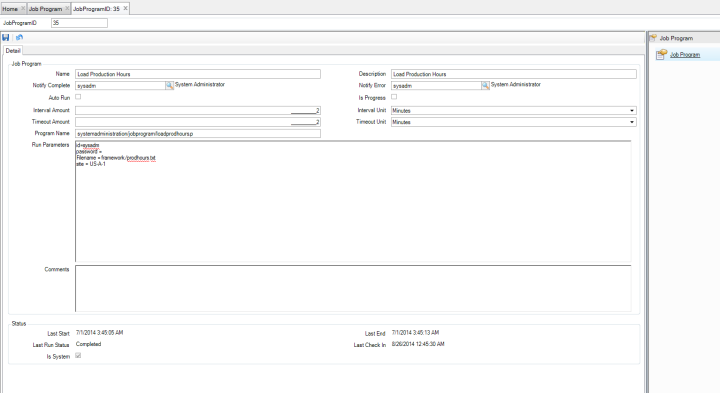
The Load Production Hours job program loads the data from a predefined data file into EAM Equipment. All records, whether they have errors or are error free, are loaded into the Production Hours browse, which is located in Maintenance|Equipment|Data Loads|Production Hours. The records that are error free also are loaded into the Production Hours submenu in the equipment record. If the record contains an error, a description of the error is displayed in the Comments field in the Production Hours browse.
Run Parameters – Load Production Hours
The Load Production Hours job program contains the following run parameters, which are entered in the Run Parameters field:
• Filename. Identifies the file location and the file name for the .txt file that is read during the Load Production job program.
• Site. The job program must have a parameter with site specified. Enter the site parameter using the format “site=xxxxxxxx”, where xxxxxxxx is the desired site code. You can enter “site=*”, where the asterisk (*) represents all sites, or you can specify one site.
Job Program: Load Production Hours
DUOM Load
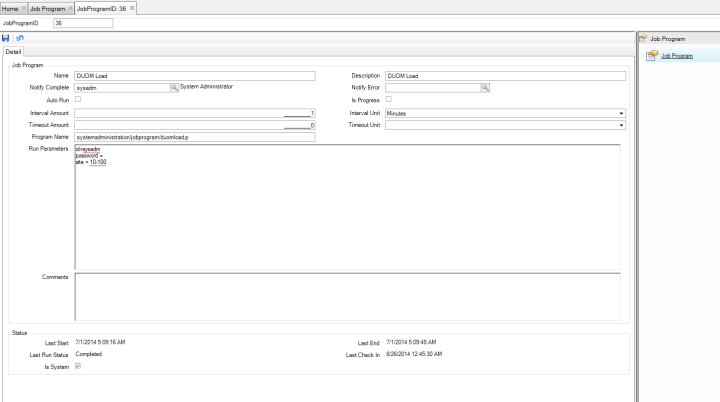
The DUOM Load job program automatically updates Equipment DUOMs based on the operation transaction types defined in EAM for the site, which is used to select the ERP operation history transactions along with the operation data related to the EAM Equipment Mapping to ERP and Equipment DUOM/ERP Items conversions.
After the DUOM Load job runs, the Equipment DUOM is updated with readings that can be viewed in the Equipment Readings submenu. The readings can then be used to determine the PM Issue for the equipment.
Run Parameters – DUOM Load
The DUOM job program contains the following run parameters, which are entered in the Run Parameters field:
• Site. The job program must have a parameter with site specified. Enter the site parameter using the format “site=xxxxxxxx”, where xxxxxxxx is the desired site code. You can enter “site=*”, where the asterisk (*) represents all sites, or you can specify one site.
Job Program: DUOM Load
GL Validation Report
Because of changes in the Financial module, GL account data can become invalid in EAM when you:
• Make an account, sub-account, or cost center inactive
• Change the setup of the COA mask
Data discrepancies between EAM and EE can potentially cause EAM postings to fail during processing to EE, resulting in mismatched EAM and EE transactions. The GL Validation report highlights discrepancies between EAM and EE account data.
GL Validation Report
Purpose | The purpose of the report is to identify invalid GL components and combinations in EAM that would cause postings to fail in EE. Any errors highlighted in the report can be corrected before generating postings. |
Functionality | • Identify GL elements in EAM that do not exist in EE such as account, sub-accounts, cost centers, and projects. • Report account elements in EAM that are not active in EE. Report project system statuses in EE that do not allow postings such as accounts, sub-accounts, cost centers. • Check GL combinations in EAM and report those that are invalid in EE. • Identify GL analysis limitation settings in EE and compare these to COA combinations defined in EAM. • Report COA elements that are defined in EAM, but are inactive. • Identify COA Mask combinations sent from EAM that do not exist in EE. |
Scope | There are 27 menus in EAM that store GL data: • Set-up Menus. There are 19 set-up menus where GL data is defined for use in later transaction processing; for example, equipment and site. These are within the scope of this report. Analysis showed that 12 of the 19 set-up menus should be validated in this report. • Transaction Menus. There are eight transaction menus that create transaction postings that are sent to EE. These are not in the scope of this report. They will form part of future EAM/EE integration work. |
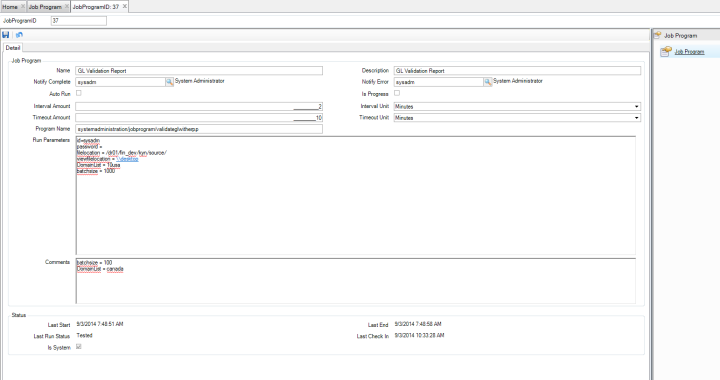
Run Parameters - GL Validation Report
The report is configured as a job program, so the parameters, notifications, and option to run automatically can be set. When complete, you access the report by clicking a link in the notification e-mail.
Job Program: GL Validation Report
Program Name
Program that loads the EAM GL details and sends to Financials for validation.
• File Location. The Unix directory path location where the report is output.
• View File Location. Optional Windows UNC path location parameter. Specifying this parameter allows the report name to appear as a link in the notification e-mail.
• UNC is a naming convention used primarily to specify and map network drives in Microsoft Windows. UNC names are most commonly used to reach file servers or printers on a LAN. It is the mapping of a non-Windows path to a Windows path; for example, mapping a UNIX directory to a Windows drive.
• Domain List. Specify the domains you want to validate. You can specify one value or several values, each separated by a comma; for example, Domain1, Domain2. If set to *, then all domains in the database are validated.
• Batch Size. Determines how many records are sent to EE for validation at one time; for example, 1000. If set to *, then all records are sent to EE for validation.
Running the GL Validation Report
If AutoRun is selected, the report runs periodically.
GL Validation Report – Notification E-mail
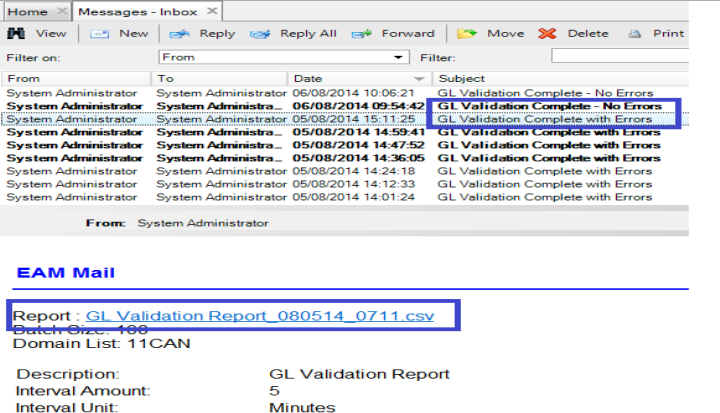
When the GL Validation Report is complete, a notification e-mail is sent, which can be accessed from the user’s Inbox in the EAM application.
• The subject of the e-mail is Complete with Errors or Complete - No Errors.
• The e-mail content has a link to the report. This is dependent on the ViewFileLocation parameter.
• If the parameter is specified, the report name appears as a link in the e-mail. If the parameter is not specified, then the path and file name appear only as text in the e-mail, with no link.
• Report Name contains the date and timestamp.
GL Validation Report E-mail
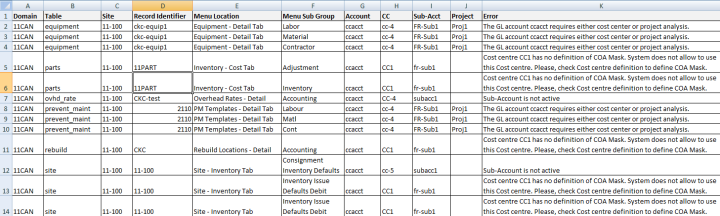
The report lists all validation errors returned from EE. The errors are ordered by domain and then by site. For each site, the menu, record, and tab that contain invalid data are listed. The report gives the details of the account, sub-account, cost center, and project combination and it displays the problem data so that you can easily identify and correct it. The report is formatted as a .csv file, which can be saved to Excel for further formatting, data filtering, and sorting.
GL Validation Report Example
Purge Mail for All Users
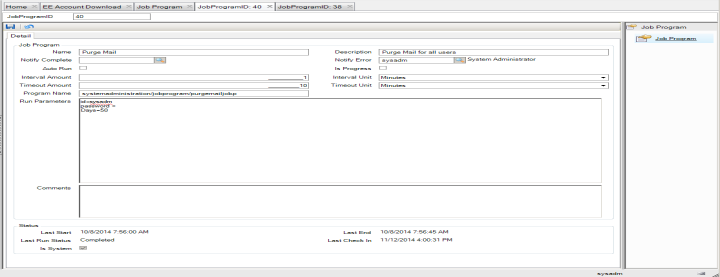
The Purge Mail for All Users job program deletes EAM system e-mail messages for all users based on the Days parameter set in the Run Parameters field.
Run Parameters – Purge Mail for All Users
The Purge Mail for All Users job program (mailcleanse.p) consists of the following run parameters, which are entered in the Run Parameters field:
• Days. Enter the number of days you want the system to keep e-mail messages. Any e-mails older than that time frame are deleted. For example, if you enter 60, all e-mails 61 days and older are deleted each time the job runs.
Job Program: Purge Mail for All Users
Refresh Users
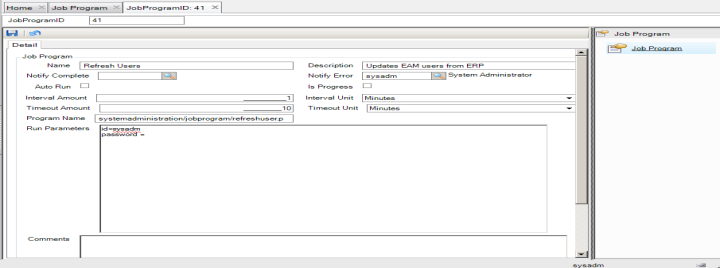
The Refresh Users job program updates and adds user records from the ERP. These records are copies of established EE users who are also licensed for EAM.
Run Parameters – Refresh Users
The Refresh Users job program consists of the following run parameters, which are entered in the Run Parameters field:
• Site Code. Each job must have a parameter with site specified. Enter the site parameter using the format “site=xxxxxxxx”, where xxxxxxxx is the desired site code.
Job Program: Refresh Users
PO/Req Revision Rollup Create
The PO/Req Revision Rollup Create job program populates the browse at Purchasing|Codes|All PO/Req Revisions. The utility poreqrevcreate.p must be run once to convert the existing revisions into data for the browse.
Run Parameters – PO/Req Revision Rollup Create
The PO/Req Revision Rollup Create job program contains the following run parameters, which are entered in the Run Parameters field:
• Site Code. Each job must have a parameter with site specified. Enter the site parameter using the format “site=xxxxxxxx”, where xxxxxxxx is the desired site code.
• Days Prior. The number of days, counting backward from today, that the job should search for revisions to POs and requisitions.
Rename Inventory
The Rename Inventory job program renames an inventory item throughout EAM. You can define the parameter settings to also rename the item throughout the ERP system.
Run Parameters – Rename Inventory
The Rename Inventory job program contains the following run parameters, which are entered in the Run Parameters field:
• OldPartNo. The part number you want to change.
• NewPartNo. The new part number that will replace the old part number.
• IncludeERPTable. Default is No. Should this change take place across the entire ERP system?
Note: Rename Inventory is the only job program that does not require a site code.
Tool Failure Analysis
The Tool Failure Analysis job program updates information for each serialized tool record in the Failure Analysis browse, which is located in Maintenance|Tools|Tools|Serialized Tool|Failure Analysis. The job program keeps the information on the Failure Analysis subdetail screen up to date by recalculating the Mean Time Between Failure, average cost for downtime hours, and the average time the tool is unavailable for each specific failure code.
Run Parameters – Tool Failure Analysis
The Tool Failure Analysis job program contains the following run parameters, which are entered in the Run Parameters field:
• Site Code. Each job must have a parameter with site specified. Enter the site parameter using the format “site=xxxxxxxx”, where xxxxxxxx is the desired site code. You can specify one site or enter “site=*”, where the asterisk (*) represents all sites.
• ForModule. The module to which this job applies. Enter Tool Serial.