Logging into RF as User A or User B
To log into the RF software as UserA, the user in many of the exercises in this training guide, use the following procedure:
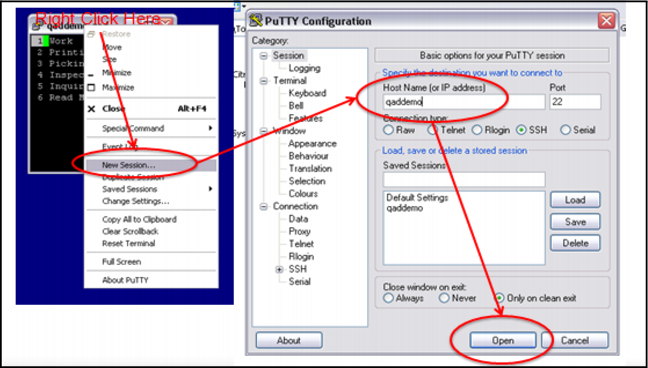
1 From the RF main menu, right click the mouse.
The Putty Quick Menu displays.
2 Select New Session.
The Putty configuration window displays.
A new character session displays.
4 When the qaddemo.qad.com putty session starts, log in as demo.
5 Enter the password as qad.
The qaddemo Main Menu displays.
6 Enter R to start the RF warehousing software.
The RF main menu displays.
7 In the User ID field, enter UserA.
Note: Leave the password field blank.
8 Enter other user data, such as warehouse, WLG, location, or task.
Note: You can leave these fields blank, or accept the defaults unless otherwise noted in this training guide or by the instructor.
User A Login
Logging In as UserB
To login as UserB for the exercises, follow all steps for logging in as User A, but change the RF user ID to UserB.
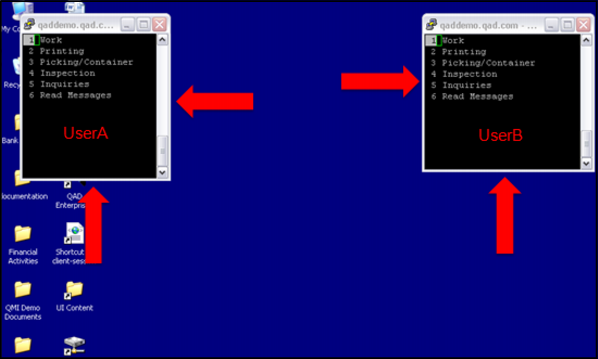
You should be able to see two putty sessions, one for User A and another for User B from the QAD database user interface.
User A and User B Sessions
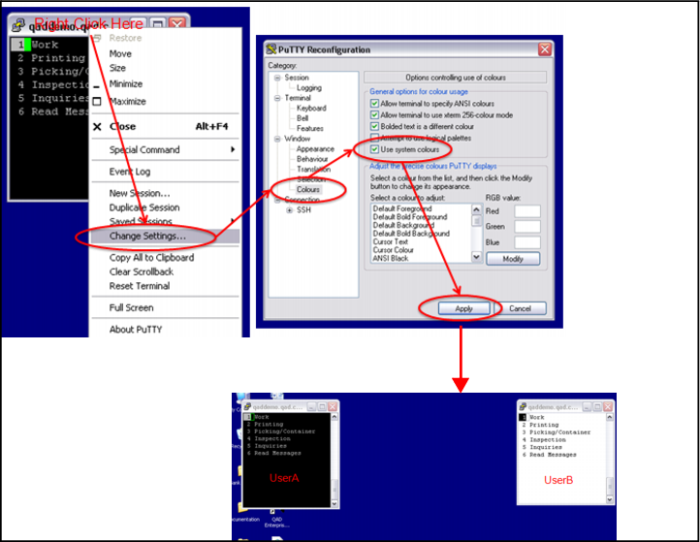
You can change the color of one of the users by:
1 Right click in either User A’s or User B’s putty RF session.
The Putty Quick Menu displays.
2 Select Change Settings.
3 The Putty Reconfiguration Menu displays.
4 In the left Category portion of the screen, select Colors.
Reconfigure User Screen Color