Customer Schedules
Customer schedules let you process sales orders using a set of scheduled shipment dates and quantities rather than individual sales orders.
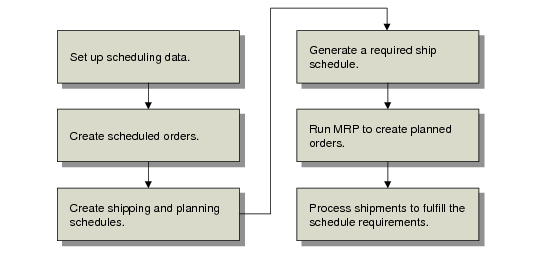
Customer Schedule Task Flow illustrates the steps required to process customer schedules.
Customer Schedule Task Flow
Depending on your business requirements, set up the data required to manage schedules. Typically, this includes such things as customer calendars and order periods, dock addresses, and shipping labels.
A master order determines scheduling parameters. In the short term, the customer provides day-to-day shipping requirements. These are firm commitments and override any existing plan for that period. Customers may also provide advance schedules, which are not firm orders. These are used for planning production and scheduling material.
After releases are entered as customer schedules, a required ship schedule can be calculated and the net demand passed to the Material Requirements Planning (MRP) module (23 menu).
For details, see
Running MRP.
The system calculates due dates based on shipping lead times, calendars, and planned shipping schedules. If noncumulative schedules are being processed, requirement detail can be maintained throughout the process. During shipment, shipper lines that are tied to specific requirements are consumed. This process is known as pegging.
The shipper workbench streamlines the shipping process by automatically creating a shipper from a shipping picklist and allowing containerization.
Other optional modules support customer schedule functions; for example:
• You can use Customer Consignment Inventory to plan, order, ship, track, and report customer-consigned material while at the same time deferring invoicing and accounts receivable (AR) transactions. You can also have the system automatically replenish consumed amounts on the active schedule.
• You can use Logistics Accounting to track third-party transportation costs incurred when a product is shipped to your customer.
See User Guide: QAD Sales.