Setting Up Configured Messages
The requirements of companies involved in long-term, scheduled relationships vary greatly. One trading partner’s requirements for how shipments are represented on an ASN may differ from another’s. Meeting the trading partner’s requirements is an important measure of supplier performance.
Configured messages let you determine the severity of various error conditions. Any shipper can be verified, whether created automatically or manually.
The verification process uses an external execution file defined in Configured Message Maintenance (36.4.6.13) to confirm that the structure and content of the shipper are valid. It also uses records defined in Configured Message Maintenance to determine the message to display if the shipper fails the verification.
Configured messaging enables you to tailor conditional error processing to meet specific business rules. You determine which conditions do not justify a message and which require an informational message, a warning message, or an error message. You can also specify the sequence in which the system checks for errors.
Different message conditions can be applied to different sites and addresses, letting you tailor processing based on the trading partner’s requirements.
Shipper Verification
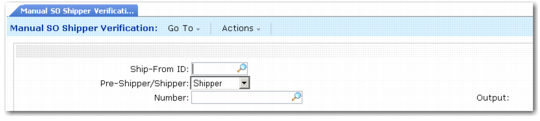
Shipper verification executes automatically at the end of Shipper Gateway (7.9.22) and Picklist/Pre-Shipper–Automatic (7.9.1). Any shipper can also be verified manually using Manual SO Shipper Verification (7.9.10). This program alerts you to potential shipping problems that should be corrected before proceeding through the shipment process. To run a shipper verification, you must define an external execution file in Configured Message Maintenance (36.4.6.13) to confirm that the structure and content of the shipper are valid. Configured messaging is implemented for shippers only.
Manual SO Shipper Verification (7.9.10)
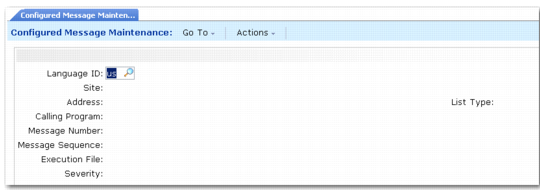
Entries are based on the verification calling program, message number, message sequence, execution file, and severity level. You can set up messages based on language code, site, and address. Set up generic entries by leaving Site and Address blank. Define trading-partner-specific entries by entering a site code, customer ID, or ship-to code.
Sample Configured Message Files
Sample Configured Message Execution Files lists the five sample shipper verification programs supplied with the system, or you can specify your own. There are many other conditions you may need to verify, such as:
• All items in a container are for the same purchase order.
• All items in a container are for the same authorization number.
• All items in a container are for the same lot.
• A returnable container is correctly cross-referenced in Customer Item Maintenance (1.16).
To create your own verifications, determine which are required, write the program, attach it to a configured message entry, and verify the shipper. Multiple verifications can be run on one shipper, provided multiple configured message entries exist.
Sample Configured Message Execution Files
Msg No. | Message | Calling Program | Execution File | Description |
1533 | Container quantity is greater than 1 | rcvrfsh1.p | rcvrfc01.p | Sample container quantity verification program |
1535 | A ship item is not containerized | rcvrfsh1.p | rcvrfi01.p | Sample item containerization verification program |
1540 | A container is empty | rcvrfsh1.p | rcvrfc02.p | Sample container empty verification program |
1541 | Containerization is greater than 2 levels | rcvrfsh1.p | rcvrfc03.p | Sample containerization level verification program |
1542 | A container has two different order/line items | rcvrfsh1.p | rcvrfi02.p | Sample container has same order/line verification program |
While shipper verification is optional, its use is recommended, since the process identifies initial problems with shippers. During verification, each program is executed in the order specified by the message sequence value. If any portion of the shipper is found to be invalid according to the execution file, the appropriate message displays. You can analyze and correct the situation and continue with the shipment process.
You can generate a Config Msg Verif Report (36.4.6.14), which lists the execution programs run and the sequence in which they are run. The shipper is typically used to create an ASN. Since transmission of the ASN is often time-critical, being aware of invalid shipper content or structure before shipment is vital.
Setting Up Configured Messaging
To set up configured messaging, follow these steps:
1 Create a user-defined verification execution program, or choose one of the five sample programs provided.
2 Define entries in Configured Message Maintenance. Multiple entries for the same verification program can exist, with different message sequence numbers.
3 Create the shipper manually using Pre-Shipper/Shipper Workbench (7.9.2) or automatically using Picklist/Pre-Shipper–Automatic (7.9.1) or Shipper Gateway (7.9.22).
4 If the shipper is created in Shipper Gateway or Picklist/Pre-Shipper– Automatic, verification is run automatically. Warning or error messages are displayed to the terminal or routed to a destination file name or print device.
5 If changes are made to the shipper or it is created in Pre-Shipper/Shipper Workbench, manually verify it using Manual SO Shipper Verification (7.9.10).
6 Optionally, print the Config Msg Verif Report (36.4.6.14) for a list of execution programs and the sequence in which they were run.
Configured Message Maintenance
Use Configured Message Maintenance (36.4.6.13) to create configured message entries. Make the entries specific by adding a site and address or generic by leaving site and address blank.
If Site and Address fields are blank, the verification program applies to every site, customer, and ship-to. Provide more information to make shipper verification trading-partner specific. More specific entries are used first.
Configured Message Maintenance (36.4.6.13)
Language ID
Enter a valid, active language code for selecting the appropriate message language.
Site
Optionally enter a site to be associated with the messages.
Address
Optionally enter a customer defined in Customer Create (27.20.1.1) or ship-to code defined for a customer in Customer Ship-to Create (27.20.2.1).
Calling Program
Currently, the only valid entry is rcvrfsh1.p, the shipper verification program.
Message Number
Enter the appropriate system message number identifying specific message text.
If you are writing your own custom Progress programs, you may want to use standard messages for consistency. These are accessed using the include file mfmsg.i. Pass the message number and a severity indicator, and the message displays.
Message numbers 9000 through 9900 are reserved for customer use and are not used by QAD.
Message Sequence
Enter a number indicating the order in which the execution file should be run.
Execution File
Enter the appropriate verification program. This may be one of the five sample programs supplied with the system or a custom, user-defined program. See
Sample Configured Message Execution Files for a list of sample programs.
Severity Level
Enter a number from 0 to 4 indicating the message severity.
0. No message displays.
1. An informational message displays.
2. A warning message displays.
3. An error message displays along with Please re-enter, and processing stops.
4. An error message displays, and processing stops.
Warning When verifying shippers, do not use severity level 3. Verification is a noninteractive process run after the shipper is created, without opportunity to re-enter data. Use severity level 4, which does not include Please re-enter.