Setting Control Program Values
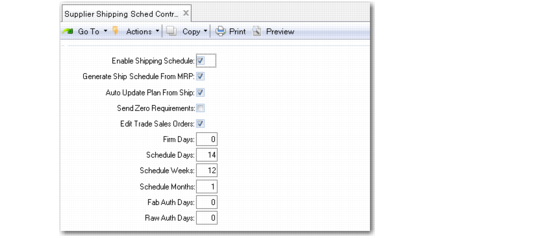
Use settings in Supplier Shipping Schedule Control (5.5.7.24) to activate the optional Supplier Shipping Schedules module and define generic default values for scheduled orders and generated schedules.
Many of the field values in Supplier Shipping Schedule Control default to corresponding fields in Supplier Controls Maintenance (5.5.7.4). The control program values also default to scheduled orders for suppliers that do not have supplier-specific defaults. You can modify the defaults you define here as needed for individual suppliers and scheduled orders.
Supplier Shipping Schedule Control (5.5.7.24)
Enable Shipping Schedule
Enter Yes to activate the Supplier Shipping Schedules module.
Note: When this value is Yes, you cannot manually update standard supplier schedules (type 4).
Generate Ship Schedule From MRP, Firm Days, Schedule Days, Schedule Weeks, Schedule Months, Fab Auth Days, Raw Auth Days
These fields set the default values for their corresponding fields in Supplier Controls Maintenance. In addition, they default to corresponding fields in scheduled orders created for suppliers that do not have supplier-specific defaults set up in Supplier Controls Maintenance (5.5.7.4).
Auto Update Plan From Ship
This field indicates whether planning schedules are automatically updated by the system when you make manual changes to their associated shipping schedules.
No: Planning schedules are not updated when their associated shipping schedules are changed.
Yes: When a requirement on a shipping schedule is manually changed, the requirement on the associated planning schedule for the active release ID is automatically updated.
Automatic update occurs only when the shipping and planning schedules have the same release ID and have not been sent to the supplier.
Entering Yes ensures that the requirements in the two schedules always correspond.
Example: On a typical Monday, you generate both a planning schedule for weeks and months and a shipping schedule for the next one or two weeks. One of your customers sends a rush order, and you must adjust the shipping schedule. As a result, the current shipping schedule no longer corresponds to the planning schedule. When Auto Update Plan From Ship is Yes, the system automatically updates your planning schedule with the changes you made to the shipping schedule.
Send Zero Requirements
This field sets the default value for the corresponding field in Supplier Controls Maintenance.
Edit Trade Sales Orders
Enter Yes to allow Supplier Scheduled Order Maintenance to be used to update orders that were created in Trade Sales. The system displays a message that it is a Trade Sales order and prompts you to continue before entering edit mode.
When this field is No, you cannot directly update Trade Sales supplier scheduled orders.
Regardless of this setting, you cannot delete a Trade Sales order using Supplier Scheduled Order Maintenance.