Defining Inventory Types
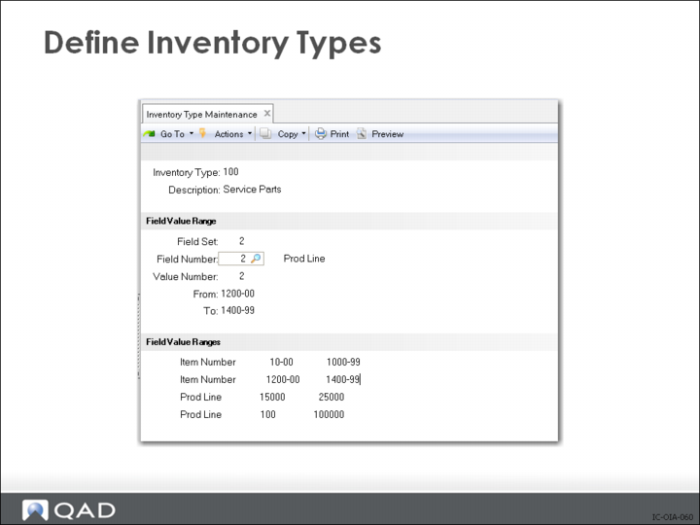
Use Inventory Type Maintenance (3.5.1.1) to select and group similar items into a unique inventory type. The system stores the inventory type with a specific logical structure. Define the structure by specifying:
• A number that identifies a set of related fields. Each type can have multiple sets of associated fields.
• A number for each item-related field that you want to display in obsolete inventory reports and output data that shows inventory types.
Note: The number is associated with a field in Language Detail Maintenance (36.4.2).
• A value number that identifies one value or value ranges for the fields.
• A single value or a range of values for the fields.
Refer to the user guide for specific examples.
Defining Depreciation Rates
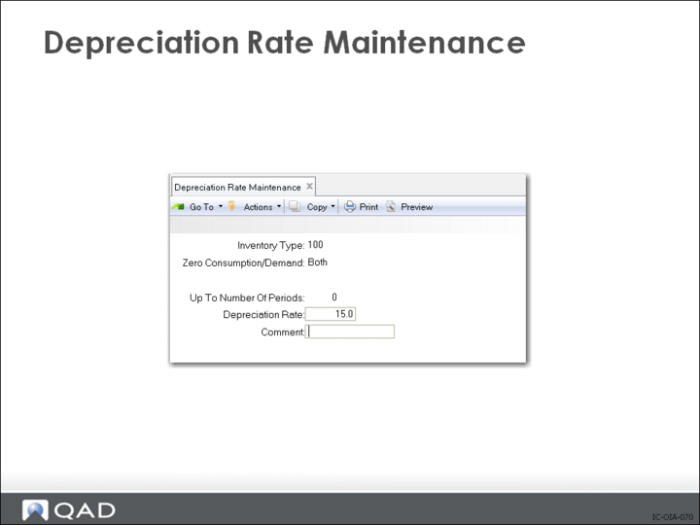
Use Depreciation Rate Maintenance (3.5.1.3) to create and assign depreciation rates for each inventory type. A rate cannot exceed 100%.
You assign deprecation rates for each inventory type; then specify a range for the number of periods the depreciation rate covers. The system applies the depreciation rate you specify up to the period you specify when calculating reserve.
Example: Specify an inventory type that groups your purchased items; then set the depreciation rate so that the rate slowly increases for the next two years in periods of six months until you no longer need the purchased item. To do this, set Up to Number of Periods to 6 and Depreciation Rate at 10 percent, and click Next. Then set Up to Number of Periods to 12 and Depreciation Rate at 20 percent, and click Next, and so on. The purchased items depreciate up to 6 months by 10 percent, then up to 12 months by 12 percent.
If you do not want an inventory item type to depreciate until after nine months, specify the rate as 0 (zero) and specify Up to Number of Periods as 9. The system applies a different depreciation rate, depending upon your specification, for the next period when the nine months is over.
Note: The system does not book GL transactions for reserve that it calculates using actual depreciation rates.
Inventory Type.
Specify the inventory type to which the system applies the depreciation rate. All items associated with the inventory type are depreciated at this rate when calculating reserve.
Zero Consumption/Demand.
Indicate when the system should use a different depreciation rate:
None (the default): Use the depreciation rate specified when consumption, demand, or both have a non-zero value. You can specify the number of periods in Up to Number of Periods. If you enter None but specify 0 (zero) periods, the system uses the depreciation rate you specify.
Consump(tion): Use the depreciation rate specified when there is zero consumption of inventory. The system sets Up to Number of Periods to zero and you cannot edit the field.
Demand: Use the depreciation rate when there is zero demand of inventory. The system sets Up to Number of Periods to zero and you cannot edit the field.
Both: Use the depreciation rate when there is both zero consumption and demand of inventory. The system sets Up to Number of Periods to zero and you cannot edit the field.
Up to Number of Periods.
Enter the number of periods this rate covers. Each value you specify indicates the high end or ending period of a range. The system increments this value by 1 to determine the starting point of the next range.
Setting Up Output File Types
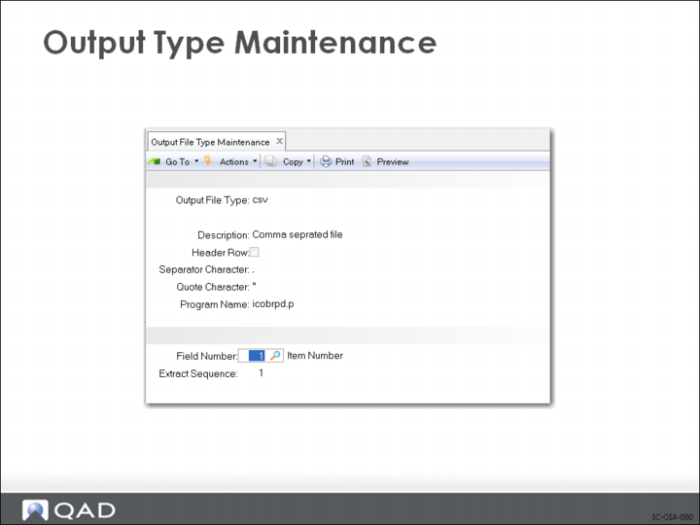
You can optionally create an output file for obsolete inventory analysis data. Use Output File Type Maintenance (3.5.1.5) to specify how the output file converter sorts and formats the data before you run the analysis. See Specifying an Output File.
The system converts and formats obsolete analysis data using the output file of your choice when you run Obsolete Inventory Analysis (3.5.1.9). You specify the name of the output file in Obsolete Inventory Analysis.