Input/Output Inquiry
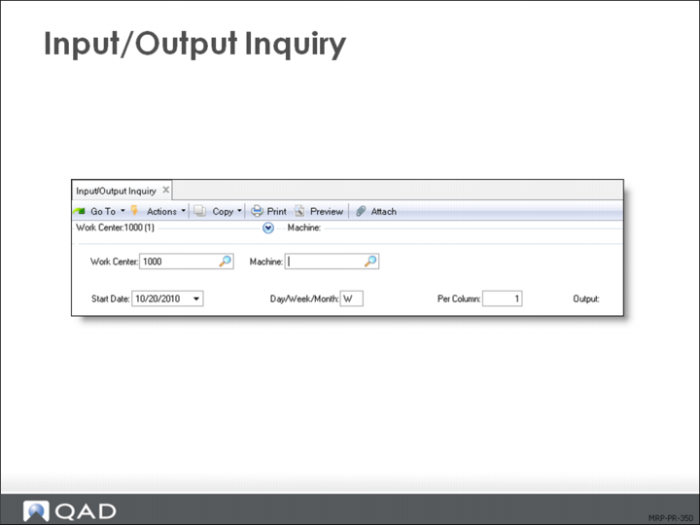
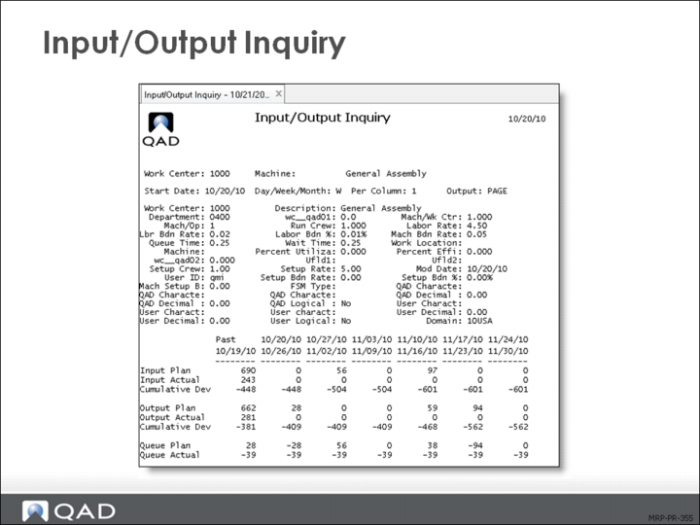
To provide shop floor data about planned versus actual results, compare the planned load input and output for a work center/machine with the actual load and output hours against that load. Input/Output Inquiry (24.4) and Input/Output Report (24.5) help evaluate a work center or machine’s response to planned loads by:
• Displaying planned and actual input and output in daily, weekly, or monthly periods
• Spotting “bottlenecks”
• Giving a perspective apart from traditional load reports
The Input/Output Inquiry and Report display the same information. The inquiry screen displays one work center/machine at a time. The report selection allows you to select a range of work centers and or machines.
Input/Output Report
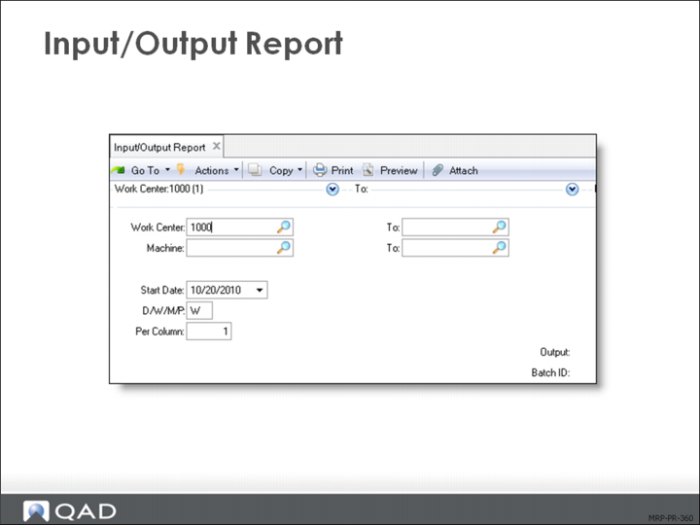
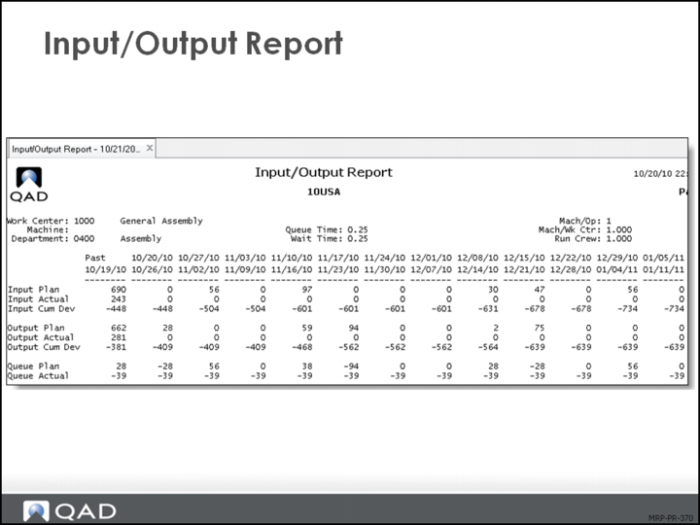
The Input/Output Inquiry and Report display the same information. The inquiry screen displays one work center/machine at a time. The report selection allows you to select a range of work centers and or machines.
Note: Enterprise Edition includes an additional enhanced version of Input/Output Report for .NET UI users.
Input/Output Report Sample
This section describes the key fields in the Input/Output report
Planned Input
The load on a work center or machine expressed as work order operations scheduled to start in a reporting period. It is determined using the following calculation:
Standard Setup + (Standard Run * Quantity Ordered).
Actual Input
Load that has been moved to the first and subsequent order operations. It is calculated for a reporting period based on move transactions entered using work order release and shop floor control functions. It is determined using the following calculation:
Standard Run Hours * Quantity Moved.
Planned Output
Load calculated based on order operations scheduled to be completed in a reporting period. It is determined using the following calculation:
Standard Setup + (Standard Run * Quantity Ordered).
Actual Output
Load calculated for a reporting period based on operation quantity completed transactions for work orders and repetitive schedules
Report completed quantities for order operations using labor feedback transactions in Shop Floor Control, Advanced Repetitive, Repetitive, Work Order Accounting Close
Actual output is determined using the following calculation:
Actual Setup + (Standard Run * Quantity Completed).
Planned Queue
Difference between planned input and planned output
Actual Queue
Difference between actual input and actual output
Experienced shop floor planners scan the Input/Output Report Queue line for a fast indication of how things are going. Assuming they have loaded a given work center/machine to a relatively fixed planned queue, an actual queue that is either growing or shrinking is an indicator work is building up or running out.
Note: Use Shop Floor Control (17.24) in order for this report to be helpful
Summary and Detail Inquiries and Reports
You can generate load reports by department, work center, or machine using the work center and department load inquiries and reports.
CRP determines load hours for a work center based on setup and run times. Queue, wait, and move times are excluded from load calculations. To include queue times in load calculations, set up separate operations for queue. CRP then considers these operations when calculating load.
CRP determines the load an operation exerts on a work center using the following calculation:
Operation Load = Setup Time + (Run Hours/Unit * Quantity Open)
The quantity open for an operation is the order quantity minus any quantities reported complete.
The system assigns the entire load for an operation to its scheduled start date. Even for operations with run times longer than one day, load is not spread between operation start and due dates
Work Center Load Summary Inquiry and Report
Inquiry
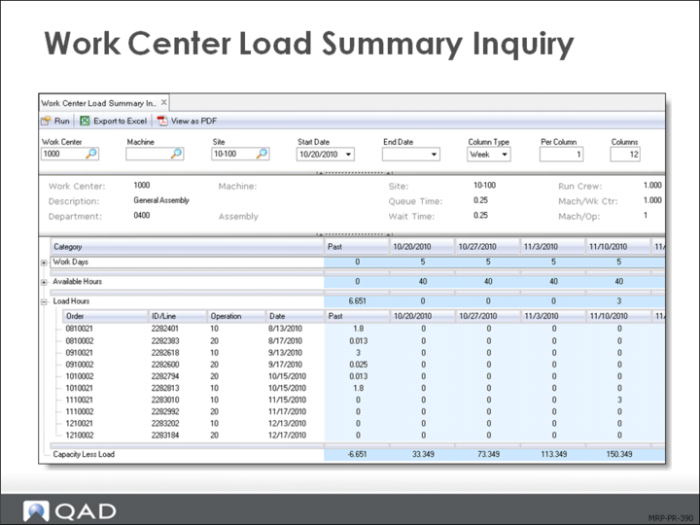
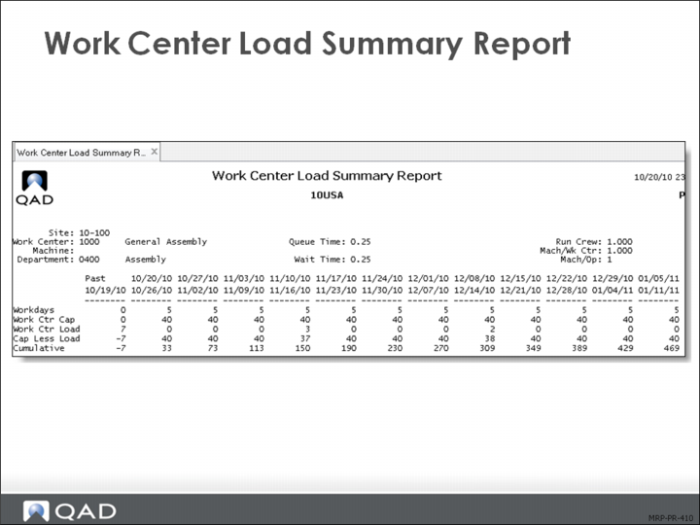
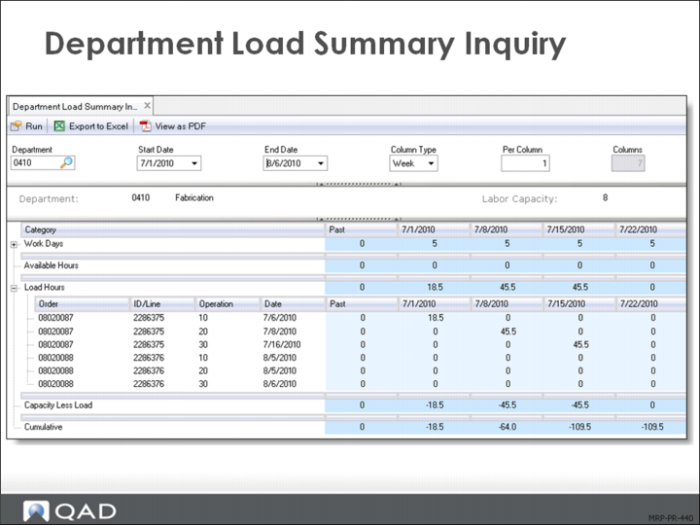
The work center load summary displays total load from all orders in the period compared to available capacity, with the difference and the cumulative difference. The inquiry displays data for one work center/ machine at a time.
A cumulative difference that continues to move in one direction is a sure indication of an imbalance to address.
Report
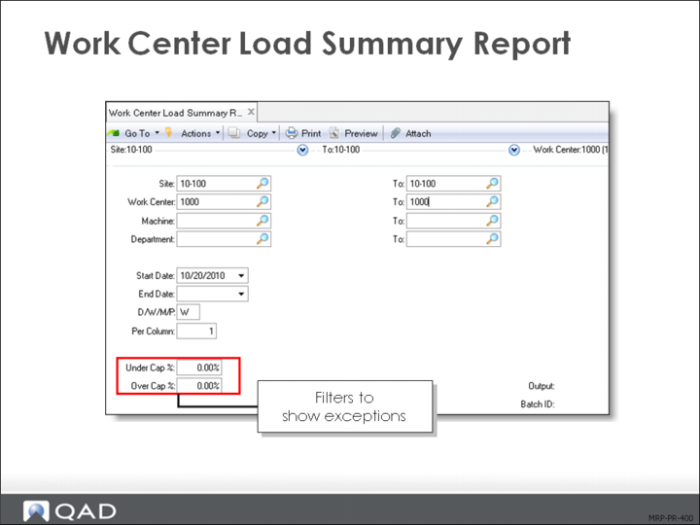
The work center load summary report displays the same information as the inquiry however it allows you to select a range or work centers and or machines. Direct the output to page to view this report on your terminal.
Work Center Load Detail Inquiry and Report
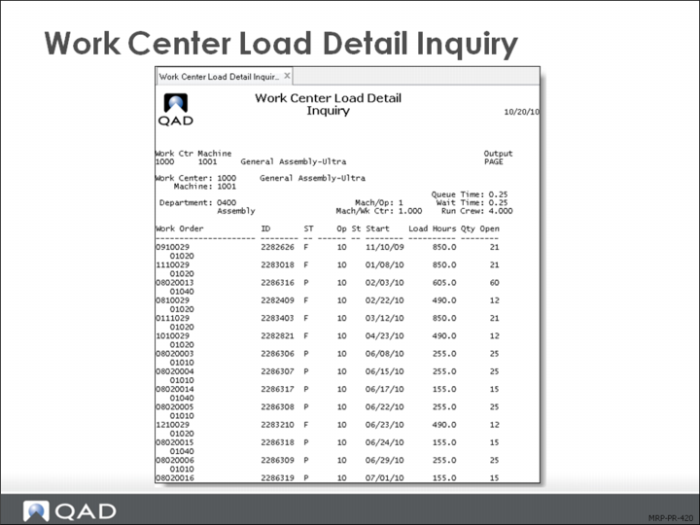
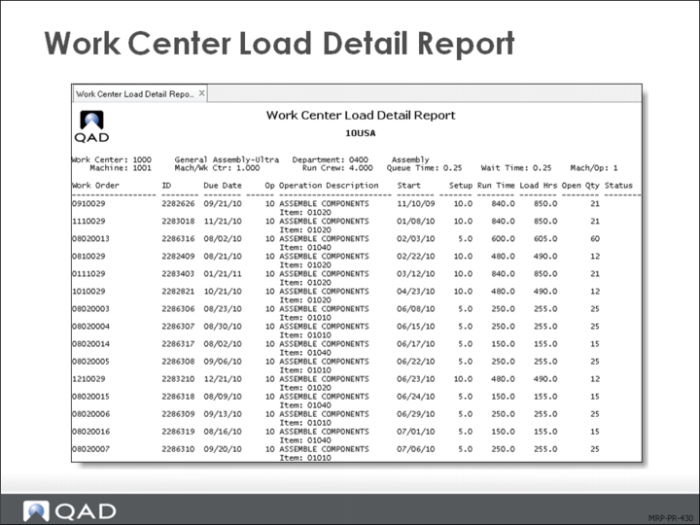
The work center load detail inquiry and report display the order detail associated with the load shown in the summary inquiry. If the summary inquiry indicates that there is no problem, the planner is finished. If the summary, however, indicates an overloaded condition, the next step is to look at the load detail inquiry to see which orders and which operations are causing the overload.
The planner can then decide which orders (or operations) to reschedule or move to a different work center.
Department Load Summary Inquiry and Report
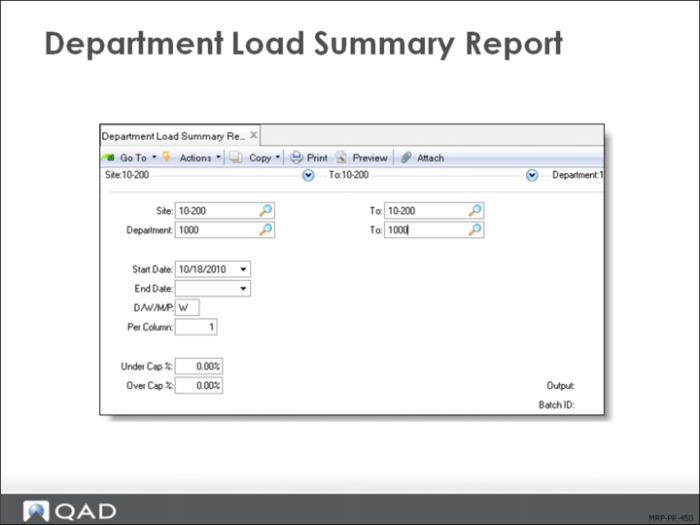
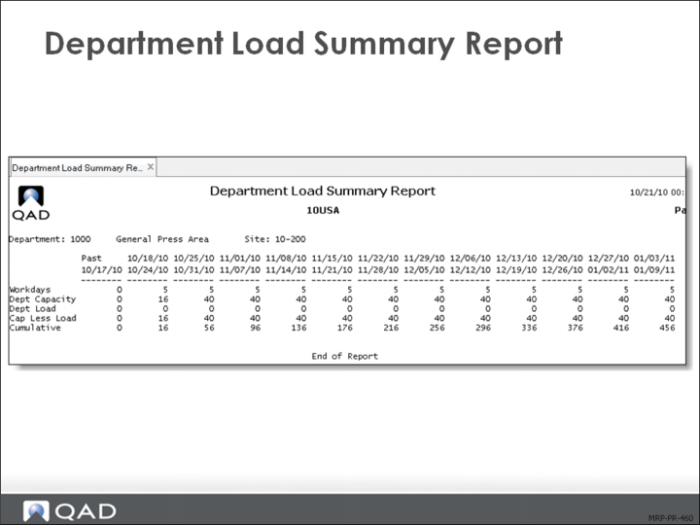
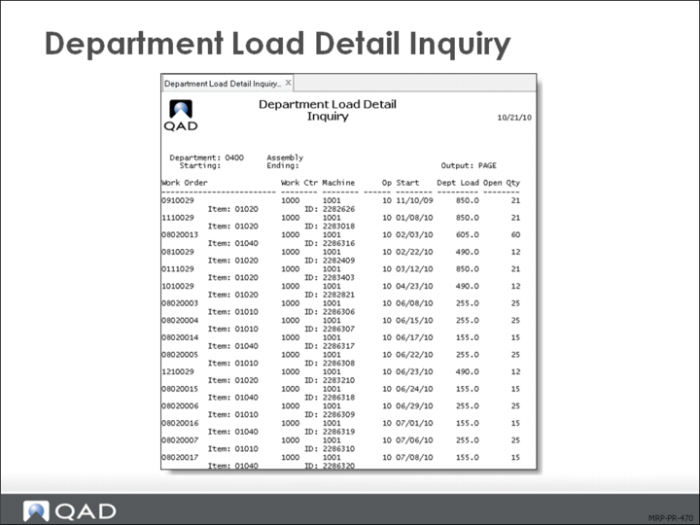
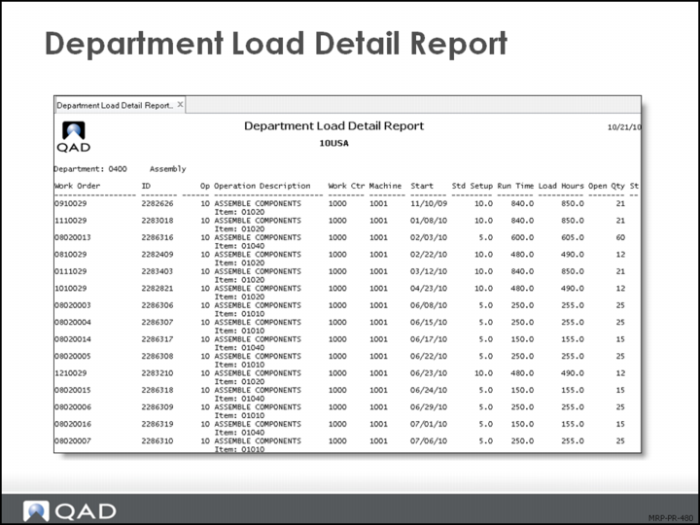
The department inquires and reports work the same as the work center inquires and reports except they are summarized for all work center/machines in the department. The value of these reports and inquires depends on how you have set up your department/work center relationships.
Where work centers and machines in a department are relatively similar and it is possible to share between them, a department level overview gives a good indication things are OK.
In the case where work centers and machines are different, the high-level overview could be meaningless. In this situation, one work center could be overloaded and another underloaded, but the department view makes the situation look manageable. Yet because the work centers are so different, you cannot shift work from one center to the other to adjust the load.
Department Load Detail Inquiry and Report
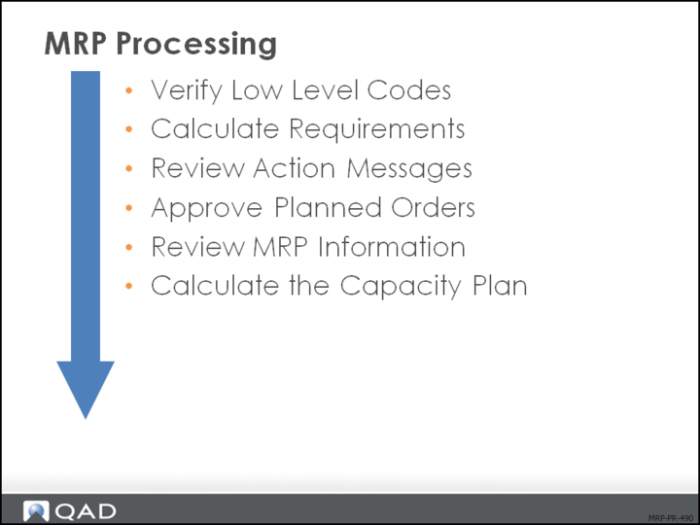
MRP/CRP Processing Summary
Processing Exercises
The data used in the following exercises is not always the same as the data shown in the screen captures in this lesson.
Note: If you use Standard Edition, complete the exercises in the EE environment. The concepts are the same in both environments. The data referenced in the following exercises is not found in the SE training database.
Exercise: Component Requirement Calculations
In this exercise, you describe the determination of gross requirements (product structure explosion) and the subsequent determination of net requirements.
Instruction
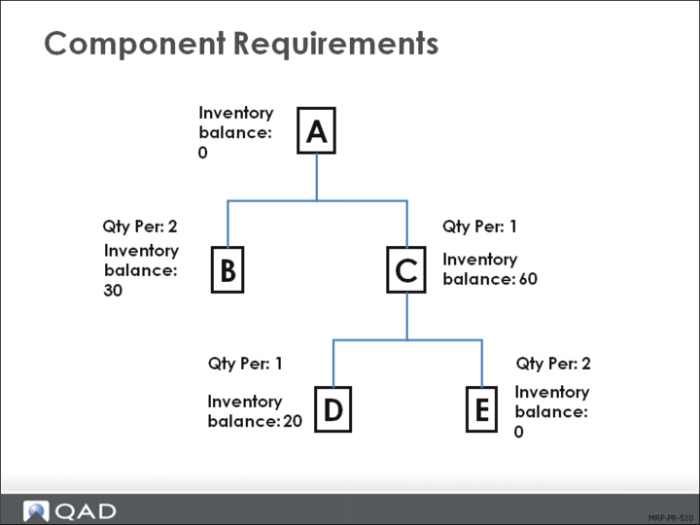
Using the product structure shown here, determine the net requirements for items B, C, D, and E to make 100 of Item A.
Note: There are no item As or Es in inventory, but there are on-hand inventory balances of 30 Bs, 60 Cs and 20 Ds.
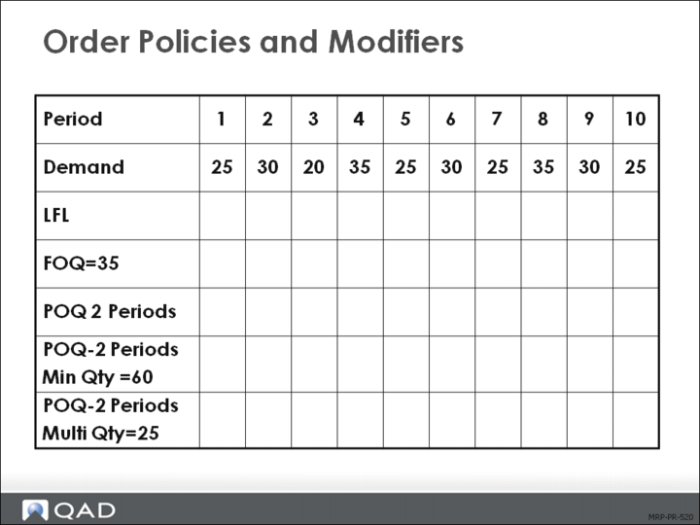
Exercise: Order Policies and Modifiers
This exercise tests your knowledge of order policies and modifiers.
Instruction
Using this table, determine in which periods orders are required and for what quantities. Assume that there is no on-hand inventory.
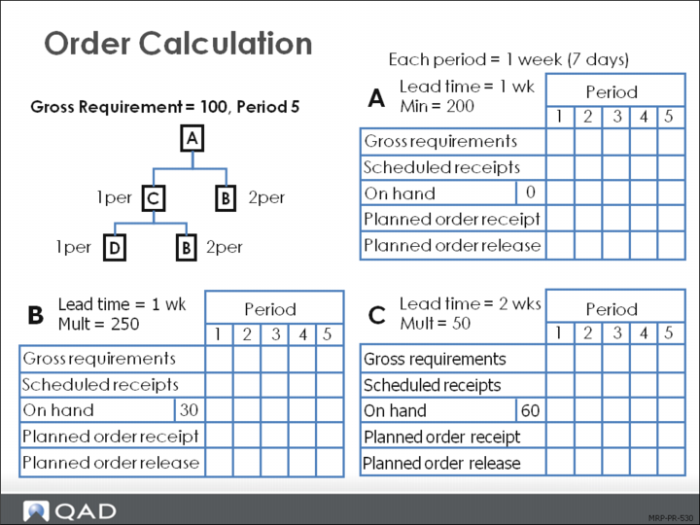
Exercise: Order Calculation (1 of 2)
Instruction
This exercise tests your knowledge of order policies and modifiers. Using this table, determine in which periods orders are required and for what quantities. Assume that there is no on-hand inventory.
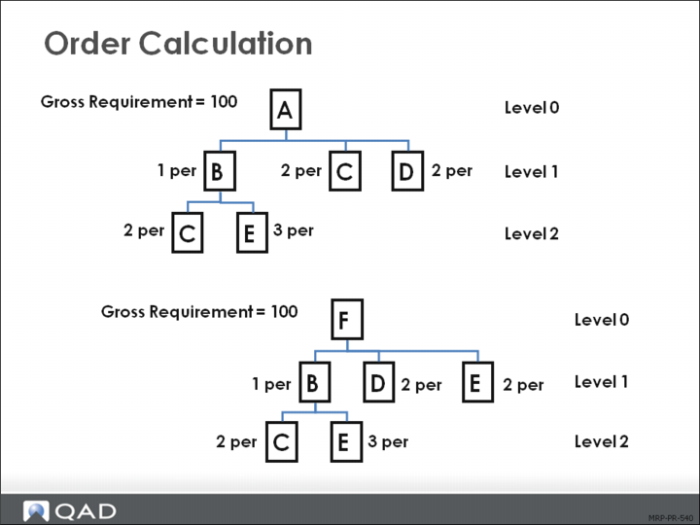
Exercise: Order Calculation 2 of 2
Instruction
Using the product structures shown, determine the required quantities of:
Item:
B =
C =
D =
E =
Exercise: Running MRP
In this exercise, you:
• Review the product structure of an item
• Review the item planning data
• Create a forecast for that item
• Review MRP Control
• Run MRP
• Review and act on the results
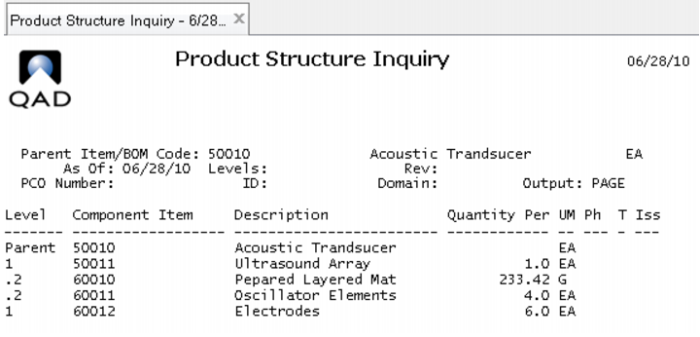
1 Use Product Structure Inquiry (13.6) to review the product structure for item 50010. This is what a proper structure looks like:
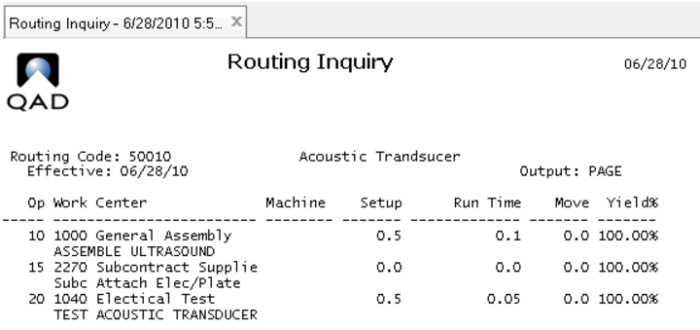
2 Use Routing Inquiry (14.13.3) to review the routing for item 50010. This is what a proper route looks like:
3 Use Item Planning Maintenance (1.4.7) to review item planning data for item 50010. Verify the following information:
Field | Data |
Order Policy | POQ |
Order qty | 0 |
Mfg LT | 4 |
4 Use Item Planning Maintenance (1.4.7) to review item planning data for item 50011, 60010, 60011, and 60012.
Note: Item 60012 has order policy FOQ with a quantity of 1,000 and a yield of 100%
5 Use Forecast Maintenance (22.1) to enter a forecast, starting next week for the following three weeks for item 50010 at site 10-100:
Field | Data |
Item | 50010 |
Site | 10-100 |
Next Week | 1000 |
Week + 1 | 1250 |
Week + 2 | 1500 |
Week + 3 | 1750 |
6 In MRP Control (23.24), set MRP horizon to 60 days and set Order Release Horizon to 7 days.
7 Use Regenerate Materials Plan (23.2) to run MRP at site 10-100. Set Output to mrp.
8 Use Master Schedule Summary Inquiry (22.18) to review items 50010, 50011, 60010, 60011, and 60012.
9 Use MRP Detail Inquiry (23.16) to review each of these items. The program displays pegging information, such as the scrap requirements, seasonal builds, forecasts, and product structure requirements
10 Use Action Message Browse (23.6) to examine the action message details for these items.
Exercise: Calculating Work Center Load
This exercise is intended to help you learn how to calculate work center load and compare it to capacity.
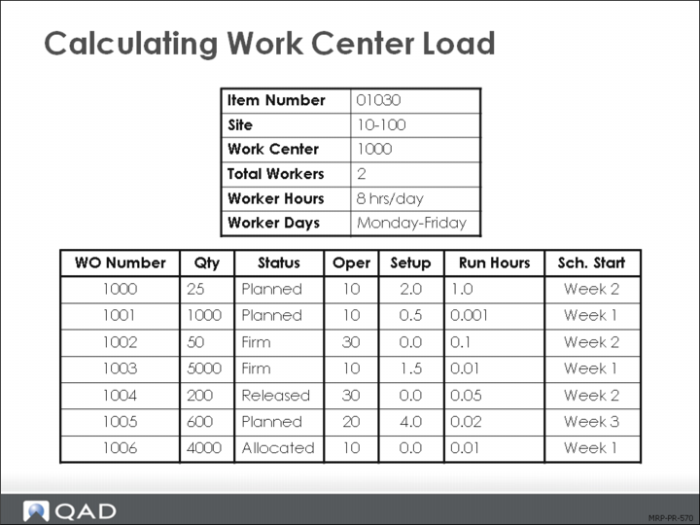
Use item number 01030 at site 10-100, work center 1000. There are 2 workers, working 8 hours a day, Monday through Friday, for a combined total of 80 hours a week. Use the data in the graph to calculate your answers.
1 Determine the total run time and the total load for each work order.
WO Number | Total Run Time | Setup Time | Total Load |
1000 | | 2 | |
1001 | | .5 | |
1002 | | 0 | |
1003 | | 1.5 | |
1004 | | 0 | |
1005 | | 4 | |
1006 | | 0 | |
2 Determine the cumulative load for weeks 1 through 3
| Week 1 | Week 2 | Week 3 |
Load | 93 | 42 | 124 |
Capacity | 80 | 80 | 80 |
Over/Under Capacity | -13 | 38 | -44 |
Cumulative Load | | | |
3 What might be deduced from these results? What should be done?
4 Two hours of overtime for each worker is added per day. How does this situation affect the cumulative load calculations?
| Week 1 | Week 2 | Week 3 |
Load | 93 | 42 | 124 |
Capacity | 80 + (2 x 5 x 2) = 100 | 100 | 100 |
Over/Under Capacity | | | |
Cumulative | | | |
5 What would be a more optimal solution to this resource problem?
Exercise: Recalculating the Capacity Plan
In this exercise, you recalculate the capacity plan and then review the changes in the work center resulting from the recalculation
1 Run Recalculate Capacity Plan (24.1) using the following information:
Site: | 10-100 | | To: 10-100 |
Item Number: | 50010 | | To: 50010 |
Accept the defaults for all remaining fields.
Note: You would not usually recalculate the capacity plan based on a range of items. The capacity plan is usually run for a site, a work center, or some range of sites and work centers. We are specifying the item number so that we can narrow the scope of data that goes into this calculation.
2 Review the Work Center Load Summary Inquiry (24.13) for work center 1000 at site 10-100. Use today as the start date.
a How is the work center capacity calculated?
b How is the work center load determined?
c Why is the Cumulative row so important?
3 Use Work Center Load Detail Inquiry (24.16) to review the work center load detail for work center 1000.
4 Can you tie these work orders to the work center load from Work Center Load Summary Inquiry (24.13)?
5 What can you do to rebalance the load at this work center? Spend some time balancing the work center.
Exercise: Approving MRP Suggestions
1 Use Planned Work Order Approval (23.10) to approve work orders for item 50010 requiring release before the end of this week.
2 Use Planned Purchase Order Approval (23.11) to approve purchases for the components associated with item 50010 requiring release before the end of this week.
3 Go to Work Order Browse (16.2) to see if status of the planned order changed from P (Planned) to F (Firm Planned) when you approved the Planned Work Order.
The work orders you approved now have a status of F (Firm). The work orders you did not approve still have a status of P (Planned).
4 Go to Purchase Requisition Browse (5.1.5) to see the Purchase Requisitions that were created when the planned purchase orders were approved. These requisitions would then be used to create purchase orders for these items.