Business Considerations
Depending on the number resources, shifts and items you schedule, the PSW UI may become difficult to use/manage due to the additional overhead of the shift structure displayed.
If you are not measuring performance to shift, then it may not make sense to take this approach.
If you are not scheduling by shift today, would suggest to not start using these feature immediately.
PSW Shift Structure
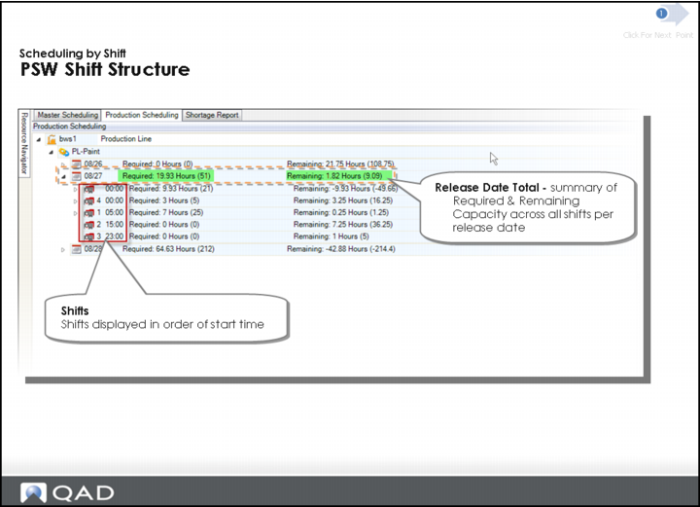
What is the row with the blank shift 00:00 and what is the meaning of it?
Orders are not assigned to a specific shift yet when they have a blank shift of 00:00. These orders are typically created by the system.
Why is shift 4 prior to shift 1 in the display above?
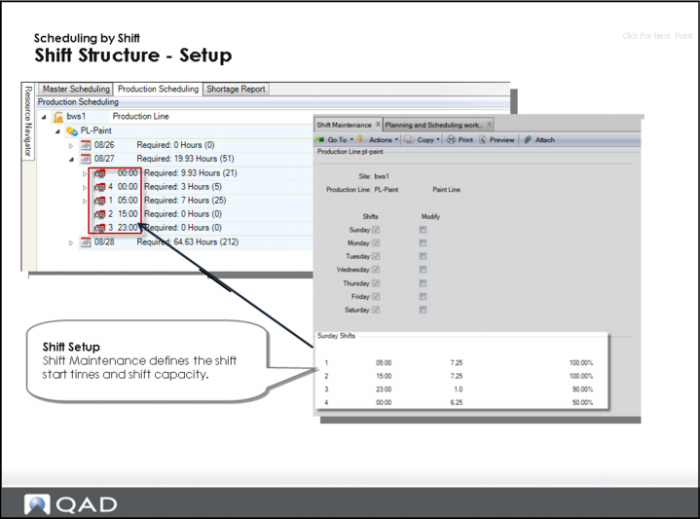
The key to the order is in Production Line Shift Maintenance. You can see shift IDs, not shifts, in Production Line Maintenance. The shifts display in the Sequence Grid by the shift start time as depicted in Production Line Shift Maintenance.
Shift Structure Setup
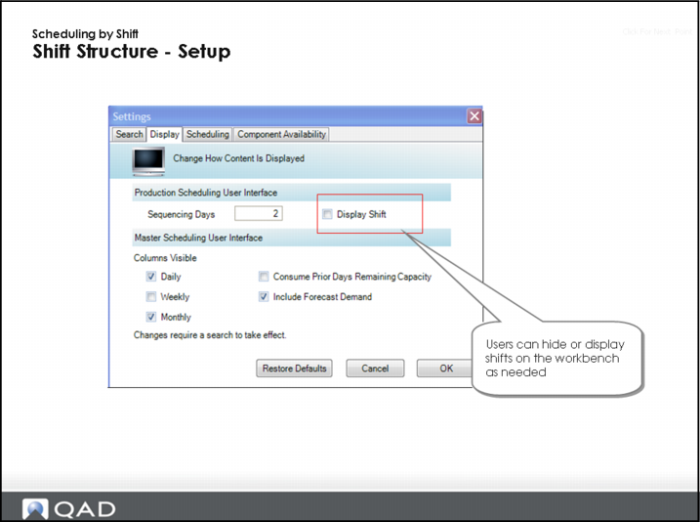
Shift Structure Setup (Continued)
You must set up the PSW to display shifts by setting the Display Shifts field under the Production Scheduling UI heading in the Display tab of User Preferences. Once you set the field, you must run the Search.
Questions: Are there benefits to defining capacity by shift even if you don’t schedule by shift? What would expect to be the impact of assigning a production order to a shift where the productivity is less than 100%?
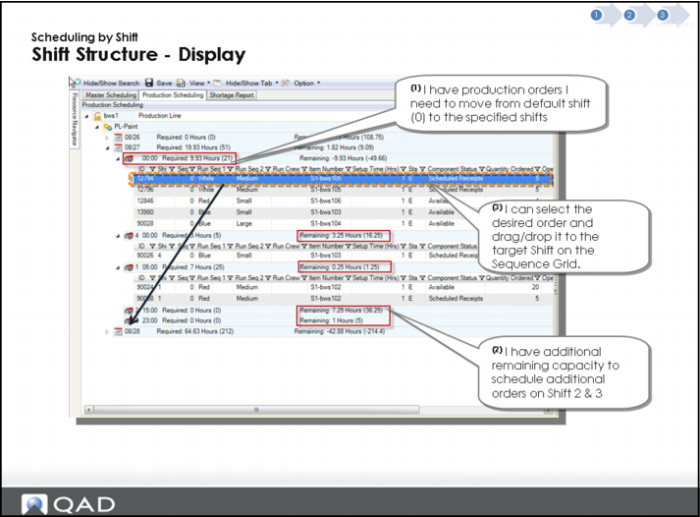
Shift Structure Display
Questions: What if I did not assign all production orders to a shift? How could this be interpreted? Is there a negative impact?
Hands-On Lesson Section
Exercise 2: Scheduling Orders within a Release Date and Shift
In the following exercises, you learn how to use the PSW for scheduling orders within a release date and shift.
Important: Do NOT save scheduling changes from prior lessons. Ensure your training data was refreshed for today. The following is not dependent on any prior lesson.
Retrieve your Scheduling Data
1 In the Search Panel, enter selection criteria Site equals 10-202.
2 Enter Resource equals PLATE-01.
3 Click Search.
You may be prompted to save changes.
4 Important: Do NOT save changes from prior lessons.
5 Minimize the Search Panel.
6 In the Navigator Panel, click on production line PLATE-01.
Review the PSW at the Shift Level
A production schedule has already been partially created at the shift level. Review the production progress to date against this schedule.
1 In the Sequence Grid, review the production orders which are scheduled for <yesterday>.
The system displays several production orders past due.
• Question: Can you determine for which shifts the orders were due to be completed?
• The default configuration of the application is to not display shift detail, let's enable shift detail in the display.
2 Select Toolbar Options, Preferences, then Display.
3 Under Production Scheduling, select Display Shift.
There is no immediate impact until you run a new search.
4 In the Search Panel, run the search.
The PSW now displays shift details.
5 Review results on Sequence Grid.
Notice that the release date of yesterday has production orders that are not yet completed on all shifts. This can mean that orders are complete, but production has not been reported yet, or that production is behind schedule.
Assign Production Orders for a Given Release Date to a Specific Shift
In prior steps, you created a master production schedule that may have spanned several days, weeks, or months. To prepare the production schedule for today's production, you want to define what each shift should produce. To do this, you assign the production orders for a given release date to a specific shift. You use the Production Sequence Grid to drag and drop the orders to the designated shift.
1 In the Sequence Grid, expand the Release Date to <today>.
Several production order records display.
• Notice that the orders are not assigned to any shift.
2 Select (with mouse) order 90040 and drag and drop it on top of Shift 4.
Order 90040 is assigned to shift 4.
• Question: What is the impact to the required and remaining capacity of Shift 4?
• If you do not know what the prior values are undo the transaction by dragging and dropping the order back to Shift 0 and move the order back to Shift 1.
3 For order 90049, select Shift ID 1 (one) and tab out of field.
This steps demonstrates the ability to assign an order to a shift without drag and drop.
4 Select (with mouse) order 90055, and drag and drop it on order 90045 on Shift 2.
The system assigns Order 90055 to Shift ID 2 and Sequence 2.
• Question: Why did we assign order 90055 to Shift 2?
• Hint: Notice the Run Seq 1 field values for both orders.
Important: Do not save your changes.
Learn how Assigning an Order to Different Shifts can Impact Required Capacity
You are now ready to learn how assigning an order to different shifts can impact the required capacity (run time of the order),
What is the reason shifts would have different productivity? Starting from a baseline of 100%, you may need to factor breaks, labor skill, a reduced labor force, preventive maintenance, and so on.
Important: For the following exercises, do not save your scheduling changes from prior lessons. Ensure your training data was refreshed today. The exercises are not dependent on any prior exercises.
Retrieve data by:
1 In the Search Panel, enter selection criteria Site equals 10-202.
2 Enter Resource equals PLATE-01.
3 Click Search.
You may be prompted to save.
4 Important: Do not save.
5 Minimize the Search Panel.
6 In the Navigator Panel, click on Production Line PLATE-01, then look at the release date for <today>.
Shift 0 has 85% resource productivity, Shift 1 and Shift 2 have 100% resource productivity, Shift 3 has 90% productivity, and Shift 4 has 50% productivity. You set these percentages in Shift Maintenance in QAD EA. You must continue and assign a production order to all four shift IDs and review the impact to the required capacity.
1 In the Sequence Grid, expand the Release Date of <tomorrow> and close all production orders except order 90041.
The required capacity should now show 3.35 hours,
• Hint: To close the orders, just change the order status to C in the Production Order Browse Status column.
Note: For the 2010 release, the required capacity displays as 6.3 hours. A system defect.
2 Review the production order details for order 90041 and review the order details for the order run time and required capacity.
The run time (hours) = 2.35.
• Question: how is the run time determined for this order?
• Hint: Order run rate * weighted resource productivity for a given release date.
3 Move order 90041 to Shift ID 1.
The system now displays the required capacity as 3 hours.
• Question: What is the run time?
4 In Production Order Details, review order 90041 and review the order run time and required capacity.
The run time (hours) = 2.
• Question: When you assign an order to a specific shift, it uses the resource productivity defined for the shift. For Shift 1, what is the resource productivity?
5 Move the order 90041 to Shift ID 4.
The required capacity should now display as 5 hours.
6 Review the production order details of order 90041 and review the run time and required capacity.
The run time (hours) = 4.
• Question: When you assign an order to a specific shift, it uses the resource productivity defined for the shift. For Shift 4, what is the resource productivity?
Questions
1 True or False. You can only change an order’s release date by dragging and dropping.
2 What happens to shift numbers in the PSW when you drag and drop an order?
3 True or False. You can configure the PSW display to show sequenced orders, but not un-sequenced orders.
4 Shifts are displayed in the order of what?
5 You have remaining capacity showing on the PSW. What can you do with it?
Answers
1 False. You can enter a new release date using the pull-down calendar in Production Order Maintenance within PSW.
2 Shift numbers are automatically assigned if an order is dropped on a particular shift.
3 False. You can display both sequenced and unsequenced orders by configuring the display.
4 Shifts display in the order of their start time.
5 You can schedule additional orders for shifts with the remaining capacity.
Scheduling by Multi-Resource Section
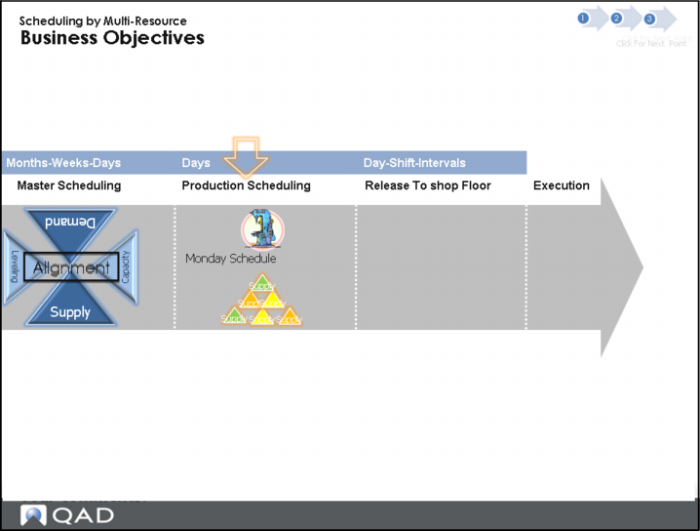
Business Objectives